
Creating a purchase
Manually adding purchases to stock
Introduction: What is manually adding a purchase?
Manually adding a purchase means you put a product in the system yourself that you have bought or already have in stock. You do this when the product doesn't come in automatically via EKT, VMP or an API.
Why manually add purchases?
You use this when:
- A purchase doesn't automatically come into the system
- You have old stock from before you started with Easyflor
- You bought a product that didn't come in through the normal way
- You want to correct stock
How do you manually add a purchase?
Step 1: Go to the purchase menu
- Go to "Purchasing"
- Open "(Purchased) Purchases"
- Click on "Purchases"
- Click on "+ VBN"
Step 2: Search for VBN number
- Look up the VBN number of the item you want to create
- Select the number
- Don't know the VBN number, or is it a general item?
- Use 1999 for items with low VAT
- Use 2001 for items with high VAT
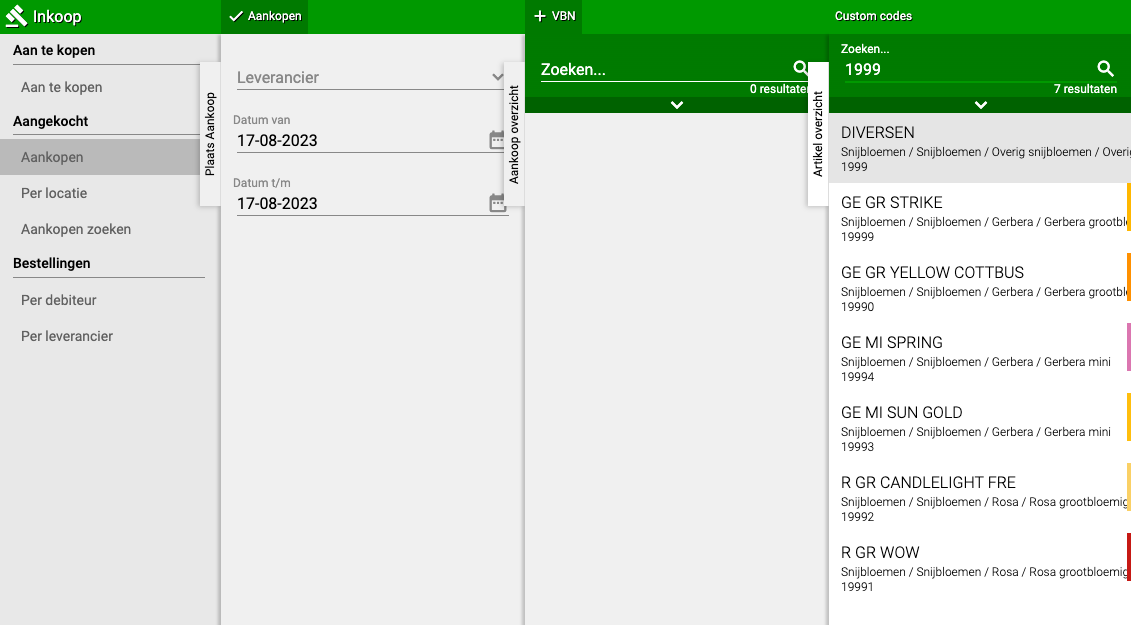
Step 3: Check if the item already exists
Now you have three possibilities:
Possibility A: The item already exists in the right size
- Choose the existing item
- Continue to step 6
Possibility B: The item exists, but not in the right size
- Continue to step 4 to create a new variant
Possibility C: The item doesn't exist yet (the list is empty)
- Continue to step 4 to create a new item
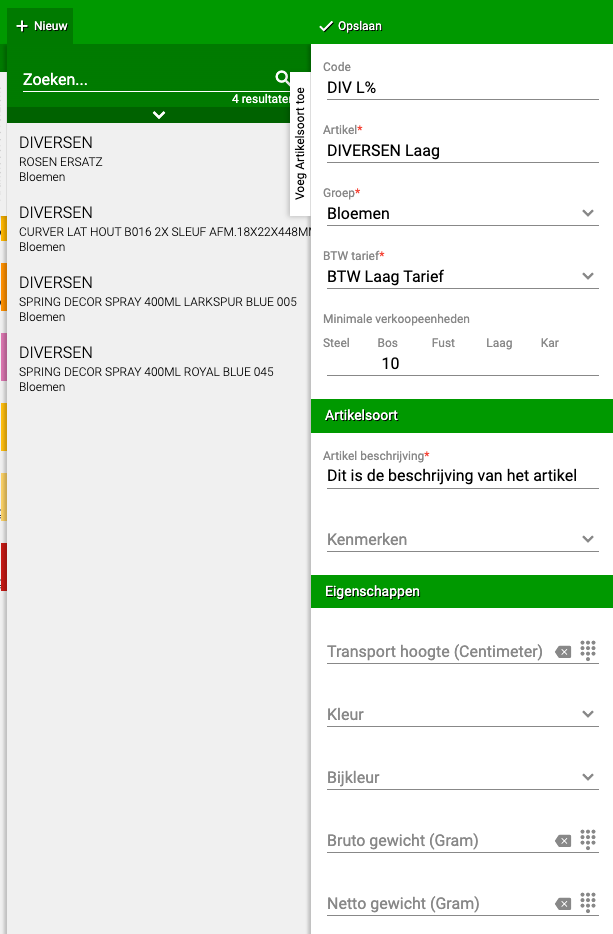
Step 4: Creating a new item
- Click on "+New"
- Fill in the following:
- Code: A code for the item
- Article: The name of the product
- Group: Change this if necessary (e.g., from "plants" to "flowers")
- VAT rate: Low or high VAT
- Article description: Here you describe the size of the product
Step 5: Examples for article description
For length only:
- Fill in: 50cm (if the product is 50 centimeters long)
For length and pot size:
- Fill in: 50cm, pot 20cm (if the product is 50cm long and has a 20cm pot)
Transport height:
- Fill in the total length of the product (this is important for transport)
Click "Save"
Step 6: Fill in purchase details
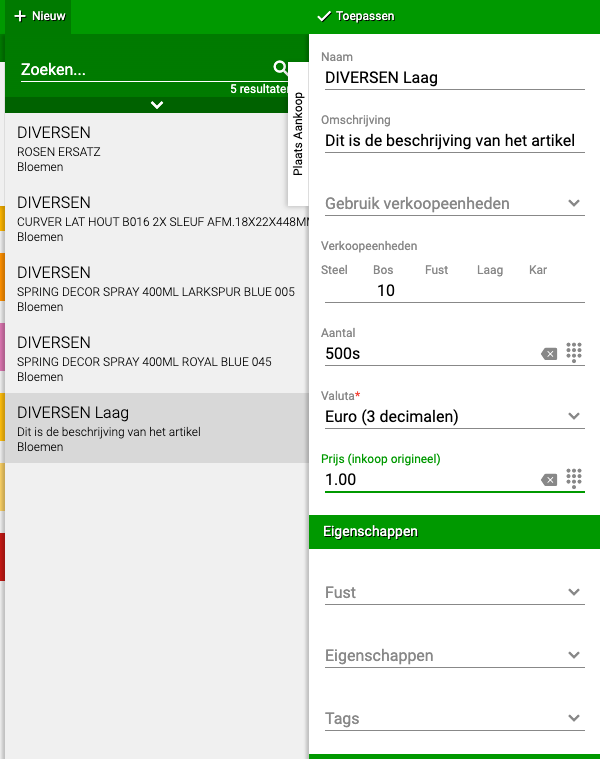
- Click on the item you just created (or that already existed)
- Fill in the sales units (e.g., per piece, per bunch, per box)
- Fill in the quantity you want to add to your stock
- Fill in the price (purchase original) (what you paid for it)
- Fill in the price with the purchase price
- Fill in the container if needed (these are boxes, crates or pallets)
- Fill in the location where the product is (or should be)
- Optionally add an image of the product
- Click on "Apply"
- Done! The purchase is now added to your stock
Extra information: The "To be purchased" menu
In the menu "(To be purchased) To be purchased" you find all items that have been entered as orders via the "Orders" menu. This menu is only meant to give an overview of what you still need to order or purchase.
Do you have questions or need help? Feel free to contact us by phone at +31 (0)71 30 20 310 or send an email to support@easyflor.nl.