
Correcting a purchase
Correcting purchases
Introduction: What is correcting a purchase?
Correcting a purchase means adjusting the quantity of a purchased product if a mistake has been made. For example: you entered that you purchased 100 roses, but it's actually 80. Then you adjust the quantity to 80.
Why correct purchases?
You need to correct purchases because:
- Otherwise your stock won't match reality
- You'd think you have too many or too few products
- It's important that the administration is correct
- Otherwise you'd promise products to customers you don't have (or vice versa)
- Your purchase invoices wouldn't match your stock
Important advice: We recommend always processing purchases correctly instead of deleting or adjusting them afterwards. Try to prevent mistakes by working carefully when entering purchases.
How do you correct a purchase?
Step 1: Go to the per purchase overview
Open distribution
- Go to the "Distribution" tile
- Check that the date is correct (this is very important!)
- Set the date to the day on which the purchase was made
- If the date is wrong, you'll see the wrong products
- Click on "Per purchase"
- You now see a list of all products you have purchased
Step 2: Find the wrong article
Find article
- Look in the list for the article that is incorrect
- This could be an article with:
- Too many pieces entered (for example 100 instead of 80)
- Too few pieces entered (for example 50 instead of 70)
- Wrong price
- Other mistake
Select article
- Click on the article you want to adjust
- The article is now selected
Step 3: Modify the article
Open edit menu
- Click on "Edit"
- You now see a screen with all details of this article
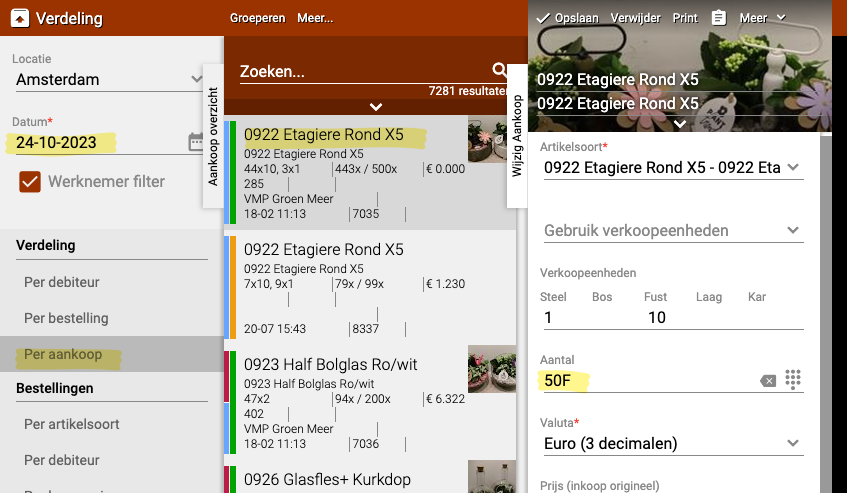
What can you adjust? You can change various things:
- Quantity: The number of pieces you purchased
- Price: The purchase price per piece
- Name: The name of the product (if it's wrong)
- Other details: Such as pot size, length, etc.
Adjust quantity
- Find the quantity field
- Remove the old quantity
- Type in the new, correct quantity
- Example: You entered 100 but it's actually 80
- Change "100" to "80"
Adjust other details (optional) If more is incorrect, you can also adjust other fields. For example:
- The price was 1.00 euro but should be 1.20 euro
- The name was misspelled
- The pot size was 12cm but should be 14cm
Step 4: Save
Save changes
- Check that all changes are correct
- Click on "Save"
- The article is now adjusted in stock
What happens now?
- The old data is replaced by the new data
- Your stock is automatically updated
- The system now knows you have the correct quantity
Practical examples
Example 1: Too many entered
- Situation: You entered that you purchased 100 roses, but it's 80
- Action:
- Go to Distribution → Per purchase
- Find the roses in the list
- Click on Edit
- Change "100" to "80"
- Click on Save
- Result: Your stock is correct again, you have 80 roses
Example 2: Too few entered
- Situation: You entered 50 tulips, but you actually received 70
- Action:
- Find the tulips
- Change the quantity from 50 to 70
- Save
- Result: You now have 20 more tulips in stock, which matches reality
Example 3: Wrong price
- Situation: You entered the price as 1.00 euro, but it's actually 1.20 euro
- Action:
- Find the product
- Click on Edit
- Adjust the price from 1.00 to 1.20
- Save
- Result: The purchase price is correct, your administration is accurate
Example 4: Wrong date
- Situation: You're looking for a purchase but can't find it
- Problem: The date is set incorrectly
- Solution:
- Set the date to the day of the purchase
- Now you'll see the product
- Adjust as needed
Important tips
Tip 1: Check the date first
- If you can't find a purchase, check the date
- Set the date to the day on which you purchased the product
- This is the most common reason people can't find a purchase
Tip 2: Prevent mistakes instead of correcting
- It's better to enter it correctly the first time
- Count products carefully before entering them
- Check the purchase invoice for the correct quantities and prices
- This way you have to correct less afterwards
Tip 3: Do it immediately
- If you discover a mistake, correct it right away
- The longer you wait, the more confusion it creates
- Products may already be sold in the meantime
Tip 4: Don't delete, but correct
- As stated in the guide: don't delete purchases
- Adjust the quantity to 0 if nothing was actually delivered
- Or correct to the right quantity
- This keeps your administration neat and traceable
Tip 5: Check the consequences
- If you lower a quantity: have any products already been sold?
- If you raise a quantity: do your physical stock and the system match now?
- Think about the impact before saving
Frequently asked questions
Question: Can I delete a purchase entirely?
- It's better not to do this
- Adjust the quantity to 0 if nothing was delivered
- This keeps your administration history intact
- Deleting can cause problems in your bookkeeping
Question: What if I've already sold products?
- You can still adjust the quantity
- But note: if you lower the quantity below the sold quantity, you'll get an error message
- Example: You entered 100, sold 60, and want to adjust to 50 → This isn't possible!
- You'd first need to adjust the distributions
Question: Can I change the price afterwards?
- Yes, you can
- But note: sold products keep their old price
- Only new sales get the new price
- This can be confusing for your profit margin
Question: I can't find the purchase, what now?
- Check whether the date is correct (most common problem)
- Check whether you're in the right location
- Search with filters (supplier, article name)
- The product may also already be completely sold
Question: How much can I adjust?
- You can increase or decrease the quantity
- But not lower than the quantity already sold
- You can also adjust the price, name and other details
- Almost everything can be corrected
What to do with problems?
Problem: Error message when saving
- Read the error message carefully
- Often it means you want to remove more than there is
- Check how much has already been sold
- Adjust the quantity to a realistic number
Problem: Product stays wrong
- Refresh the page (F5 or refresh button)
- Check whether you clicked Save
- Leave the screen and come back
- If it stays wrong: try again
Problem: Wrong product adjusted
- Set it back to the original quantity
- Find the correct product
- Then adjust that
- Be more careful with selecting from now on
Problem: Administration no longer matches
- If you've changed a lot, your stock may no longer match
- Do a stock check (balances)
- Count physically what's really there
- Adjust where necessary
When to adjust and when NOT to adjust?
DO adjust when:
- You accidentally entered the wrong quantity
- The supplier delivered less (or more) than agreed
- You discover a mistake immediately after entering
- The price on the invoice differs from what you entered
DON'T adjust when:
- Products are damaged (create an RMA instead)
- Products were stolen (use write-off or stock correction)
- You want to "quickly" fix something without thinking
- Products are mostly already sold (too risky)
Summary
You correct purchases when there's a mistake in the quantity or price of purchased products:
- Go to Distribution → check that the date is correct → Per purchase
- Find and select the article that is incorrect
- Click on Edit and adjust the quantity (or other details such as price)
- Click on Save to apply the changes
- Why important: Your stock must match reality, otherwise you'll sell products you don't have or vice versa
- Important advice: Prevent mistakes by working carefully when entering, don't correct too often afterwards
- Note: You can't lower the quantity below what's already been sold, and changes can affect your administration
Do you have questions or need help? Feel free to contact us by phone at +31 (0)71 30 20 310 or send an email to support@easyflor.nl.