
Creating carts/crates and barcodes
Within Easyflor there is the possibility to create carts and crates that can be provided with a barcode. This way you can trace which cart/crate you send to a customer.
Creating
The first step is creating a cart or crate. You do this under Articles → (Other) Carts → New. Enter the code, a shortened name, and the cart here. The rest is optional.
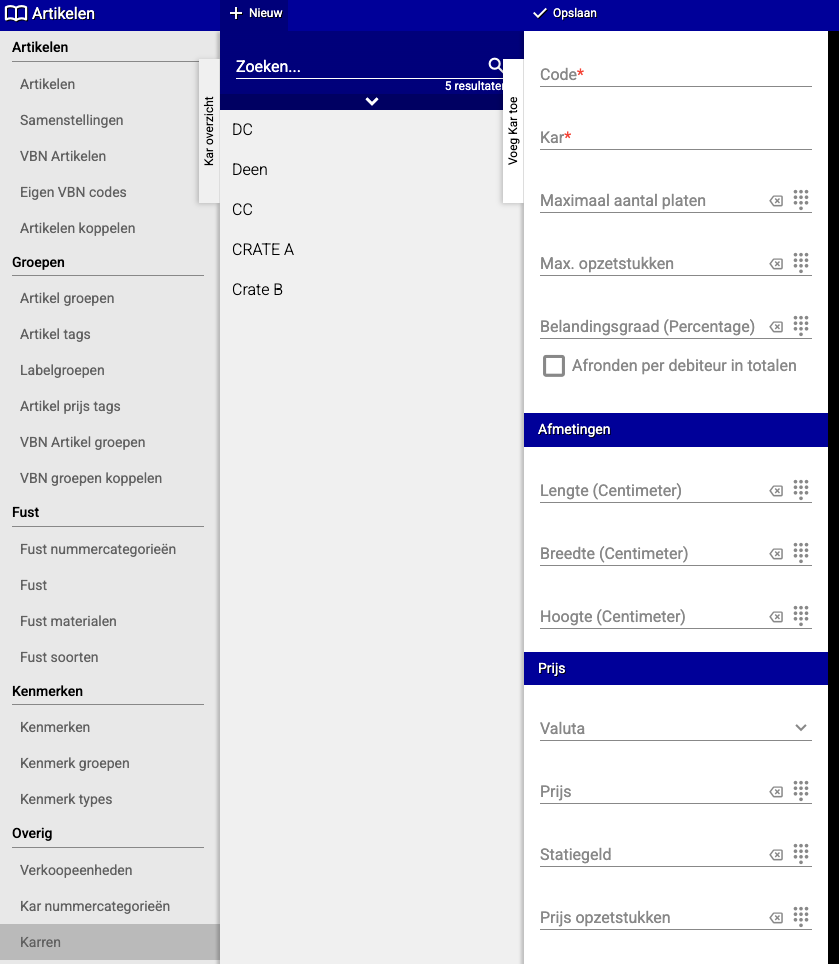 Then we create the barcode. You do this under Articles → (Other) Cart barcode → New. Choose the cart you want to link a barcode to and enter the barcode.

Usage
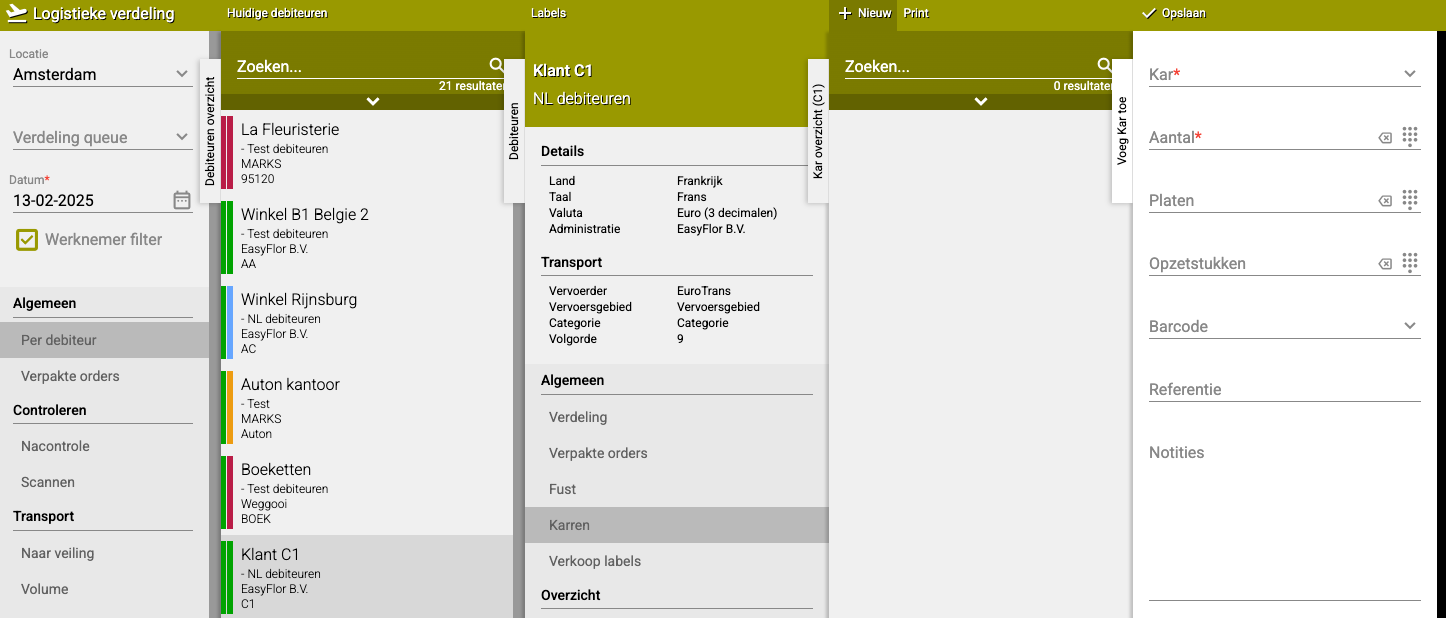
A cart/crate must be distributed to your customer. You do this in Logistics distribution → (General) Per debtor → [Debtor] → (General) Carts → Scanning can be done here, but if you don't have a scanner, you can also click on new here to add it manually.
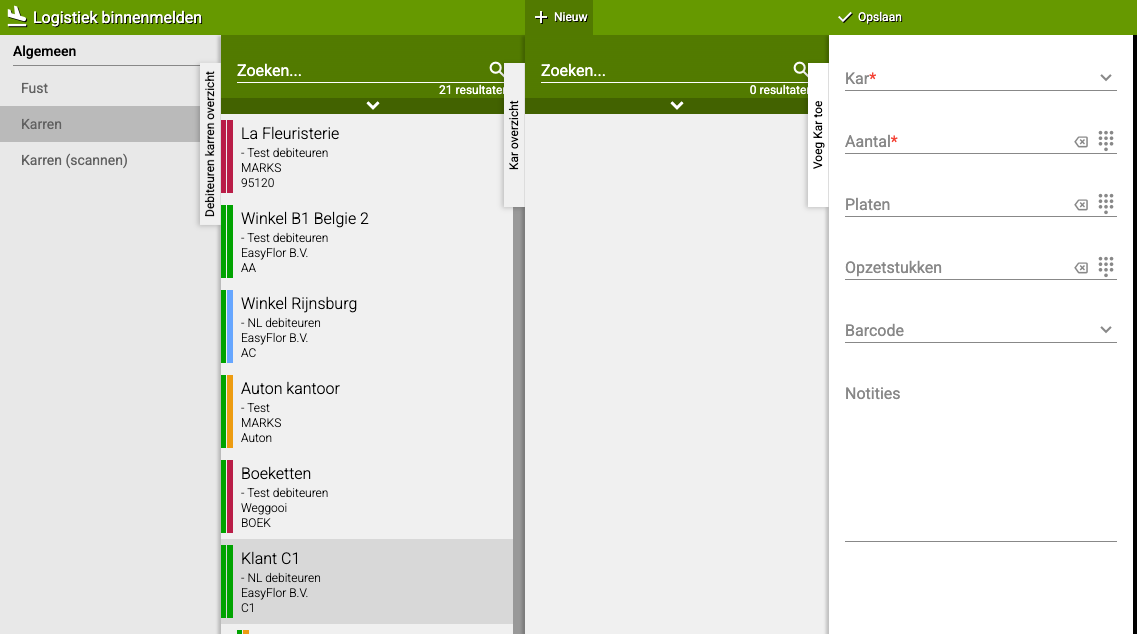
If you get a cart/crate back from your customer, this must also be registered. You do this in Logistics check-in → Carts (scan) → Again, scanning can be done here, but if you don't have a scanner, you can also click on new here to take it back manually.
Registration
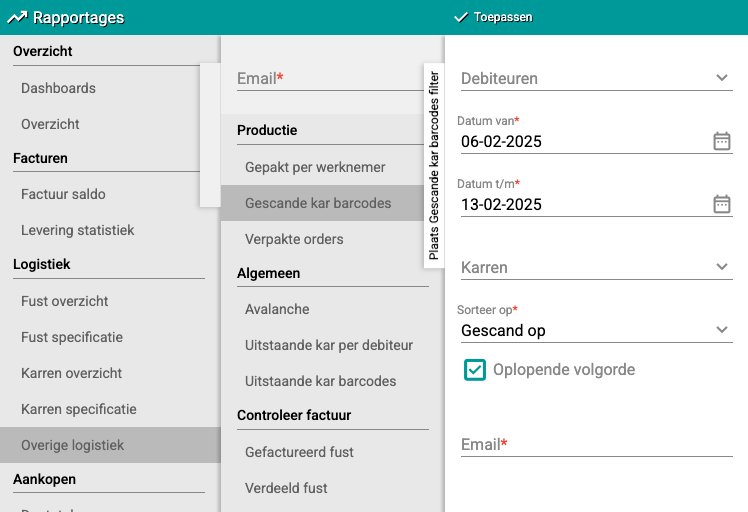
Easyflor keeps a registration at all times of the created carts/crates with barcodes. If you want to view this registration, go to: Reporting → (Logistics) Other logistics → Scanned cart barcodes.
Do you have questions or need help? Feel free to contact us by phone at +31 (0)71 30 20 310 or send an email to support@easyflor.nl.