
- Adding photos to articles
- Adjusting article names and sales units
- Automatically overwriting article names
- Charging trolleys
- Creating and organizing article groups
- Creating and using bouquets
- Creating and using label groups
- Creating sales barcodes
- Creating your own containers
- Importing FloraHolland container price list
- Using your own VBN codes
Using your own VBN codes
Creating your own VBN codes
Introduction: What are your own VBN codes?
Your own VBN codes are short abbreviations that you create yourself and can use instead of long official VBN numbers. For example: instead of the number "27157" for Red Naomi roses, you can create the code "RRN" yourself.
Why use your own VBN codes?
Your own VBN codes are useful when:
- You buy products from suppliers without EKT or VMP connection
- The supplier only sends you an Excel file with your order
- You don't want to look up long VBN numbers in the Floricode database each time
- You need to import many articles and want to save time
- You want to easily import articles via Excel
Example situation: You buy roses from a small grower. He sends you an Excel file with "Red Naomi 50cm". To get this into Easyflor, you normally need to look up VBN number 27157. If you buy 20 different products, this takes a lot of time. With your own VBN codes you can just use "RRN", and the system automatically knows these are Red Naomi roses.
How do you create your own VBN codes?
Step 1: Determine which codes you need
- Look at which products you often buy from suppliers without EKT/VMP
- Think of a short, easy-to-remember code for each product
- Examples:
- Red Naomi roses → RRN
- White roses → WR
- Yellow tulips → YT
Step 2: Look up the official VBN number
Before you can create your own code, you need to know the official VBN number:
- Go to the Floricode database in Easyflor
- Search for the product (e.g., "Red Naomi")
- Note the VBN article number (e.g., 27157)
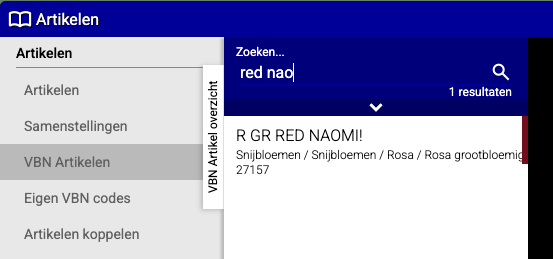
Step 3: Create your own VBN code
Now you'll create your own short code and link it to the official VBN number:
- Go to the menu for your own VBN codes (usually under "Articles" or "Settings")
- Click "New" to create a new code
- Fill in the following:
- Own code: Type your own short code (e.g., RRN)
- Name: Give a clear name for in the software (e.g., "Red Naomi Rose")
- VBN article: Choose the official VBN article you want to link this code to (in this case 27157)
- Article group: Choose which group this article should go in (e.g., "Roses")
- Hide: Check this if you want to hide the code (make inactive)
- Click "Save"
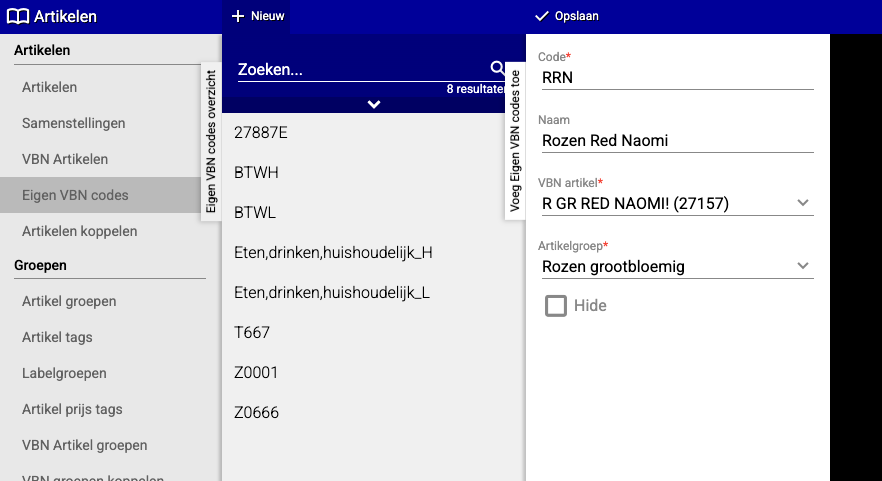
Explanation of the fields:
- RRN: This is your own created code (short and easy)
- Name: The name shown in the software
- VBN article: The official number your code refers to
- Article group: Which folder the product will be in
- Hide: To make the code invisible if you no longer use it
Step 4: Use your own code in Excel
- Open your Excel file from the supplier
- Instead of typing the long VBN number 27157, just type RRN
- When you import the Excel file into Easyflor, the system recognizes "RRN" and automatically knows these are Red Naomi roses
- Done! You've saved a lot of time
Practical example
Without your own VBN codes:
- You receive an Excel with 20 products from your supplier
- For each product you need to look up the VBN number in the database
- This might take you 30 minutes
With your own VBN codes:
- You create your own code once per product (you do this once)
- In your Excel you just type the short codes: RRN, WR, YT, etc.
- You import the Excel in a few minutes
- Next time you use the same codes again
Summary
Your own VBN codes are shortcuts you create yourself:
- You link a short code (like "RRN") to a long VBN number (like 27157)
- You use the short code in Excel files from suppliers
- The system automatically knows which article you mean
- You save a lot of time when importing products
Do you have questions or need help? Feel free to contact us by phone at +31 (0)71 30 20 310 or send an email to support@easyflor.nl.