
- Adding photos to articles
- Adjusting article names and sales units
- Automatically overwriting article names
- Charging trolleys
- Creating and organizing article groups
- Creating and using bouquets
- Creating and using label groups
- Creating sales barcodes
- Creating your own containers
- Importing FloraHolland container price list
- Using your own VBN codes
Creating and organizing article groups
Managing article groups
Introduction: What are article groups?
Article groups are folders where you can organize products. Just like you have subjects at school (math, language, gym), in Easyflor you have groups for products (roses, garden plants, houseplants). You can put products in these groups so they're easy to find.
Why use article groups?
With article groups you can:
- Organize products clearly in your system
- Determine how products are displayed on your webshop
- Find products more easily
- Apply markups (price increases) per group
- View statistics per product group
How do you manage article groups?
Situation 1: Creating a new article group
Sometimes you want to put products in a different group than where they are by default. For example: bamboo plants are normally in "houseplants", but you want to put them in "garden plants".
Step 1: Create the new article group
- Go to the "Articles" tile
- Click on the "Article groups" button
- You now see an overview of all groups already in Easyflor
- Click on "+New"
Step 2: Fill in the group
- Fill in the following:
- Article group: Type the name of your new group (e.g., "Bamboo")
- Parent group: Choose under which main group this group should fall (e.g., "Garden plants")
- Statistics groups: Choose the statistics group that should apply to these articles
- Note: You can already link VBN groups if you know them by heart, but most people don't. That's why we'll do this later
- Click "Save"
Step 3: Find out which VBN group the products fall under
- Click on "Articles"
- Type the name of a product that should go in your new group (e.g., "Bambusa Aurea")
- You now see the VBN code of this product
- Write down this code (or remember it)
Step 4: Find the VBN group
- Click on the "VBN Articles" button
- Enter the VBN code you just wrote down
- The VBN article now appears
- Here you see which VBN group this product falls under (e.g., "Phyllostachys")
- Remember this VBN group name
Step 5: Link the VBN group to your article group
- Go back to "Article groups"
- Find the article group you created in step 2 (e.g., "Bamboo")
- Click on it
- Click on "Linked VBN groups"
- Type the VBN group you found in step 4 (e.g., "Phyllostachys")
- Select it
- Are there more VBN groups that belong to your article group? Add them all
- Click "Save"
Step 6: Automatically move all articles Now we'll make sure all products automatically end up in the right group:
- Click on "Articles"
- Click on "Control"
- Select "Move articles to default article group"
- All articles under VBN group "Phyllostachys" are now automatically placed under group "Bamboo"
- Done!
Situation 2: Moving incorrectly organized articles in bulk
Sometimes many products are in the wrong group. You can then move them all at once to the right group.
Step 1: Go to the control menu
- Go to "Articles"
- Click on "(Articles) Articles"
- Click on "Control"
- Click on "Move articles to other group"
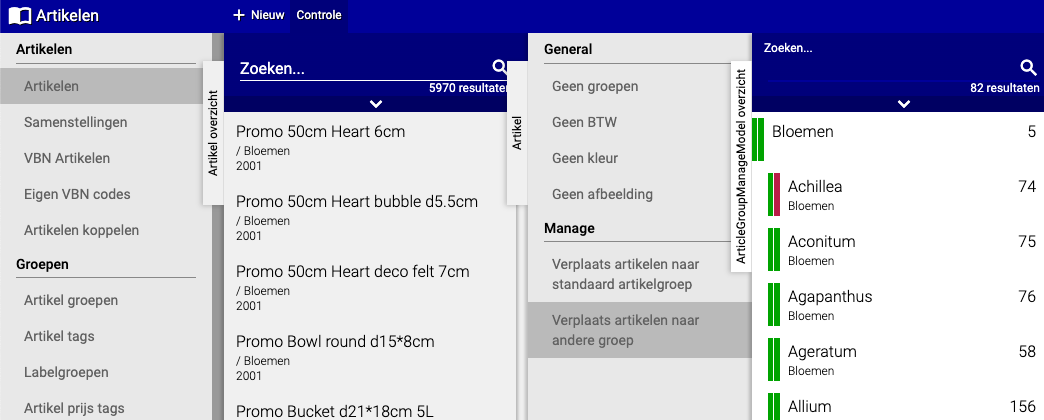
Step 2: Find the wrong products
- Choose the group where the articles are NOW (the wrong group)
- Search by VBN number of the products
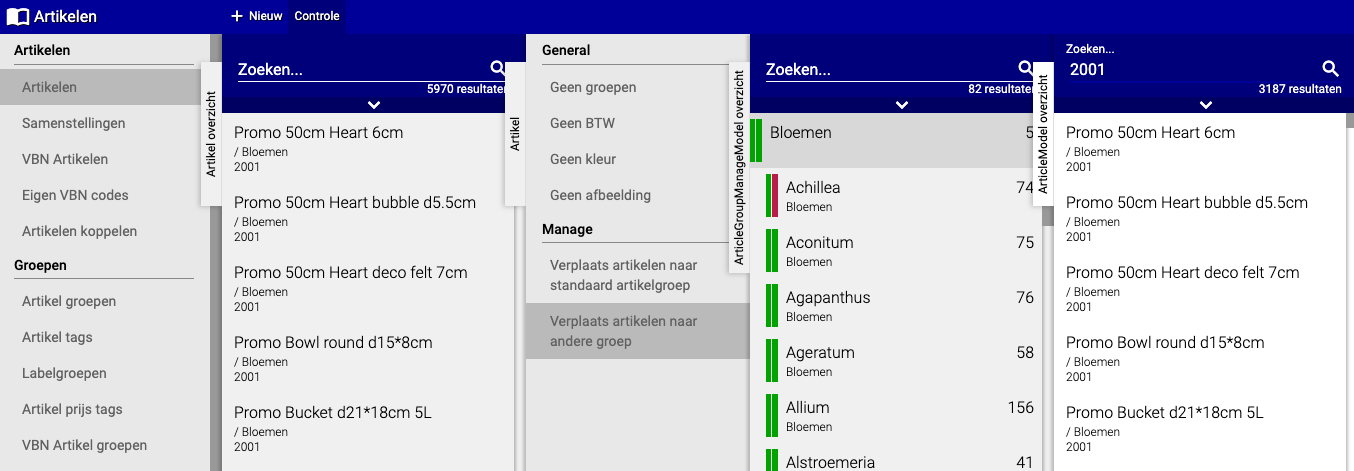
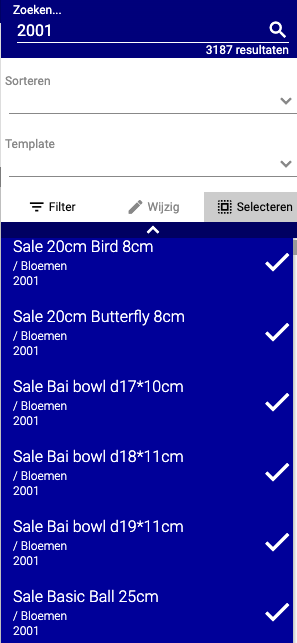
Step 3: Select products
- You now see all products that are incorrectly organized
- Check the products you want to move (or select all)
Step 4: Move to the new group
- Choose the article group where the products should GO TO (the correct group)
- Click "Move" or "Save"
- All selected products are now in the correct group
- Done!
Summary
Article groups help you to:
- Logically organize products in folders
- Keep the webshop organized
- Manage prices and markups per group
- Find products easily
Do you have questions or need help? Feel free to contact us by phone at +31 (0)71 30 20 310 or send an email to support@easyflor.nl.