
- Adding photos to articles
- Adjusting article names and sales units
- Automatically overwriting article names
- Charging trolleys
- Creating and organizing article groups
- Creating and using bouquets
- Creating and using label groups
- Creating sales barcodes
- Creating your own containers
- Importing FloraHolland container price list
- Using your own VBN codes
Automatically overwriting article names
Adjusting VBN article names
Introduction: What is adjusting VBN article names?
Sometimes you want to change the name of a product that comes in from VBN (Dutch Flower Auctions Association). For example: you ordered 8 different types of roses, but in your webshop you want to show them all as "Mixed roses" instead of each type separately.
Why adjust VBN article names?
You use this to:
- Display products under one general name (e.g., "Mixed roses" instead of 8 separate rose names)
- Make your webshop clearer for customers
- Combine multiple types under one product name
- Adjust the name to what you want instead of the standard VBN name
How do you adjust VBN article names?
Situation 1: Keep the current name but set override
Use this method if the name is already correct, but you want to prevent the VBN name from overwriting it.
Step 1: Go to the product
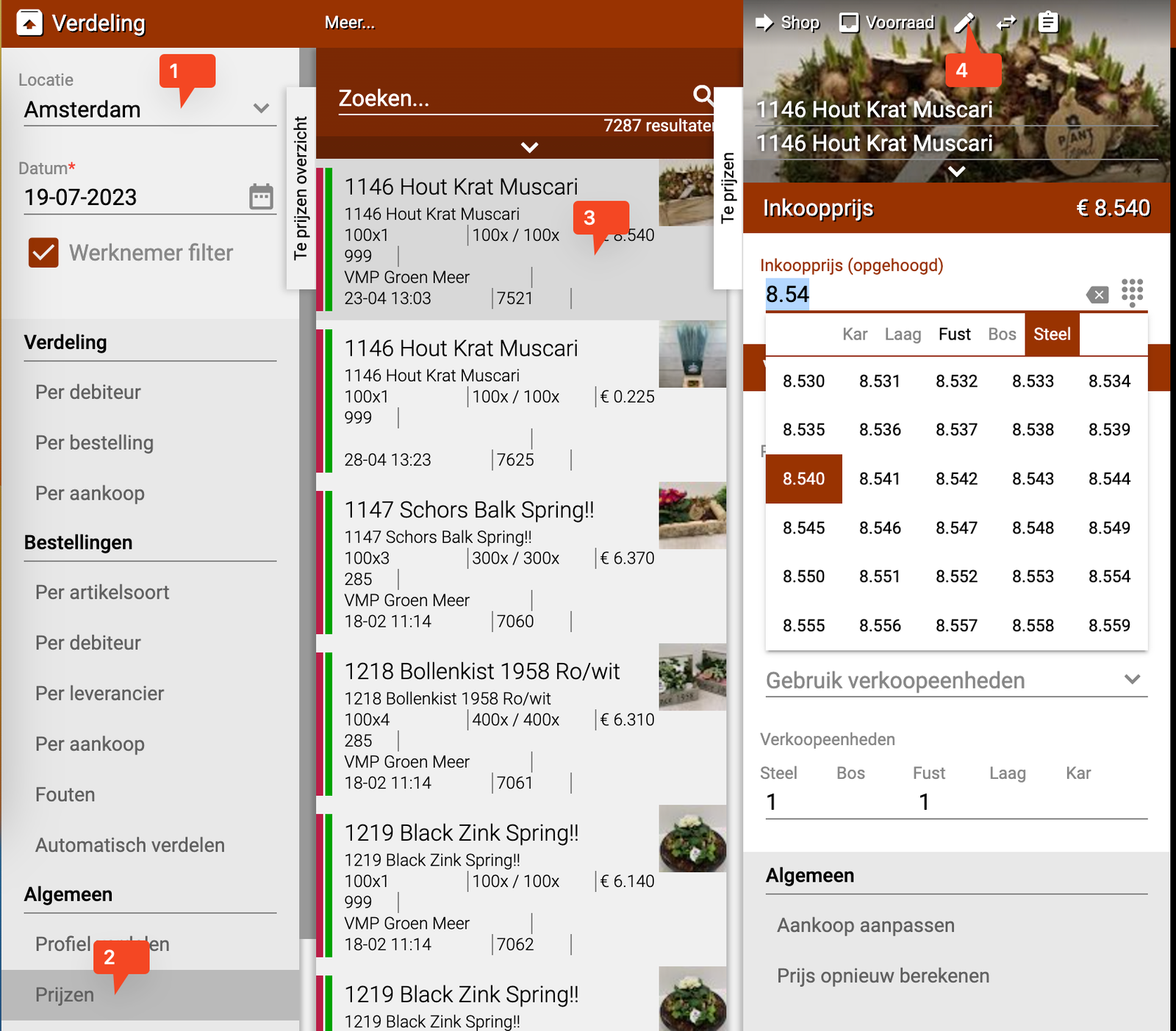
- Go to the "Distribution" tile
- Make sure you've chosen the correct location
- Go to "(General) Prices"
- Search and select the product you want to set up
Step 2: Edit the product
- Click on the pencil (edit button) on the product
- Click on the "Article type"
- A selection menu now opens
- Click "Edit" in the menu
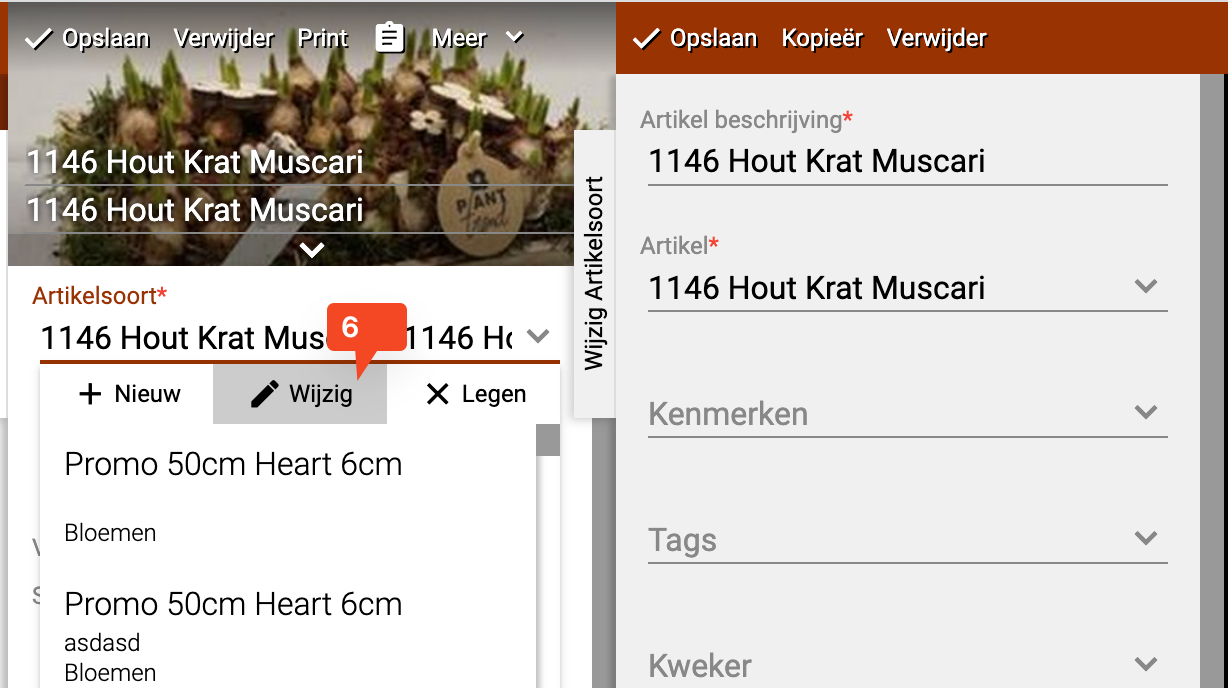
Step 3: Turn on override name
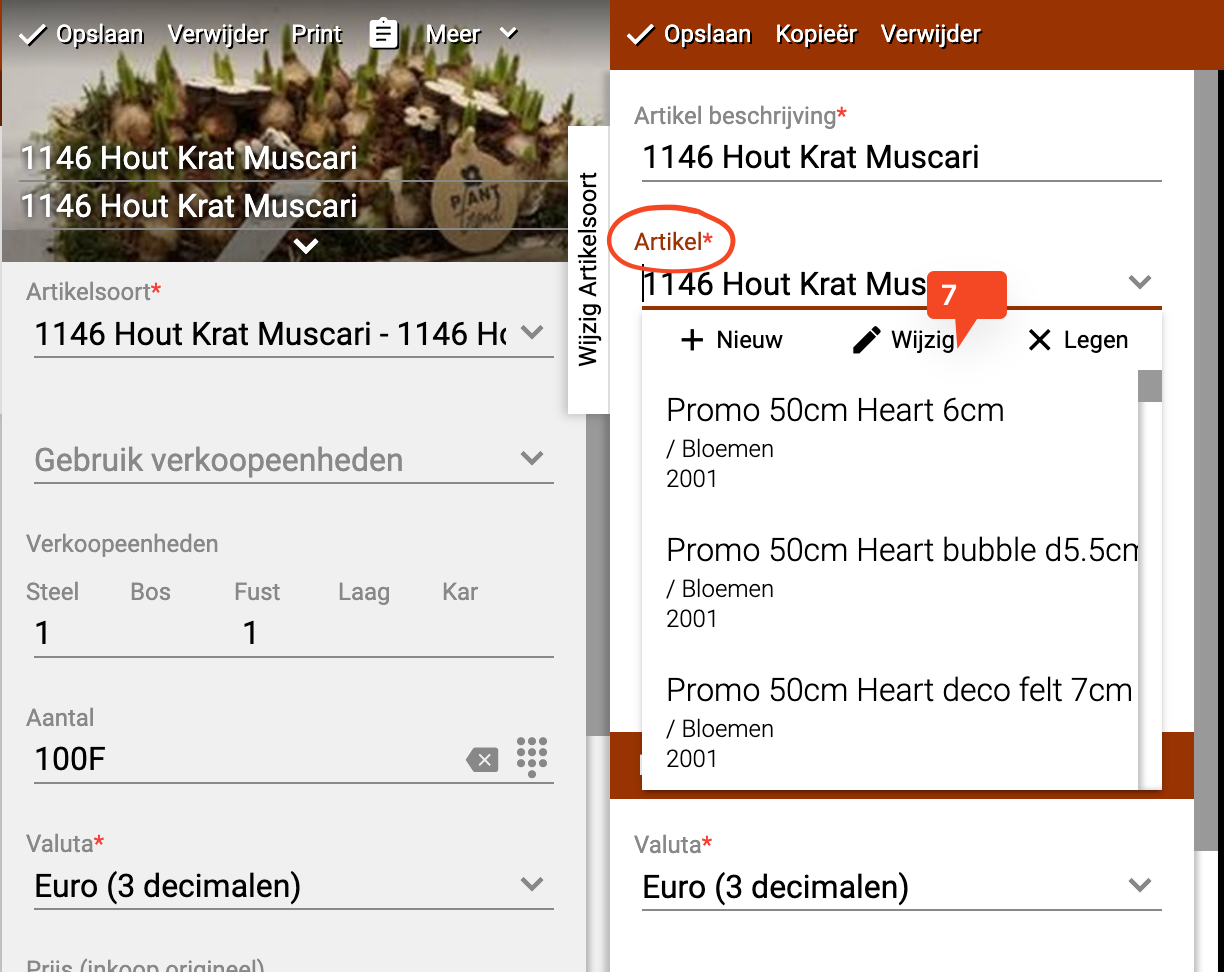
- Click on "Article"
- Click "Edit" again
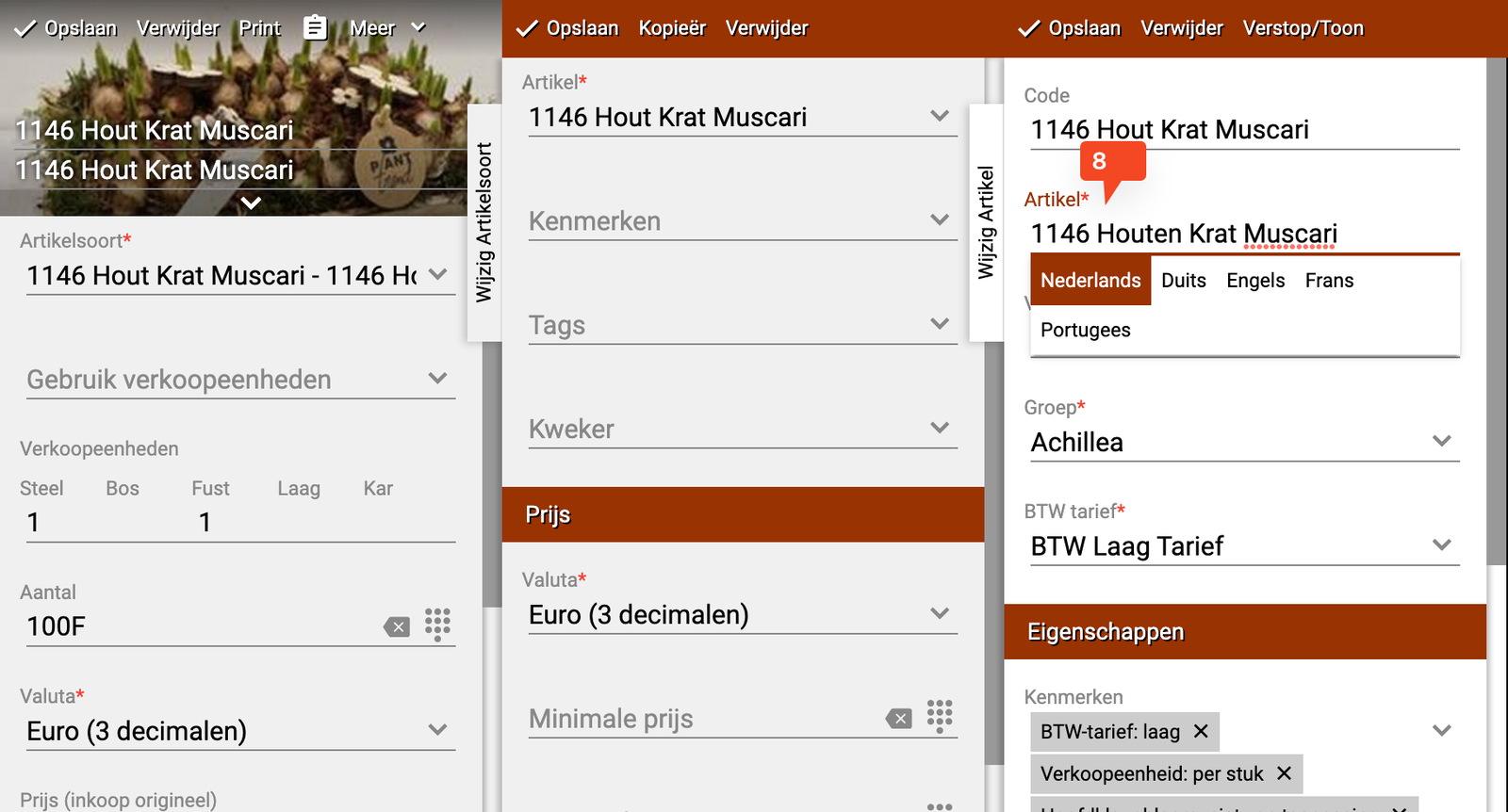
- Scroll down
- Check the box "Override name"
- Click "Save"
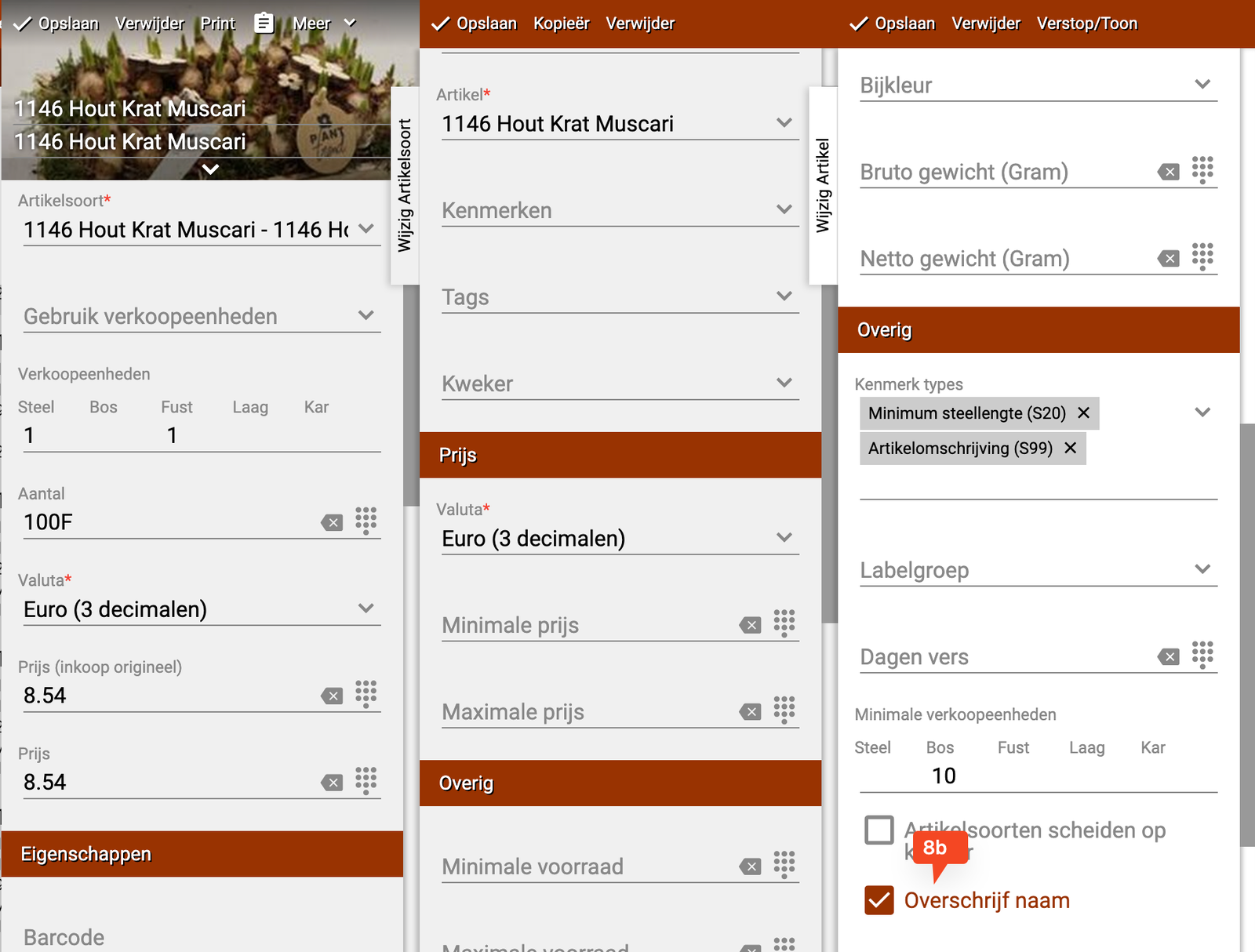
Step 4: Adjust article description (optional)
- The article type card stays open
- Here you can also adjust the article description if needed
- Click "Save" when you're done with all adjustments
Done! When this batch now comes in via EKT, it will show the name you set.
Situation 2: Change the name to another existing article
Use this method if you want to replace the VBN name with another article name that already exists in your system.
Step 1: Go to the product
- Go to the "Distribution" tile
- Make sure you've chosen the correct location
- Go to "Prices"
- Search and select the product you want to adjust
Step 2: Edit the product
- Click on the pencil (edit button) on the product
- Click on the "Article type"
- A selection menu now opens
- Click "Edit" in the menu
Step 3: Choose another article name
- You can change the article name to another existing article here
- Search and select the article you want to switch to
- If you've found and chosen the right article → Done!
- Doesn't the desired article exist yet? Then continue to step 4
Situation 3: Create a new article with your own name
Use this method if the article you want to switch to doesn't exist yet.
Step 1: Go to creating a new article
- First follow steps 1 and 2 of Situation 2
- Click on "Article"
- Click on "+New"
Step 2: Choose VBN number
- Choose the VBN number that best fits your new article
- You can also use a general VBN number:
- 1999 for low VAT
- 2001 for high VAT
Step 3: Fill in the new article
- Code: Adjust the code to what you want
- Article name: Give the article the name you want (e.g., "Mixed roses")
- Article group: Adjust the group if needed
- VAT rate: This is required (low or high)
- Properties: Change these if needed (e.g., stem length or pot size)
- Click "Apply"
Step 4: Select the new article
- Search for the article you just created
- Select this article
- Adjust the article description if needed
- Click "Save"
Done! The product now uses the new name you created.
Summary
You have three options for adjusting VBN article names:
- Protect the current name from being overwritten by VBN
- Change the name to another existing article
- Create a completely new article with your own chosen name
Do you have questions or need help? Feel free to contact us by phone at +31 (0)71 30 20 310 or send an email to support@easyflor.nl.