
- Adding photos to articles
- Adjusting article names and sales units
- Automatically overwriting article names
- Charging trolleys
- Creating and organizing article groups
- Creating and using bouquets
- Creating and using label groups
- Creating sales barcodes
- Creating your own containers
- Importing FloraHolland container price list
- Using your own VBN codes
Creating and using bouquets
Creating compositions (bouquets and mixed batches)
Introduction: What are compositions?
Compositions are products you make by combining different flowers or plants. Think of bouquets or mixed batches. You create a recipe in the system that tells which products should go in, and then you can make this bouquet again and again.
Why use compositions?
With compositions you can:
- Make bouquets from loose flowers in your stock
- Always use the same recipe, so each bouquet looks the same
- Track which loose flowers you need for a bouquet
- Automatically calculate the price based on the flowers in it
- Make mixed batches (different types of flowers combined)
- Print an overview of what to get from stock
How do you make compositions?
Part 1: Creating a composition recipe
You do this once per type of bouquet. It's like writing down a recipe for a dish.
Step 1: Go to the compositions menu
- Go to "Articles"
- Click on "(Articles) Compositions"
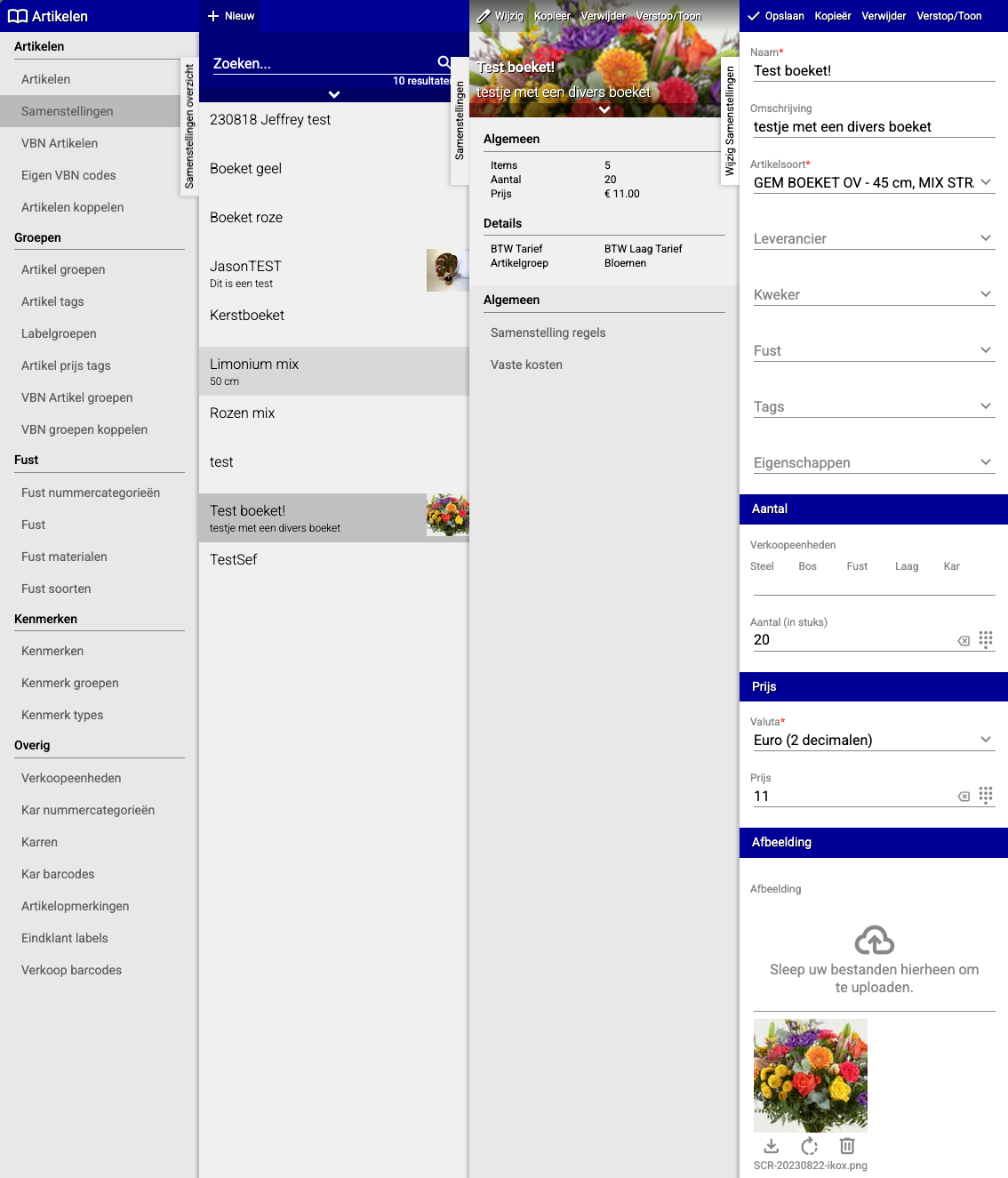
Step 2: Create a new recipe
- Click on "New"
- Fill in the following information:
- Name: Give the composition a recognizable name (e.g., "Bouquet yellow")
- Article type: Choose the article type of the composition (e.g., "MIXED BOUQUET H%")
- Container: Optionally fill in the container (box, bucket or vase the bouquet goes in)
- Sales unit (container): How many bouquets fit in 1 container?
- Quantity: How many compositions can you make with this recipe?
- For bouquets you almost always fill in 1
- For mixed batches you can leave this empty
- Currency and target price: Fill in the currency and a price (or let the system calculate automatically)
- Image: Optionally add a photo
- Click "Save"
Step 3: Add ingredients (what goes in the bouquet?)
- A new screen now opens
- Click on "(General) Composition lines"
- Click "New" for each product that should go in the bouquet
- Add all products needed, for example:
- R GR AKITO 2X (2 pieces roses)
- ARALIA 1X (1 piece greenery)
- Repeat this for all products that should go in the bouquet
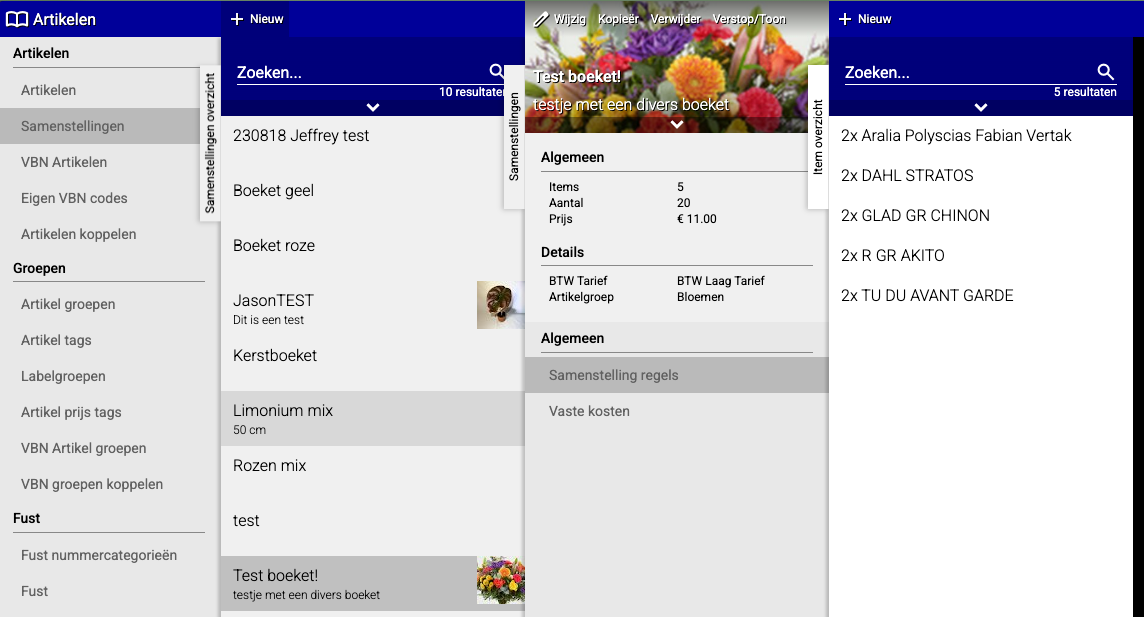
Done! Your recipe is now saved. You can now use this recipe to make bouquets.
Part 2: Making a bouquet with your recipe
Now you're actually going to make the bouquet in your stock, following the recipe you created.
Step 1: Go to the distribution menu
- Go to "Distribution"
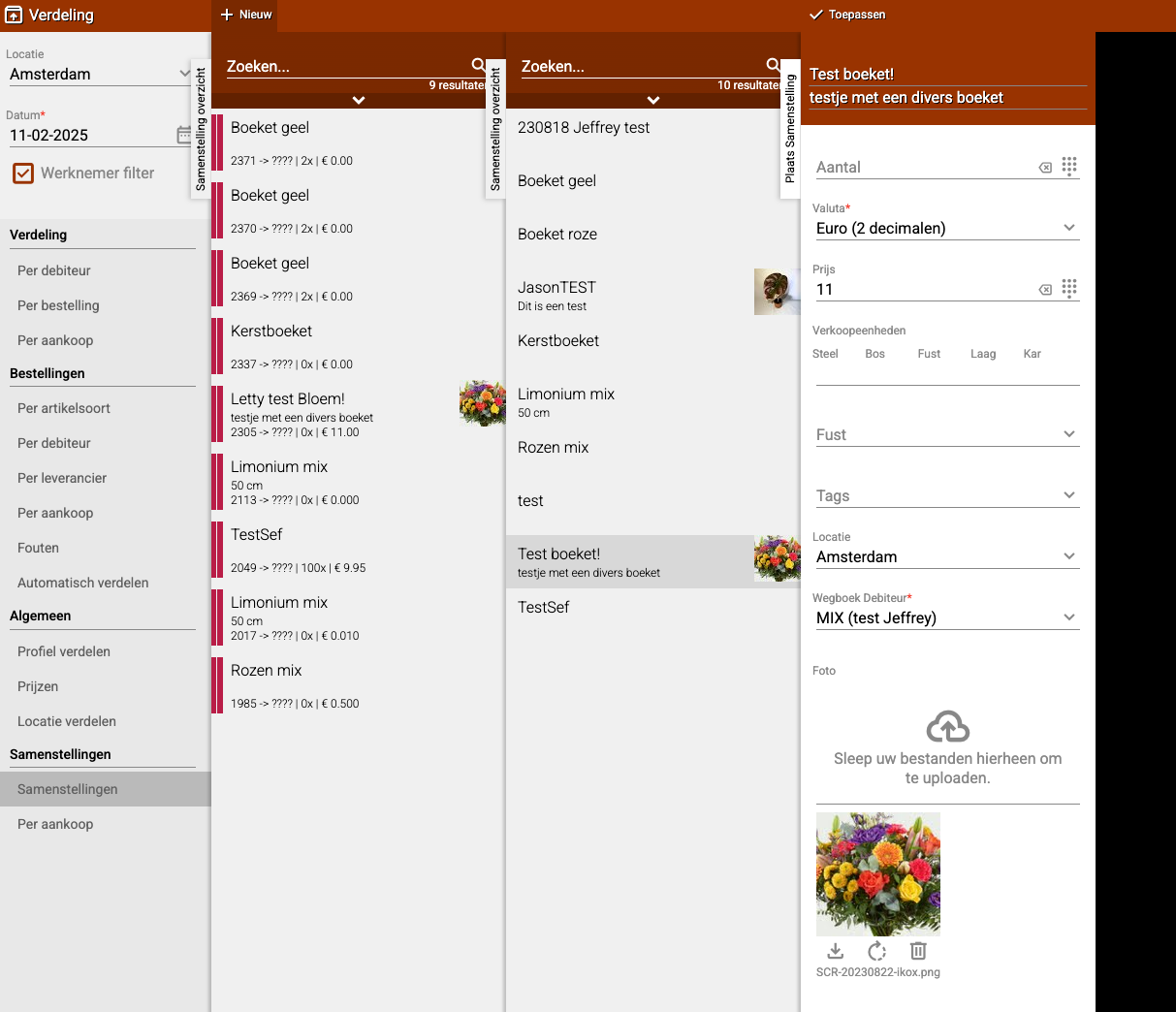
- Click on "(Compositions) Compositions"
Step 2: Start a new composition
- Click on "New"
- Choose the composition you created earlier (e.g., "Bouquet yellow")
- Fill in how many you want to make:
- For bouquets: Fill in the number of bouquets you want to make (e.g., 5)
- For mixed batches: You can leave this empty
- Target price: Want your own price? Fill it in. Leave empty to calculate price automatically
- Container and sales units: Adjust these if needed
- Click "Apply"
Step 3: Assign stock (which flowers do you use?)
- Click on "(General) Composition lines"
- You now see a list with all products that should go in the bouquet
- Click on each article and assign which stock you want to use for it
- The article turns green when you've assigned the stock
- Want to add an extra article? Click "+Stock" and choose an article from your stock
Step 4: Make the bouquet
- Is everything green? (All articles have stock assigned)
- Click "Create" to put the bouquet in your stock
- The bouquet is now made!
Extra: Print a work list (optional) Want to print a list that tells which flowers to get from stock?
- Click "Print"
- You now see exactly what to pick to make the bouquet
- This way employees can perfectly recreate the bouquet
Summary
Compositions work in two steps:
- First you create a recipe with all ingredients (you do this once)
- Then you use this recipe to make bouquets when you need them (you can repeat this infinitely)
Do you have questions or need help? Feel free to contact us by phone at +31 (0)71 30 20 310 or send an email to support@easyflor.nl.