
- Adding photos to articles
- Adjusting article names and sales units
- Automatically overwriting article names
- Charging trolleys
- Creating and organizing article groups
- Creating and using bouquets
- Creating and using label groups
- Creating sales barcodes
- Creating your own containers
- Importing FloraHolland container price list
- Using your own VBN codes
Adjusting article names and sales units
Clarifying product names and setting sales quantities
Introduction: What is adjusting article names and sales units?
In Easyflor you can determine yourself how products are named and in what quantities they are sold. For example, if you receive a product via EKT (electronic supply list) with the name "R GR RED NAOMI 50", you can have it automatically changed to "Red roses 50cm". You can also set that roses are always sold in bunches of 10 instead of per stem.
Why adjust article names and sales units?
You want to do this because:
- The names in EKTs are sometimes unclear or too technical for customers
- You want to use your own, understandable names in your webshop and on invoices
- You want to sell products in different quantities than how they come in
- You want the system to automatically convert roses from stems to bunches
- Customers better understand what they're buying when names are clear
How do you adjust article names and sales units?
Part 1: Changing article names
What happens? When you adjust an article name, every product that comes in via EKT with this VBN number automatically gets the new name you set.
Step 1: Go to the article
- Go to "Articles"
- Click on "(Articles) Articles"
- Search for the article whose name you want to change
- Select the article
Step 2: Change the name
- Click "Edit" or the edit icon (pencil)
- Find the field with the article name
- Type the new name you want to use (e.g., "Red roses 50cm" instead of "R GR RED NAOMI 50")
- Click "Save"
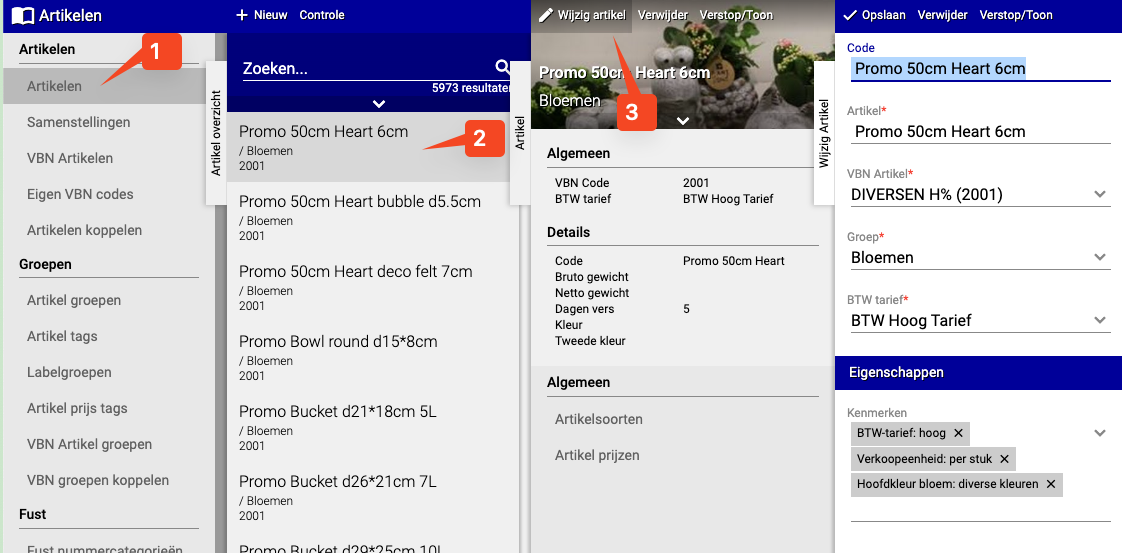
Done! From now on this product always gets the name you set, even when a new EKT comes in.
Part 2: Adjusting minimum sales units
What are sales units? Sales units are the quantities in which you sell products. For example:
- 1 stem = 1 piece
- 1 bunch = 10 stems
- 1 container = 100 stems
Why adjust? Sometimes products come in with sales units that don't match your business. For example: roses come in per stem (1 piece), but you sell them per bunch of 10.
Step 1: Go to the article
- Go to "Articles"
- Click on "(Articles) Articles"
- Search for the article whose sales units you want to adjust
- Select the article
Step 2: Adjust sales units
- Click "Edit" or the edit icon (pencil)
- Find the field with "Minimum sales units" or "Sales units"
- Adjust the numbers to what you want
- Examples:
- Stem: 1 (this is usually default)
- Bunch: 10 (if you sell bunches of 10 stems)
- Container: 100 (if you sell whole crates of 100 stems)
- Click "Save"
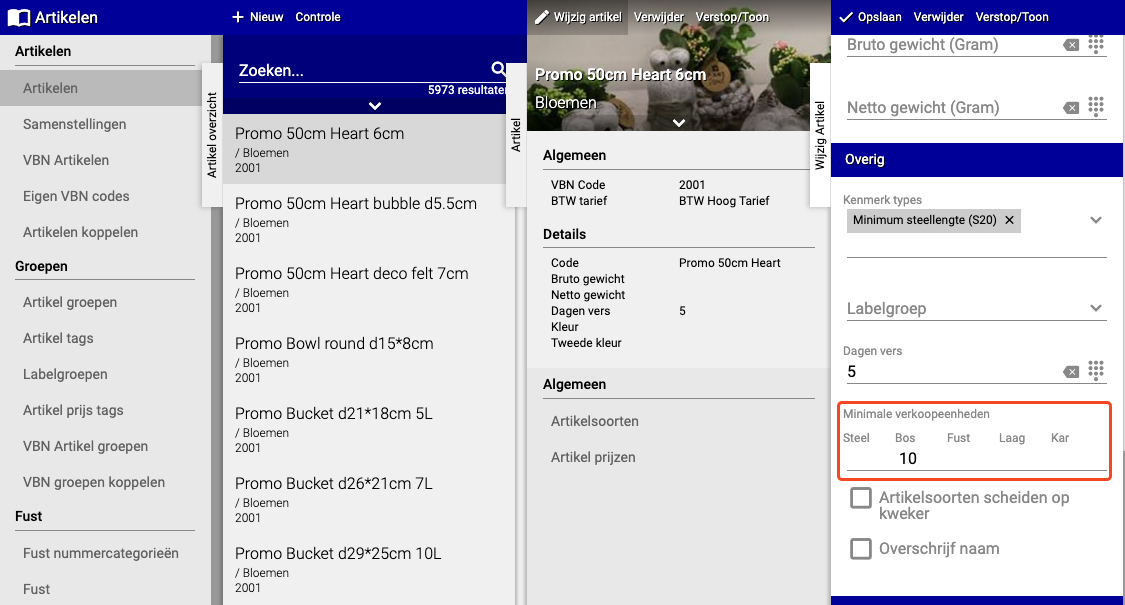
Important: Automatic bunching
Pay attention to this rule: Easyflor can only automatically bunch (convert from stems to bunches) if the number you enter is higher than the number in the EKT.
Example that DOES work:
- EKT says: 1 stem = 1 piece
- You set: 1 bunch = 10 stems
- Result: Easyflor can automatically convert 100 stems to 10 bunches
Example that does NOT work:
- EKT says: 1 bunch = 10 stems
- You set: 1 stem = 1 piece (lower than EKT)
- Result: Easyflor cannot automatically bunch
Tip: Always keep your sales units equal to or higher than what's in the EKT for automatic bunching.
Practical examples
Example 1: Roses
- Before adjustment:
- Name: "R GR RED NAOMI 50"
- Sales unit: 1 stem
- After adjustment:
- Name: "Red roses 50cm"
- Sales unit: 1 bunch = 10 stems
- Result: Customers see "Red roses 50cm" and can buy bunches of 10
Example 2: Chrysanthemums
- Before adjustment:
- Name: "CHR SA WHITE 70"
- Sales unit: 1 stem
- After adjustment:
- Name: "White chrysanthemums 70cm"
- Sales unit: 1 bunch = 5 stems
- Result: Customers see "White chrysanthemums 70cm" and can buy bunches of 5
Summary
You can adjust two things to make products better match your business:
- Article names: Change technical EKT names to understandable customer names
- Sales units: Set how many stems go in a bunch (e.g., 10 or 20)
- Note: For automatic bunching, your sales unit must be higher than what's in the EKT
Do you have questions or need help? Feel free to contact us by phone at +31 (0)71 30 20 310 or send an email to support@easyflor.nl.