
- (VIDEO) Creating administration and location
- (VIDEO) Creating debtors
- (VIDEO) Creating shop users
- Assigning Seat and Place Numbers (Via EKT)
- Automatic redistribution from location to location to debtor upon sale
- Creating a Shop User (Webshop)
- Creating and setting up a new customer (debtor)
- Creating contact persons
- Creating Sub Shop Users
- Creating VMP for debtors
- How to Create a Purchase Debtor in Easyflor
- Link Debtors to Employees
- Order Days
- Setting up administration and location
- Setting up cancellation time
- Setting Up Invoice Numbers
Setting Up Invoice Numbers
How do you set up invoice numbers for a new financial year in Easyflor?
What are invoice numbers?
Every invoice you send gets a unique number. This number often consists of the year and a sequence number (for example D2023000105). You can set how these numbers look and where they start.
Why do you need to set up invoice numbers?
- New financial year: Every year you often want to start numbering again
- Overview: You can immediately see in which year an invoice was created
- Administration: Your accountant needs a clear structure
- Legal requirement: Invoices must have unique, consecutive numbers
- Preventing errors: You prevent duplicate invoice numbers
How does an invoice number work?
An invoice number consists of different parts:
Example: D2023000105
- D = This is a letter that Easyflor automatically adds (D = Debit invoice, C = Credit invoice)
- 2023 = The prefix number (usually the year)
- 000105 = The sequence number (with zeros in front to make the right length)
How do you set up invoice numbers?
Step 1: Go to administration
- Click on "Organisation"
- Click on "Administration"
- Select the administration for which you want to set invoice numbers
Step 2: Go to invoice numbers
- Click on "General"
- Click on "Invoice numbers"
Step 3: Fill in the settings
You need to fill in four things:
1. Date from
- This is the date when these invoice numbers take effect
- Usually January 1st of the new year
Example:
- For the year 2025: enter 1-1-2025
2. Prefix number
- This is always at the beginning of your invoice number
- Usually you use the year
Example:
- For 2025: enter 2025
- For 2026: enter 2026
3. Length
- This determines how many digits come after the prefix number
- Including the zeros at the beginning
Example:
- Length 6 means: 6 digits after the prefix number
- Number 105 becomes: 000105 (with three zeros in front)
- Number 12345 becomes: 012345 (with one zero in front)
4. Number
- This is the starting number of your invoices
- Usually you start at 1, but you can also start at a higher number
Example:
- If you want to continue at invoice 105: enter 105
- If you want to start completely fresh: enter 1
Step 4: Save
Click "Save" and your settings are active!
Complete example
Suppose you want the following:
- The new year 2025 starts on January 1st
- Invoice numbers should start with 2025
- You want 6 digits after the year
- You start at number 1
Then you fill in:
- Date from: 1-1-2025
- Prefix number: 2025
- Length: 6
- Number: 1
Result:
- First invoice becomes: D2025000001
- Second invoice becomes: D2025000002
- Hundredth invoice becomes: D2025000100
- Thousandth invoice becomes: D2025001000
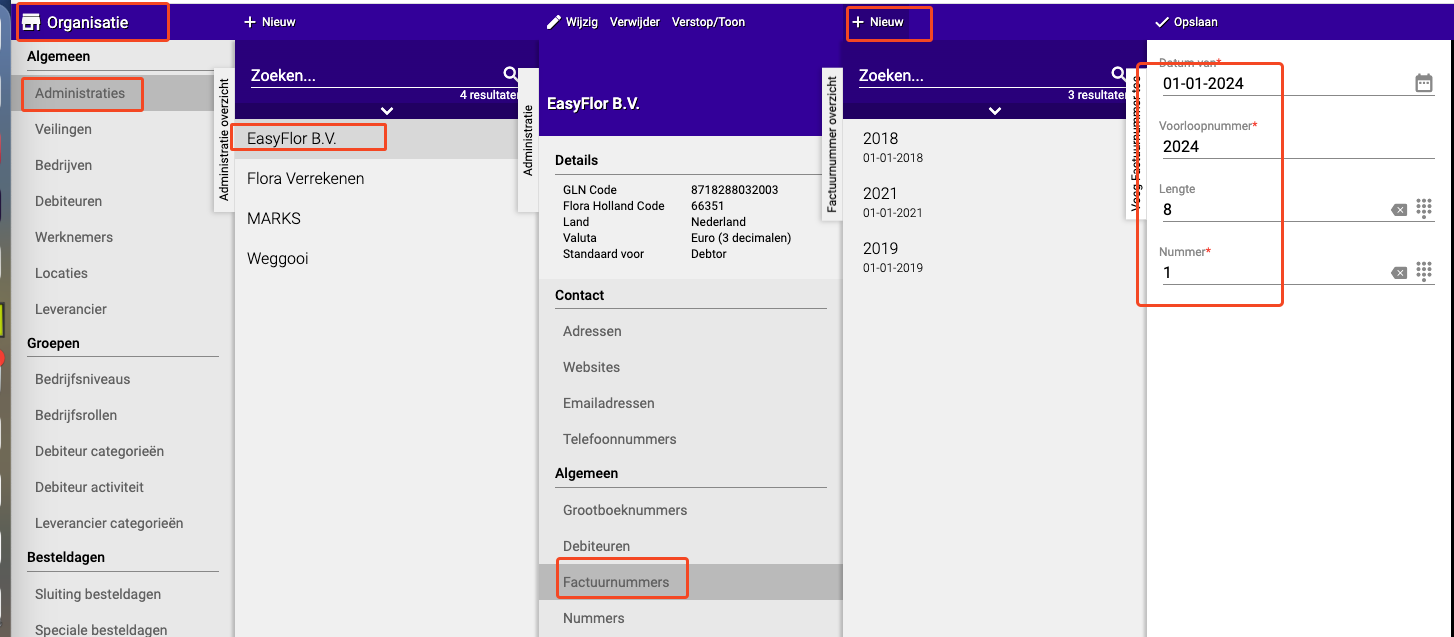
Example from the manual
Settings:
- Date from: 1-1-2023
- Prefix number: 2023
- Length: 6
- Number: 105
Result:
- First debit invoice on 1-1-2023 becomes: D2023000105
Important tips
Tip 1: Plan ahead
- Set up the invoice numbers for a new year before the year starts
- This prevents problems on the first working day of the year
Tip 2: Choose the length wisely
- Length 6 is usually sufficient (up to 999,999 invoices per year)
- Too short? Then you can't fit all invoices
- Too long? Then you get unnecessarily long numbers
Tip 3: Don't always start at 1
- Some companies start at 100 or 1000
- This gives a more professional impression (it looks like you've already sent more invoices)
Tip 4: Always test it
- Create a test invoice to check if the number looks right
- This prevents surprises
Common mistakes
Mistake 1: Wrong date
- If you set "Date from" to 1-1-2025, but it's still 2024, Easyflor still uses the old numbers
- Make sure the date is correct!
Mistake 2: Length too short
- With length 4 you can only go up to 9999 invoices per year
- Expecting more invoices? Choose length 5 or 6
Mistake 3: Forgetting to adjust the starting number
- If you ended at 500 last year and want to continue, you need to enter 501
- Want to start fresh? Then enter 1
Summary: Quick checklist
For the new financial year:
- Go to Organisation → Administration → [Your administration]
- Click on Invoice numbers
- Fill in Date from (for example 1-1-2025)
- Fill in Prefix number (for example 2025)
- Choose Length (usually 6)
- Choose Number where you want to start (usually 1)
- Click on Save
- Test with a trial invoice!
Now you're ready for the new year! 🎉
Do you have questions or need help? Feel free to contact us by phone at +31 (0)71 30 20 310 or send an email to support@easyflor.nl.