
- (VIDEO) Creating user and employee
- Adjusting sales unit order
- Creating a user and employee
- Creating an accounting integration
- Creating and maintaining VAT rates
- Creating and using distribution profiles
- Filtering growers or suppliers
- How do I charge no VAT for my customers?
- Importing an Excel sheet / Creating an import template
- Receiving copy emails (mail cc) of order confirmations and/or invoices
- Setting up and executing Flora settlement
- Setting Up and Using AI2
- Setting up currency conversion
- Setting up distribution: Automatically send EKT messages to a KOA debtor
- Setting up payment reminders
- Setting up payment terms
- Setting up Route module
- Setting up SEPA
- Transport and carriers
- VMP article group matching
Creating and maintaining VAT rates
How do you set up VAT percentages and work with VAT in Easyflor?
What is VAT?
VAT stands for Value Added Tax. This is a tax you have to pay on products and services. In Easyflor you can set which VAT percentages you use and whether you want to show prices including or excluding VAT.
Why do you need to set up VAT?
- The government can change VAT percentages
- You must calculate the correct VAT on your invoices
- Different countries have different VAT percentages
- You can choose whether to display prices with or without VAT
Part 1: Creating and adjusting VAT percentages
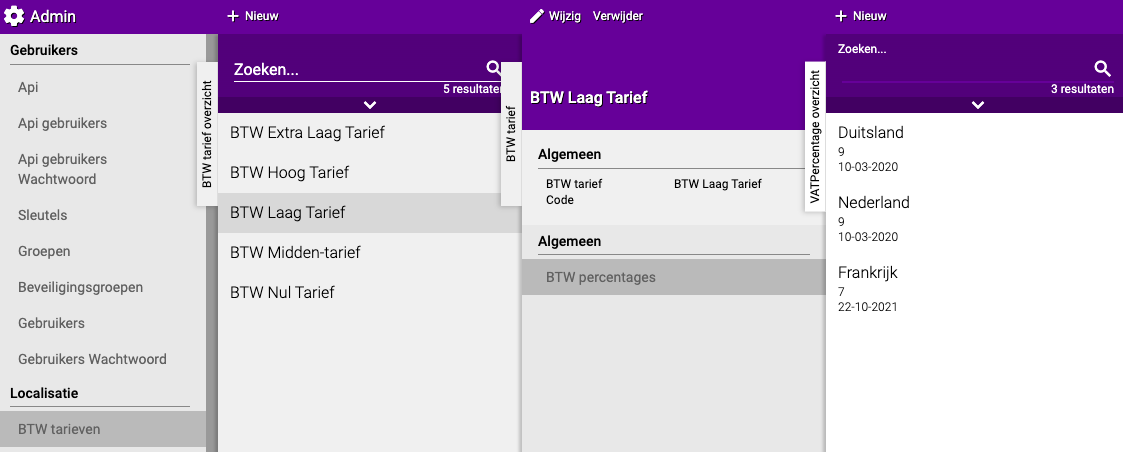
Step 1: Go to VAT rates
- Click on the "Admin" tile
- Go to "Localisation"
- Click on "VAT rates"
Here you see different VAT categories. In the Netherlands we mainly use:
- VAT High (for example 21%)
- VAT Low (for example 9%)
Step 2: Set the percentage per country
- Click on the VAT category you want to adjust (for example "VAT Low")
- Click on "VAT Percentages"
- Here you see a list of countries and their VAT percentages
- Click on a country to adjust the percentage
Step 3: Add a new country (if it's not there yet)
- Is your country not listed?
- Click on "+New" at the top
- Add the country to this VAT category
Step 4: Recalculate VAT after changes
Important! After changing a VAT percentage you must have it recalculated:
- Click on the "Surcharges" tile
- Go to "Extra"
- Click on "Reload prices"
- Check: "Recalculate VAT percentages"
- Click "Accept"
- The new percentage is now calculated!
Part 2: Displaying prices including VAT
What does this mean?
You can choose how prices are displayed:
- Excluding VAT: €10.00 (+ €2.10 VAT = €12.10 total)
- Including VAT: €12.10 (including VAT)
Why would you want this?
- For private customers it is easier to see prices including VAT
- For business customers excluding VAT can be clearer
- You can choose what suits your business best
How do you turn on prices including VAT?
Step 1: Create a new price setting
- Click on the "Surcharges" tile
- Go to "General"
- Click on "Prices"
- Click on "+New"
Step 2: Set the price
- Check: "Price includes VAT"
- Fill in the rest of the desired details
- Click "Save"
Step 3: Recalculate the sales prices
- Go to "Surcharges" → "Extra" → "Reload prices"
- Select the price you just created at "Recalculate sales prices"
- Click "Accept"
- Done! The prices are now shown including VAT
Summary
- VAT percentages are set via Admin → Localisation → VAT rates
- After each change you must recalculate VAT via Surcharges → Reload prices
- Prices including VAT are set via Surcharges → Prices
- Don't forget to recalculate sales prices afterwards!
Do you have questions or need help? Feel free to contact us by phone at +31 (0)71 30 20 310 or send an email to support@easyflor.nl.