
- Adding payments
- Creating credit invoices
- Exporting Accounting and Checking for Errors
- Exporting IPAFFs for Shipments to the United Kingdom
- Exporting statistics overview (CBS and IDEV)
- Invoicing
- Making a copy of administration
- Modifying Existing RMAs
- Offsetting Payments and Credit Invoices
- Reversing payments / Making an invoice unpaid
- SEPA: What do the error codes mean?
- Setting up UBL
Setting up UBL
Setting up UBL configuration for digital invoices (XRechnung 3.0)
Introduction: What is UBL configuration?
UBL configuration is setting up standard information about your company and your customers for digital invoicing. You set how bank details (IBAN/BIC), VAT numbers and company identifications (Chamber of Commerce/OIN codes) are used in electronic invoices. This is necessary for the official XRechnung 3.0 standard which is mandatory in some EU countries.
Why set up UBL configuration?
You need to set up UBL configuration because:
- Since 1 January 2025, digital invoicing is mandatory in some EU countries
- XRechnung 3.0 is the official standard for electronic invoices
- Companies and governments require correct electronic invoices
- Otherwise you cannot meet legal obligations
- Invoices can be automatically processed in other systems
- It ensures correct integration with financial systems
- Your bank details, VAT numbers and company identifications are passed on correctly
Note: XRechnung 3.0 is currently the supported standard in Easyflor. This list may be expanded in the future for other countries.
How do you set up UBL configuration?
This is done in 6 steps where you set information about yourself (as supplier) and about your customers.
Preparation: Go to UBL configuration menu
Open the Invoices tile
- Go to the "Invoices" tile
- You now see various options
Open UBL configuration
- Click on "(Other) UBL Configuration"
- You now see the configuration screen
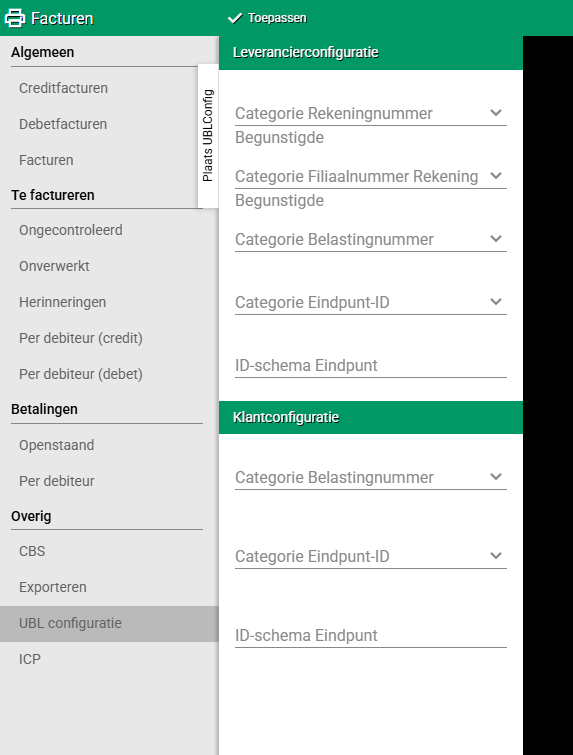
Part 1: Supplier settings (Your company)
First you set the information about your own company. These are the details that appear on outgoing invoices.
Step 1: Supplier payment options
Here you set how your bank details are identified in electronic invoices.
Beneficiary account number category supplier
What is this?
- This determines how your bank account number is identified
- "Beneficiary" means: the one who receives the money (you as supplier)
What should you fill in?
- Category: IBAN
- IBAN stands for International Bank Account Number
- This is the international bank account number format
Example:
- Your Dutch bank account: NL12ABCD0123456789
- Category: IBAN
Beneficiary account branch number category supplier
What is this?
- This determines how your bank identification code is identified
- This is the code that identifies the bank (not the account number itself)
What should you fill in?
- Category: BIC
- BIC stands for Bank Identifier Code
- This is the code of your bank (for example ABNANL2A for ABN AMRO)
Example:
- Your bank is ING
- BIC code: INGBNL2A
- Category: BIC
Step 2: Supplier tax regulation
Here you set how your VAT number is identified.
Tax number category supplier
What is this?
- This determines how your VAT number is identified
- VAT = Value Added Tax
What should you fill in?
- Category: VAT Number
- This is your official VAT identification number
Example:
- Your Dutch VAT number: NL123456789B01
- Category: VAT Number
Step 3: Supplier endpoint ID
Here you set how your company identification is indicated. This is important for system integration.
Endpoint ID category supplier
What is this?
- This determines which type of company identification you use
- "Endpoint" means: your company in the digital system
What should you fill in?
- Chamber of Commerce code: For Dutch companies (Chamber of Commerce number)
- OIN code: For government organisations or other systems
Example:
- You are a Dutch company
- You have a Chamber of Commerce number: 12345678
- Category: Chamber of Commerce code
Endpoint ID schema supplier
What is this?
- This is a technical number that indicates which identification system you use
- It is linked to the category above
What should you fill in?
- For Chamber of Commerce: Schema-ID 0106
- For OIN: Schema-ID 0190
Example:
- You use Chamber of Commerce (Dutch companies)
- Fill in: 0106
Overview:
- Chamber of Commerce (Dutch companies) = Schema-ID 0106
- OIN (Government/other systems) = Schema-ID 0190
Part 2: Customer settings
Now you set how information about your customers is processed in electronic invoices.
Step 4: Customer tax regulation
Here you set how customers' VAT numbers are identified.
Tax number category customer
What is this?
- This determines how the VAT number of your customers is identified
- This appears on invoices to your customers
What should you fill in?
- Category: VAT Number
- Same as in step 2, but now for customers
Example:
- Your customer has VAT number: DE987654321
- Category: VAT Number
Step 5: Customer endpoint ID
Here you set how customer company identifications are indicated.
Endpoint ID category customer
What is this?
- This determines which type of company identification your customers use
- Similar to step 3, but now for customers
What should you fill in?
- Chamber of Commerce code: For Dutch business customers
- OIN code: For government institutions or other systems
Example:
- Your customer is a Dutch company with Chamber of Commerce number
- Category: Chamber of Commerce code
Endpoint ID schema customer
What is this?
- The technical schema number for the identification system of customers
- Linked to the category above
What should you fill in?
- For Chamber of Commerce: Schema-ID 0106
- For OIN: Schema-ID 0190
Example:
- Your customers are Dutch companies (Chamber of Commerce)
- Fill in: 0106
Overview:
- Chamber of Commerce (Dutch companies) = Schema-ID 0106
- OIN (Government/other systems) = Schema-ID 0190
Step 6: Save
Saving settings
- Check whether all fields are filled in correctly
- Click at the bottom on "Apply"
- The settings are now saved
- Your system is ready for digital invoices according to XRechnung 3.0
Done! Your UBL configuration is set up.
Practical example: Completely filled in form
Imagine: You are a Dutch flower wholesale company
Your company details:
- Chamber of Commerce number: 12345678
- VAT number: NL123456789B01
- Bank: ING
- IBAN: NL91INGB0123456789
- BIC: INGBNL2A
Your customers:
- Mainly Dutch flower shops with Chamber of Commerce numbers
- Also some government organisations with OIN codes
How you fill it in:
Supplier payment options:
- Beneficiary account number category: IBAN
- Beneficiary account branch number category: BIC
Supplier tax regulation:
- Tax number category: VAT Number
Supplier endpoint ID:
- Endpoint ID category: Chamber of Commerce code
- Endpoint ID schema: 0106
Customer tax regulation:
- Tax number category: VAT Number
Customer endpoint ID:
- Endpoint ID category: Chamber of Commerce code (most customers are Dutch companies)
- Endpoint ID schema: 0106
Save: Click Apply
Result: All invoices now meet the XRechnung 3.0 standard.
Important tips
Tip 1: Use standard categories
- IBAN for bank account numbers
- BIC for bank identification codes
- VAT Number for VAT identification
- Chamber of Commerce code for Dutch companies
- These are the most common and universal terms
Tip 2: Remember Schema-IDs
- Chamber of Commerce = 0106 (Dutch companies)
- OIN = 0190 (Government/other systems)
- These are fixed codes that you always fill in the same
Tip 3: Check your own details
- Make sure you have your Chamber of Commerce, VAT, IBAN and BIC correct
- These are on your bank statements and official documents
- One error can cause problems with invoices
Tip 4: Customers with different codes
- Most business customers: Chamber of Commerce (0106)
- Government customers: OIN (0190)
- Choose the most common one for the standard setting
Tip 5: Do this once correctly
- These settings only need to be filled in once
- They apply to all invoices
- Take the time to do it correctly
Tip 6: Save these details
- Note which schema-IDs you have used
- This helps if you have questions later
- Or if you have to explain it to your accountant
Frequently asked questions
Question: What is the difference between IBAN and BIC?
- IBAN: Your bank account number (NL91INGB0123456789)
- BIC: The code of your bank (INGBNL2A for ING)
- Both are needed for international payments
Question: Do I need to set this up again for every invoice?
- No, these settings apply to all invoices
- You set it once and it always works
- Unless your details change (different bank, etc.)
Question: What if my customer doesn't have a Chamber of Commerce number?
- Dutch companies always have Chamber of Commerce
- Foreign companies have other numbers
- Or use OIN for government organisations
- When in doubt: Ask the customer
Question: What exactly is XRechnung 3.0?
- A European standard for electronic invoices
- Comparable to a standard file format
- Ensures that systems understand each other
- Mandatory in more and more EU countries
Question: Does Easyflor also support other standards?
- Currently only XRechnung 3.0
- More standards possible in the future
- Depending on requirements in other countries
Question: What if I make a mistake?
- You can always adjust the settings
- Go back to UBL Configuration
- Adjust the wrong fields
- Click Apply again
What to do with problems?
Problem: I don't know my Chamber of Commerce number
- Check your official company documents
- Look at kvk.nl and search for your company
- Or call the Chamber of Commerce: 088-585 22 22
Problem: I don't know my VAT number
- Check your VAT return documents
- It's on invoices you have sent before
- Or check with the tax authorities
Problem: I don't know my BIC code
- Check your bank statements
- Look on the website of your bank
- Or call your bank for the BIC code
Problem: I don't know if customer has Chamber of Commerce or OIN
- Chamber of Commerce: For normal companies
- OIN: For government organisations (municipalities, ministries, etc.)
- Doubt? Ask the customer
Problem: Forgotten Schema-ID
- Chamber of Commerce = always 0106
- OIN = always 0190
- These are fixed codes that never change
Problem: Cannot save
- Check if all required fields are filled in
- Refresh the page and try again
- Contact Easyflor support
Summary
Setting up UBL configuration is to meet digital invoicing obligations (XRechnung 3.0 standard):
Steps:
- Go to Invoices → (Other) UBL Configuration
Supplier settings (your company): 2. Payment options: Account number category = IBAN, Branch number category = BIC 3. Tax regulation: Tax number category = VAT Number 4. Endpoint ID: Category = Chamber of Commerce code (or OIN), Schema = 0106 (for Chamber of Commerce) or 0190 (for OIN)
Customer settings: 5. Tax regulation: Tax number category = VAT Number 6. Endpoint ID: Category = Chamber of Commerce code (or OIN), Schema = 0106 (for Chamber of Commerce) or 0190 (for OIN)
Finalize: 7. Click Apply to save everything
Why important:
- Mandatory in some EU countries since 1 January 2025
- XRechnung 3.0 is the official standard for electronic invoices
- Ensures correct processing in financial systems
- Companies and governments require correct electronic invoices
Remember:
- IBAN = bank account number, BIC = bank code
- VAT Number = tax identification
- Chamber of Commerce = Dutch companies (schema 0106), OIN = government (schema 0190)
- One-time setup, applies to all invoices
Do you have questions or need help? Feel free to contact us by phone at +31 (0)71 30 20 310 or send an email to support@easyflor.nl.