
- (VIDEO) Creating administration and location
- (VIDEO) Creating debtors
- (VIDEO) Creating shop users
- Assigning Seat and Place Numbers (Via EKT)
- Automatic redistribution from location to location to debtor upon sale
- Creating a Shop User (Webshop)
- Creating and setting up a new customer (debtor)
- Creating contact persons
- Creating Sub Shop Users
- Creating VMP for debtors
- How to Create a Purchase Debtor in Easyflor
- Link Debtors to Employees
- Order Days
- Setting up administration and location
- Setting up cancellation time
- Setting Up Invoice Numbers
Order Days
How do order days work in Easyflor?
What are order days?
Order days determine when your webshop is open for your customers (debtors). You can set on which days and times customers can order, and when orders will be delivered.
Why use order days?
- You decide when customers can order through the webshop
- You can set different opening and closing times
- You prevent customers from ordering outside working hours
- You have control over when products are delivered
- Each customer can have different order days
Important: How to write times?
Easyflor uses a special time format: [number of days].[hour]:[minute]:[seconds]
Pay close attention to the dots and colons!
What does each part mean?
- Number of days: How many days before or after the order day (1 digit)
- Hour: The hour on the clock (00 to 23)
- Minute: The minutes (00 to 59)
- Seconds: The seconds (usually 00)
Examples:
- -1.18:30:00 = 1 day before, at 18:30
- 0.12:00:00 = Same day, at 12:00
- 1.12:00:00 = 1 day after, at 12:00
- 2.12:00:00 = 2 days after, at 12:00
Part 1: Creating and setting up order days
Step 1: Go to order days
- Click in the bottom right menu
- Click on "Organisation"
- Click on "Order days"
Step 2: Create a new order day
- Click on "+New"
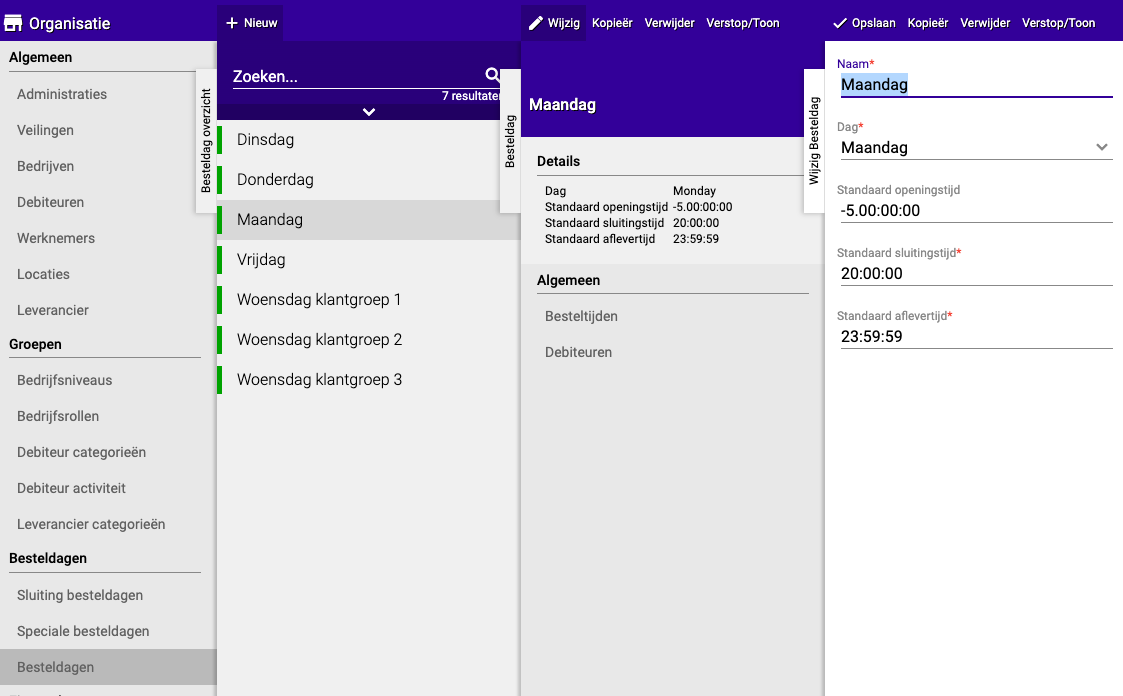
- Give the order day a name
- Tip: For a general order day, you can make the name the same as the day (for example "Tuesday")
Step 3: Set the times
You need to set three times:
1. Opening time
- This is the moment when customers can start ordering
- Often a day before the order day
Example:
- If you want customers to be able to start ordering on Monday at 18:30 for Tuesday
- Enter: -1.18:30:00
-1= 1 day before the order day18:30:00= at half past six in the evening
2. Closing time
- This is the moment when the webshop closes
- After this, customers can no longer order
Example:
- If you want the webshop to close on Tuesday at 10:00
- Enter: 0.10:00:00
0= the same day as the order day10:00:00= at 10 o'clock in the morning
3. Delivery time
- This is when the products will be delivered
- Often the same day as the order day, or the day after
Example:
- If products are delivered on Wednesday at 12:00 (and the order day is Tuesday)
- Enter: 1.12:00:00
1= 1 day after the order day12:00:00= at 12 noon
Complete example:
Situation:
- Order day is Tuesday
- Webshop opens on Monday at 18:30
- Webshop closes on Tuesday at 10:00
- Products are delivered on Wednesday at 12:00
Enter:
- Opening time: -1.18:30:00
- Closing time: 0.10:00:00
- Delivery time: 1.12:00:00
Part 2: Linking order days to customers
Why do you need to do this?
Not every customer needs access to all order days. You can choose per customer which order days they can use.
How do you link order days to a debtor?
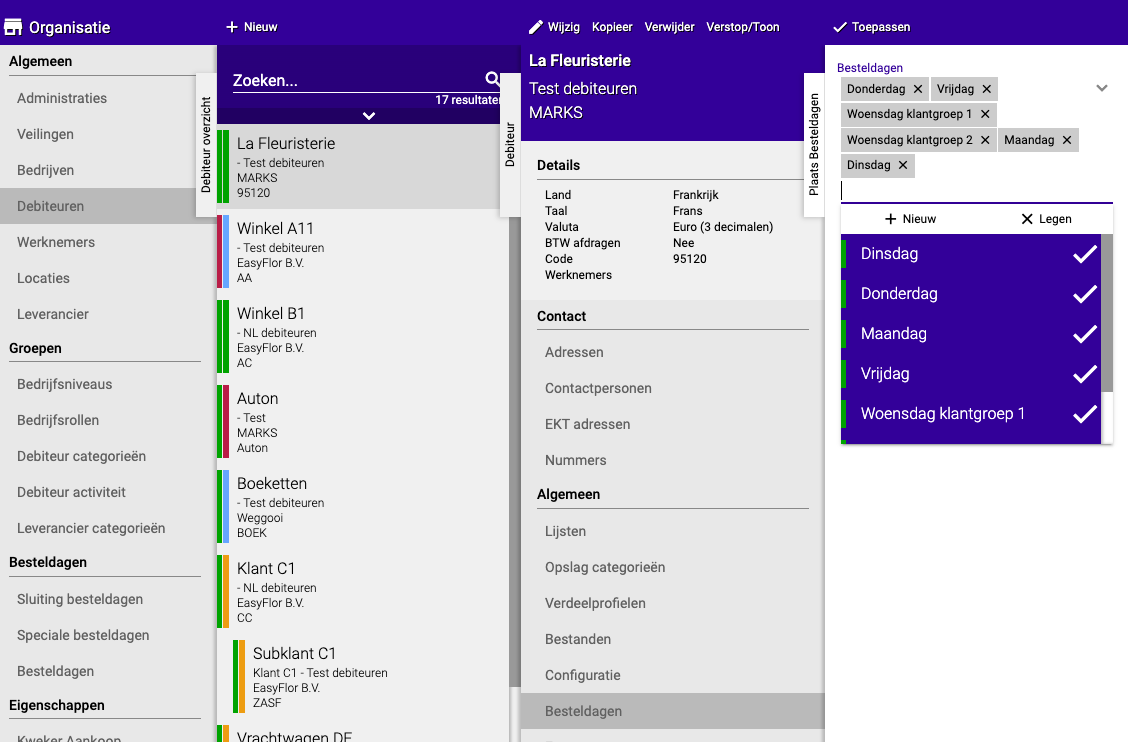
- Go to "Organisation"
- Click on "General"
- Click on "Debtors"
- Choose the customer (debtor) you want to set up
- Go to "General"
- Click on "Order days"
- Select all order days on which this customer may order
- Save
Example:
- Customer A may only order on Monday and Tuesday → Check only "Monday" and "Tuesday"
- Customer B may order every day → Check all days
Haven't created a debtor yet? See the guide: Creating and setting up a new customer (debtor)
Part 3: Different closing times per product list
What does this mean?
Sometimes you want certain products to close earlier than others. For example: fresh flowers close at 16:00, but decoration can be ordered until 20:00.
How do you set this up?
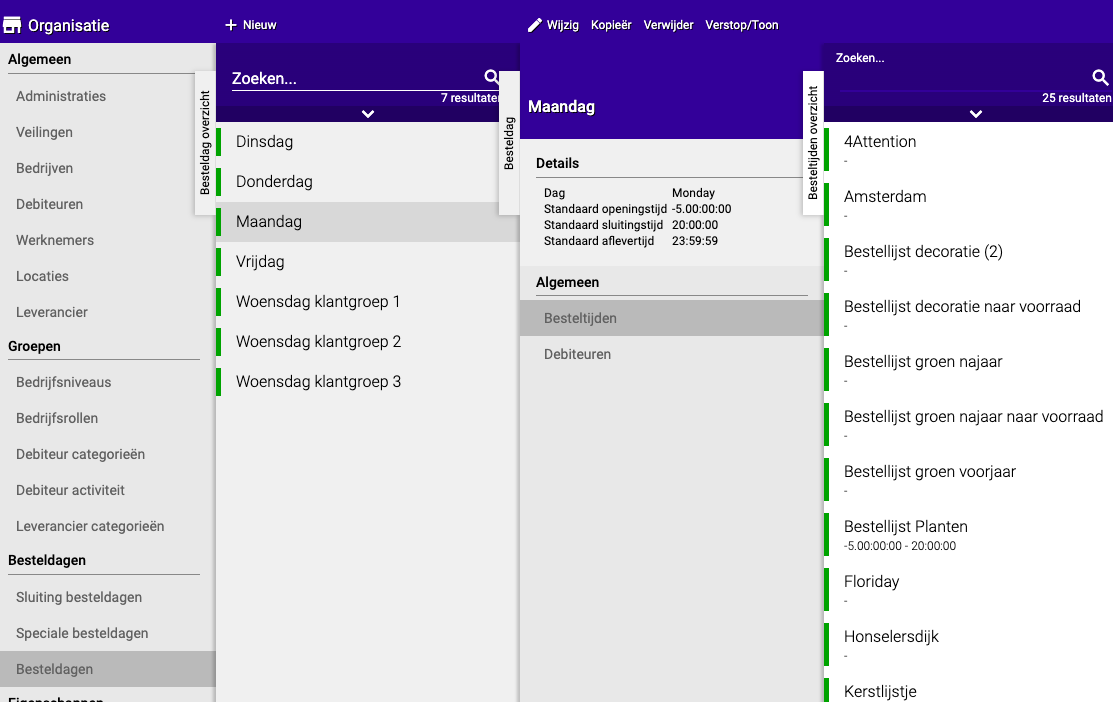
- Click on the order day you created earlier
- Click on "Order times"
- Here you see all your product lists
- Click on the list for which you want to set different times
- Adjust the times (use the same time format as above)
- Save
Example:
- General order day closes at 20:00
- But fresh flowers must close at 16:00
- Set an earlier closing time for the "Fresh flowers" list
Troubleshooting: Customer cannot order
Is a customer unable to order through the webshop? Go through this checklist:
- Have the order days expired? — Order days have an opening and closing time. If the closing time has passed, the customer can only order again on the next order day. Check whether the dates are still current.
- Are order days linked to the debtor? — Go to Organisation → Debtors → [Customer] → Order days and check whether order days are selected (see Part 2).
- Does the customer have a shop user? — Without a shop user, the customer cannot log in to the webshop. See: Creating a shop user
- Is the shop user created under the correct debtor? — A shop user that is linked to the wrong debtor will not see the correct products or order days.
- Are list groups assigned? — The customer must have access to the correct list groups to be able to see products in the webshop.
Important warning! ⚠️
NOTE: If an order day is already active in your schedule, you can NO longer close it!
What does this mean?
- Plan in advance when the webshop should be closed
- If the order day is already in progress, the shop stays open
- Do you want to close the shop? Do this before the order day starts!
Summary
Remember the time format:
[number of days].[hour]:[minute]:[seconds]
Steps in brief:
- Create order days in Organisation → Order days
- Set times: opening time, closing time and delivery time
- Link to customers via Organisation → Debtors → [Customer] → Order days
- Adjust per list (optional) for different closing times
- Plan ahead because you cannot close an active order day!
Do you have questions or need help? Feel free to contact us by phone at +31 (0)71 30 20 310 or send an email to support@easyflor.nl.