
- (VIDEO) Creating user and employee
- Adjusting sales unit order
- Creating a user and employee
- Creating an accounting integration
- Creating and maintaining VAT rates
- Creating and using distribution profiles
- Filtering growers or suppliers
- How do I charge no VAT for my customers?
- Importing an Excel sheet / Creating an import template
- Receiving copy emails (mail cc) of order confirmations and/or invoices
- Setting up and executing Flora settlement
- Setting Up and Using AI2
- Setting up currency conversion
- Setting up distribution: Automatically send EKT messages to a KOA debtor
- Setting up payment reminders
- Setting up payment terms
- Setting up Route module
- Setting up SEPA
- Transport and carriers
- VMP article group matching
Setting up distribution: Automatically send EKT messages to a KOA debtor
How do you set up automatic distribution of EKTs in Easyflor?
What is automatic distribution of EKTs?
Automatic distribution ensures that incoming EKT messages (electronic purchases of flowers, for example) are automatically sent to the right customer or location. The system looks at the place or seat number in the EKT message and then automatically sends it to the right destination.
Why use automatic distribution?
- Save time: You don't have to manually sort each EKT message
- No errors: The system automatically sends messages to the right place
- For multiple buyers: Each buyer automatically receives their own orders
- For multiple trucks: Each truck automatically receives its own purchases
- Clear overview: Everyone only sees their own EKT messages
- Efficient: Everything happens automatically without you having to do anything
When do you use this?
Situation 1: Multiple buyers
Your company has 3 buyers:
- Buyer A uses place number 3001
- Buyer B uses place number 3002
- Buyer C uses place number 3003
With automatic distribution:
- EKT with number 3001 → Goes automatically to Buyer A
- EKT with number 3002 → Goes automatically to Buyer B
- EKT with number 3003 → Goes automatically to Buyer C
Situation 2: Multiple trucks/locations
You have 2 trucks:
- Truck 1 uses seat number 1001
- Truck 2 uses seat number 1002
With automatic distribution:
- EKT with number 1001 → Goes automatically to Truck 1
- EKT with number 1002 → Goes automatically to Truck 2
Important information beforehand!
What are place and seat numbers?
Place and seat numbers are not created in Easyflor, but at your supplier (such as FloraHolland or another auction). These numbers identify different buyers within your company.
Where do these numbers come from?
- You request them from your supplier (for example FloraHolland)
- Each supplier can create multiple place numbers for you
- These numbers are used in the EKT messages you receive
Important to know:
NOTE: This only works if the sending side (your supplier) has filled in the correct place or seat numbers in the EKT messages. Make sure your supplier knows which numbers belong to which buyer!
Example at FloraHolland:
- FloraHolland has a portal where you can find information about seat and place numbers
- You can also request additional numbers there for different buyers
How do you set up automatic distribution?
Step 1: Go to the Admin tile
- Click on the "Admin" tile
Step 2: Go to configuration
- Click on "System"
- Click on "Configuration"
Step 3: Go to distribution
- Click on "Import"
- Click on "Distribution"
Step 4: Create a new distribution rule
- Click "+New" at the top
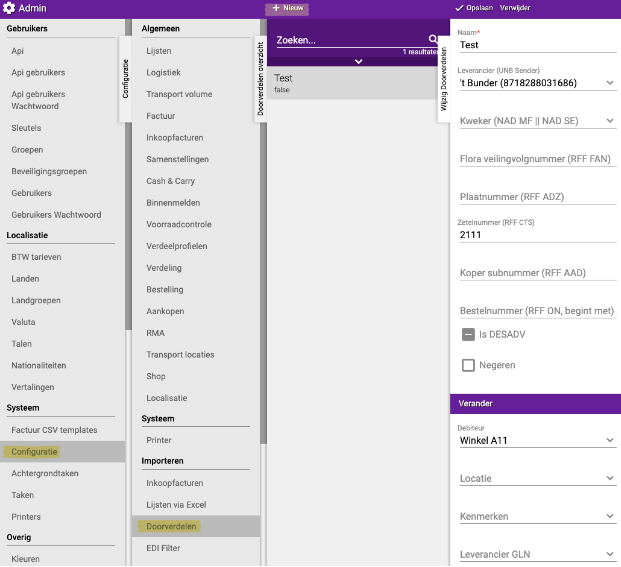
Step 5: Set up the rule
You now see two parts on your screen:
Part 1: TOP - Describe the incoming flow
This part describes which EKT messages this rule should pick up.
Filters you can use:
- Place number: EKTs with this specific place number (from your supplier)
- Seat number: EKTs with this specific seat number (from your supplier)
- Supplier: EKTs from a specific supplier
- Customer: EKTs for a specific customer
- Location: EKTs for a specific location
- And more filter options (see the image)
Example:
- Place number = 3001
- This means: "Pick up all EKTs that come in with place number 3001"
Part 2: BOTTOM - Under "Change"
This part describes where the EKT messages should go in your Easyflor system.
You can choose from two options:
Option 1: To a specific customer (debtor)
- The EKT is assigned to this customer in Easyflor
- Useful if different buyers are set up as separate customers in your system
Option 2: To a specific location
- The EKT is assigned to this location in Easyflor
- Useful if you have multiple trucks or branches
Example:
- Debtor = "Buyer A"
- This means: "Send these EKTs to Buyer A in my Easyflor system"
Step 6: Save the rule
- Click on "Save"
- The distribution rule is now active!
Step 7: Repeat for all buyers/locations
- Create a separate rule for each buyer or location
- This way everyone automatically gets their own EKTs
Complete example: 3 buyers
Situation:
You have requested 3 place numbers from your supplier:
- Place number 3001 for Buyer Jan
- Place number 3002 for Buyer Marie
- Place number 3003 for Buyer Piet
In Easyflor you have created 3 debtors:
- Debtor "Jan"
- Debtor "Marie"
- Debtor "Piet"
Rule 1: For Buyer Jan
Top (incoming flow):
- Place number = 3001
Bottom (change):
- Debtor = "Jan"
Meaning: All EKTs that come in with place number 3001 automatically go to debtor Jan
Rule 2: For Buyer Marie
Top (incoming flow):
- Place number = 3002
Bottom (change):
- Debtor = "Marie"
Meaning: All EKTs that come in with place number 3002 automatically go to debtor Marie
Rule 3: For Buyer Piet
Top (incoming flow):
- Place number = 3003
Bottom (change):
- Debtor = "Piet"
Meaning: All EKTs that come in with place number 3003 automatically go to debtor Piet
Important tips
Tip 1: Request numbers from your supplier
- Contact your supplier (for example FloraHolland)
- Request a separate place or seat number for each buyer or truck
- Carefully note which number belongs to which buyer
Tip 2: Always test it!
- First create one rule in Easyflor
- Have your supplier send a test EKT with the correct number
- Check if the EKT arrives at the correct debtor/location in Easyflor
- Does it work? Then create the rest of the rules
Tip 3: Use clear names in Easyflor
- Give debtors and locations recognizable names
- For example: "Buyer Jan" or "Truck Amsterdam"
- This way you can see at a glance where EKTs go
Tip 4: Keep a list
- Create an overview: which number (from supplier) belongs to which debtor/location (in Easyflor)
- For example in Excel or a note file
- This way you don't lose track
Tip 5: Check regularly
- Occasionally review if all rules are still correct
- Are there new buyers? Request a new number from your supplier and add a rule!
- Has someone left? Remove the rule in Easyflor
Tip 6: Communicate with your supplier
- Make sure your supplier knows which numbers belong to which buyer
- Otherwise they send EKTs with wrong numbers
- Update your supplier when something changes
Tip 7: Use specific filters
- The more specific your filter, the better it works
- For example: place number + supplier
- This prevents wrong EKTs from being forwarded
Common mistakes
Mistake 1: Numbers not requested from supplier
- You try to distribute, but you don't have place/seat numbers from your supplier
- Result: All EKTs come in with the same (or no) number
- Solution: Request separate numbers from your supplier for each buyer
Mistake 2: Supplier uses wrong numbers
- You have set up rules, but the supplier sends EKTs with different numbers
- Result: EKTs are not automatically distributed
- Solution: Check with the supplier which numbers they use and adjust your rules (or vice versa)
Mistake 3: No clear filters set
- Your filters are too vague
- Result: Wrong EKTs are forwarded
- Solution: Be as specific as possible with your filters
Mistake 4: Forgot to save
- You create a rule but forget to click "Save"
- Result: The rule is not active
- Solution: Always click "Save"!
Mistake 5: Duplicate rules created
- You accidentally create two rules for the same number
- Result: EKTs are sent to the wrong place or confusion arises
- Solution: Check that there are no duplicate rules
Mistake 6: Debtor or location doesn't exist in Easyflor
- You try to distribute to a debtor/location that doesn't exist
- Result: The system doesn't know where to send the EKT
- Solution: First create the debtor or location in Easyflor
Summary
To set up automatic distribution of EKTs, you first request separate place or seat numbers from your supplier for each buyer or truck. These numbers are not created in Easyflor, but assigned by your supplier. Then you create debtors or locations in Easyflor for each buyer, using clear and recognizable names.
In Easyflor you go to Admin, then to System and Configuration, and then to Import and Distribution. There you create a new rule for each buyer by clicking "+New". At the top you fill in the filters that describe the incoming EKT flow (such as the place number or seat number), and at the bottom under "Change" you choose the destination in Easyflor (a debtor or location). After saving each rule, you repeat this process for all buyers or locations.
It is important to test if everything works correctly by having your supplier send a test EKT. Also keep an overview of which number belongs to which buyer, and communicate regularly with your supplier to ensure they use the correct numbers. This way all incoming EKTs are automatically sent to the right place in your system.
Do you have questions or need help? Feel free to contact us by phone at +31 (0)71 30 20 310 or send an email to support@easyflor.nl.