
- (VIDEO) Creating user and employee
- Adjusting sales unit order
- Creating a user and employee
- Creating an accounting integration
- Creating and maintaining VAT rates
- Creating and using distribution profiles
- Filtering growers or suppliers
- How do I charge no VAT for my customers?
- Importing an Excel sheet / Creating an import template
- Receiving copy emails (mail cc) of order confirmations and/or invoices
- Setting up and executing Flora settlement
- Setting Up and Using AI2
- Setting up currency conversion
- Setting up distribution: Automatically send EKT messages to a KOA debtor
- Setting up payment reminders
- Setting up payment terms
- Setting up Route module
- Setting up SEPA
- Transport and carriers
- VMP article group matching
Filtering growers or suppliers
How do you filter unwanted EKTs in Easyflor?
What is an EKT filter?
An EKT filter is a block that prevents certain EKT messages (electronic purchase messages) from entering Easyflor. If you receive unwanted or duplicate EKT messages from a certain supplier, you can automatically block them with a filter.
Why use an EKT filter?
- Prevent duplicate EKTs: Sometimes you receive the same EKT twice
- Block unwanted suppliers: You no longer want to receive EKTs from a certain supplier
- Stop incorrect EKTs: Some suppliers send wrong or incomplete EKTs
- Keep overview: Your stock remains accurate without duplicate registrations
- Save time: You don't have to manually delete duplicate EKTs
- Prevent errors: Automatic blocking prevents you from accidentally processing duplicate orders
When do you use an EKT filter?
Examples:
- You receive the same EKT twice from the same supplier
- A supplier constantly sends incorrect EKT messages
- You temporarily no longer want to receive EKTs from a certain grower
- You have ended cooperation with a supplier but still receive EKTs
- A supplier is testing their system and sends test EKTs that you want to block
How do you set up an EKT filter?
Step 1: Go to EDI Filter
- Click on the "Admin" tile
- Click on "Configuration"
- Click on "EDI Filter"
Step 2: Create a new filter
- Click on "+New"
Step 3: Give the filter a name
- Choose a name that makes it clear at a glance what the filter does
- Examples of good names:
- "Block [Supplier Name]"
- "Duplicate EKTs Supplier ABC"
- "Ignore Test-EKTs Auction Y"
Why is this important?
- You can immediately see later what the filter is for
- If you have multiple filters, it remains organized
Step 4: Fill in the sender (UNB SENDER)
- This is the unique number of the sender
- Example: "8714231140184"
- This is usually a GLN number or another identification number
Where do you find this number?
- In the EKT message itself
- Ask your supplier
- Or look in a previously received EKT
Step 5: Fill in the grower or supplier
- Enter the Grower Code or Supplier Code here
- This is a specific code that identifies the supplier
How do you find this code?
- See the explanation later in this guide under "How do I find the supplier or grower code?"
- Tip: Use your computer's split screen function so you can see this guide and Easyflor at the same time
Step 6: Check all three options
You need to check three things:
1. Is DESADV
- Check this
- DESADV is the type of EKT message (Despatch Advice = shipping advice)
- This is the standard type for purchase messages
2. Ignore
- Check this
- The EKT is ignored and does not enter Easyflor
- It is simply blocked
3. Update only
- Check this
- The EKT can only update existing data, but cannot create new purchases
- This prevents duplicate registrations
Step 7: Save
- Click "Save"
- The filter is now active!

Step 8: Check if it works
- The filter should work within 1-2 days
- Are you still receiving unwanted EKTs from this supplier after that?
- Then contact Easyflor support
How do you find the supplier or grower code?
Why do you need this code?
To set up a filter, you need the exact code of the grower or supplier. You can find this in an EKT you have already received.
Step 1: Go to distribution
- Click on the "Distribution" tile
- Click on "Per purchase"
Step 2: Select an EKT
- Find an EKT/Purchase that was sent twice
- Or find an EKT from the supplier you want to block
- Click on this EKT to select it
Step 3: Open the edit menu
- Click on the pencil at the top (edit button)
- This opens the EKT so you can edit it
Step 4: Find the grower or supplier
- Scroll down in the EKT
- Find the field "Grower" or "Supplier"
- Select/click on the grower or supplier
Step 5: Open the information
- Click on "Edit"
- This opens a new screen with all information about the grower or supplier
Step 6: Find the code
- Under the Name you'll find the Code
- This is the code you need for the filter!
- Note this code or copy it
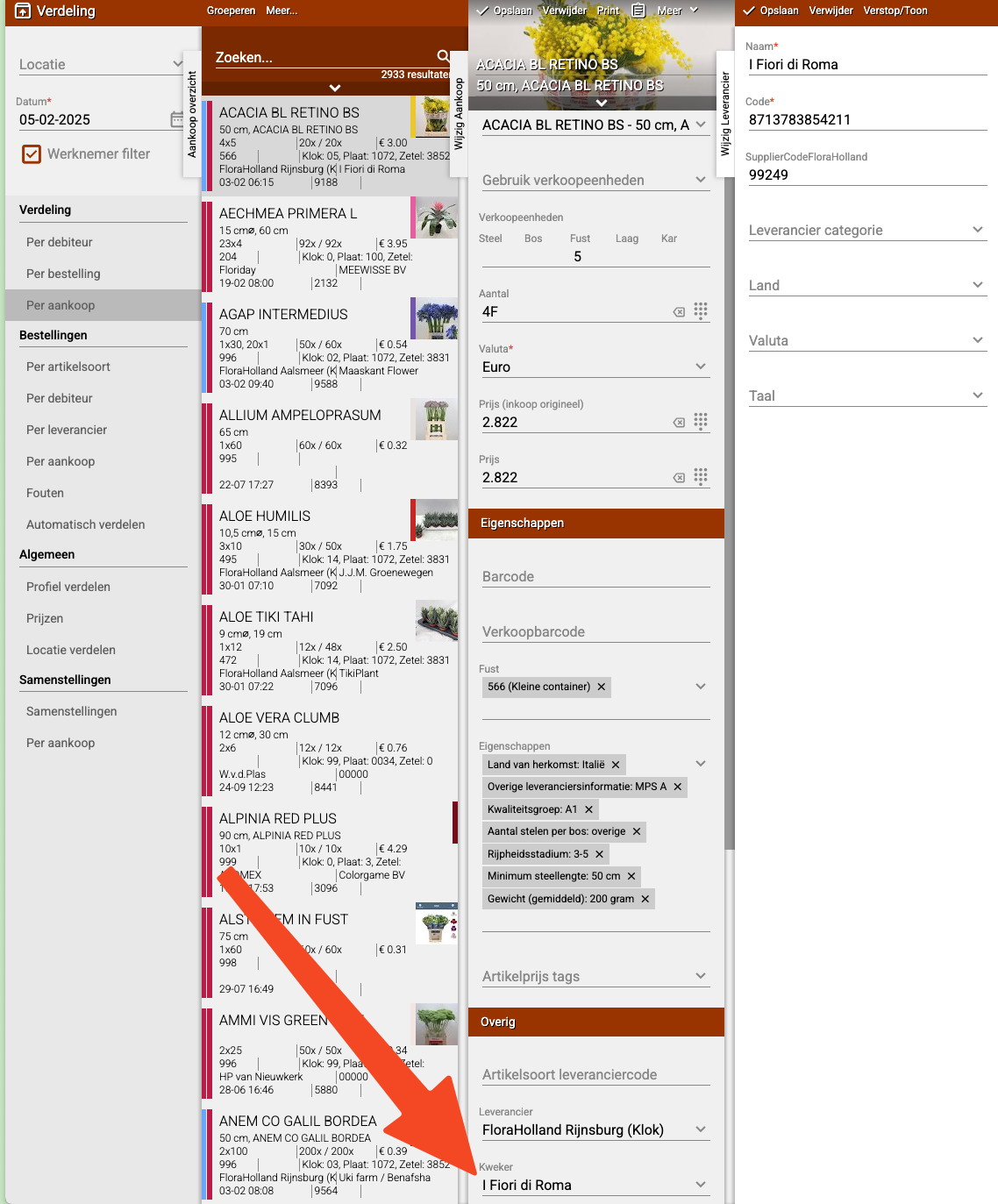
Step 7: Use the code in your filter
- Go back to your filter (Admin → Configuration → EDI Filter)
- Fill in this code under "Grower or Supplier"
Practical examples
Example 1: Blocking duplicate EKTs
Problem: You receive the same EKT twice from FloraHolland for grower "Rose Nursery BV".
Solution:
- Create a filter named: "Block Rose Nursery"
- Fill in UNB SENDER: "8712345678901" (GLN of FloraHolland)
- Fill in Grower Code: "ROZENKW01" (the code of Rose Nursery)
- Check all three: Is DESADV, Ignore, Update only
- Save
Result:
- Duplicate EKTs from Rose Nursery are now blocked
- Your stock remains accurate
Example 2: Stopping incorrect EKTs
Problem: Supplier "Flower Wholesaler XYZ" sends EKTs with wrong prices.
Solution:
- First look up the supplier code via Distribution → Per purchase
- Open an EKT from this supplier
- Click on the pencil
- Select the supplier and click "Edit"
- Note the code (for example: "BLOEMXYZ")
- Create a filter named: "Block Flower Wholesaler XYZ"
- Fill in UNB SENDER and Supplier Code
- Check all three and save
Result:
- Incorrect EKTs from this supplier no longer come in
- You can ask the supplier to fix the problem
- After that you can remove the filter again
Example 3: Ignoring test EKTs
Problem: A supplier is testing their system and sends test EKTs to your system.
Solution:
- Create a filter named: "Ignore test-EKTs [Supplier]"
- Fill in the supplier's details
- Check all three and save
- When the test is over, you can remove the filter again
Result:
- Test EKTs are blocked
- Your stock remains clean of test data
Important tips
Tip 1: Use clear names
- Give your filter a name that explains what it does
- For example: "Block [Supplier]" or "Duplicate EKTs [Grower]"
- This way you still know what it's for in a few months
Tip 2: Note why you created a filter
- Write down why you created this filter
- For example: "Duplicate EKTs since January 1, 2025"
- This way you can later evaluate whether the filter is still needed
Tip 3: Regularly check your filters
- Occasionally review which filters you have
- Are they still needed? Or can the filter be removed?
- Too many filters can become confusing
Tip 4: Test the filter
- Ask the supplier to send a test EKT
- Check if the EKT is blocked
- Doesn't work? Contact support
Tip 5: Communicate with the supplier
- Tell the supplier that you have set up a filter
- Explain why (duplicate EKTs, errors, etc.)
- Ask them to fix the problem
- After that you can often remove the filter again
Tip 6: Use split screen
- When looking up the grower code, it's useful to split your screen
- This way you can see this guide and Easyflor at the same time
- This makes the work much easier!
Tip 7: Save the codes
- Make a list of which suppliers have which codes
- For example in Excel or a notes file
- This way you don't have to search again next time
Common mistakes
Mistake 1: Wrong code entered
- You accidentally enter the name instead of the code
- Result: The filter doesn't work
- Solution: Always use the exact code listed under "Code"
Mistake 2: Not all three options checked
- You forget to check one of the three options
- Result: The filter doesn't work correctly
- Solution: Always check all three: Is DESADV, Ignore, Update only
Mistake 3: Wrong UNB SENDER
- You enter the wrong sender number
- Result: The filter blocks the wrong EKTs (or none at all)
- Solution: Check the UNB SENDER number in a previously received EKT
Mistake 4: Too general filter
- You make a filter too broad, blocking desired EKTs as well
- Result: You miss important purchases
- Solution: Be as specific as possible with the grower or supplier code
Mistake 5: Filter not saved
- You forget to click "Save"
- Result: The filter is not active
- Solution: Always click "Save"!
Mistake 6: Waiting too long to check
- You only check after a week if the filter works
- Result: Meanwhile unwanted EKTs keep coming in
- Solution: Check within 1-2 days if the filter works
What if the filter doesn't work?
Check after 1-2 days
- The filter should be active within 1-2 days
- Are you still receiving unwanted EKTs after that?
Step 1: Check your settings
- Are all three options checked?
- Is the grower code correct?
- Is the UNB SENDER number correct?
Step 2: Check the name
- Did you give a clear name?
- Can you see that the filter is active?
Step 3: Contact support
- If everything seems correct but the filter doesn't work
- Then contact Easyflor support
- They can help you further
Visual overview of the process
STEP 1: Find the grower code
    ↓
Distribution → Per purchase → Select EKT
    ↓
Click pencil → Select grower/supplier
    ↓
Edit → Note the Code
    ↓
STEP 2: Create the filter
    ↓
Admin → Configuration → EDI Filter → +New
    ↓
STEP 3: Fill in the details
    ↓
Name: "Block [Supplier]"
UNB SENDER: "8714231140184"
Grower/Supplier Code: [The code you found]
    ↓
STEP 4: Check everything
    ↓
Is DESADV ✓
Ignore ✓
Update only ✓
    ↓
STEP 5: Save
    ↓
STEP 6: Check after 1-2 days
    ↓
Doesn't work? → Contact support
Works? → Done!
Summary
To block unwanted or duplicate EKTs in Easyflor, you create an EKT filter. You go to Admin, then to Configuration and then to EDI Filter, where you click "+New" to create a new filter.
When creating a filter, you fill in the following details:
- A clear name indicating what the filter does, for example "Block [Supplier Name]"
- The UNB SENDER (sender number), for example "8714231140184", this is usually a GLN number
- The Grower or Supplier Code, this is the specific code of the supplier you want to block
To find the grower or supplier code, go to Distribution and then to Per purchase, where you select an EKT from the supplier you want to block. You click on the pencil at the top to open the EKT, scroll down and select the grower or supplier. Then click "Edit" to open the information, and under the name you'll find the code you need for the filter.
After filling in the details, you need to check three options:
- Is DESADV: this is the type of EKT message (shipping advice)
- Ignore: the EKT is blocked and doesn't enter
- Update only: the EKT can only update existing data and cannot create new purchases
Then click "Save" to activate the filter. The filter should work within 1-2 days. If you still receive unwanted EKTs from this supplier after that, contact Easyflor support. It's useful to use the split screen function when looking up the grower code, so you can see this guide and Easyflor at the same time.
Do you have questions or need help? Feel free to contact us by phone at +31 (0)71 30 20 310 or send an email to support@easyflor.nl.