- (VIDEO) Creating user and employee
- Adjusting sales unit order
- Creating a user and employee
- Creating an accounting integration
- Creating and using distribution profiles
- Currency conversion
- Filtering growers or suppliers
- Importing an Excel sheet / Creating an import template
- Receiving copy emails (mail cc) of order confirmations and/or invoices
- Setting up and executing Flora settlement
- Setting Up and Using AI2
- Setting Up Automatic Distribution
- Setting up payment reminders
- Setting up payment terms
- Setting up Route module
- Setting up SEPA
- Transport and carriers
- Two factor authentication (2FA/MFA)
- VMP article group matching
Creating an accounting integration
How do you create an accounting integration in Easyflor?
What is an accounting integration?
An accounting integration is an automatic connection between Easyflor and your accounting software (such as SnelStart, Twinfield, or e-Boekhouden). This allows your invoices and financial data to be automatically transferred to your accounting system, without having to manually re-enter everything.
Why use an accounting integration?
- Save time: You don't have to manually re-enter all invoices in your accounting software
- No errors: Automatic transfer prevents typing errors
- Always up-to-date: Your accounting is automatically updated
- Less work: Your accountant has all the data immediately
- Clear overview: All financial data is in one place
- Professional: Your administration is always neatly organized
When do you use an accounting integration?
Examples:
- You work with external accounting software like SnelStart or Twinfield
- You want to automatically send your invoices to your accountant
- You want to save time by not entering everything twice
- You want to prevent errors when copying amounts
Which accounting packages are supported?
Easyflor works with the following programs:
- SnelStart
- Twinfield
- Exact
- Exact Online
- King
- Multivers
- e-Boekhouden
Note: Other packages can also be connected, but this is custom work. The costs for this are calculated based on the number of hours required.
Part 1: Creating the integration
Step 1: Go to administration export
- Click on the "Admin" tile
- Click on "System"
- Click on "Configuration"
- Click on "Export"
- Click on "Administration"
Step 2: Create a new integration
- Click "New" at the top
Step 3: Fill in the basic information
1. Name:
- Give the integration a clear name
- Use the name of your accounting software
- Examples: "SnelStart", "Twinfield", "e-Boekhouden"
2. Administrations:
- Choose which administration(s) may be exported
- Do you have multiple companies? Choose the correct administration
3. Accounting package:
- Choose which accounting software you use
- Select from the list (SnelStart, Twinfield, Exact, etc.)
4. Data to synchronize:
- Choose what you want to export to the accounting software
- Examples:
- Invoices
- Debtors (customers)
- Creditors (suppliers)
- Articles
- VAT data
5. Start date:
- From which date should data be exported?
- Usually you choose today's date or the start date of your fiscal year
6. Delay:
- This indicates how much delay there is between Easyflor and your accounting software
- No delay? Enter 0d (this means 0 days)
- 1 day delay? Enter 1d
- Recommendation: Usually use 0d (no delay)
Step 4: Save
- Click "Save"
Part 2: Entering login credentials for your accounting software
This varies per accounting software!
After saving, you will see a new screen. What you need to fill in here depends on your accounting software.
For e-Boekhouden:
You need to enter a Username and Security Code.
Where do you find this information?
- Log in to e-Boekhouden
- Go to Management
- Click on Settings
- Expand Integrations
- Click on API/SOAP
- Here you see your Username and Security Code


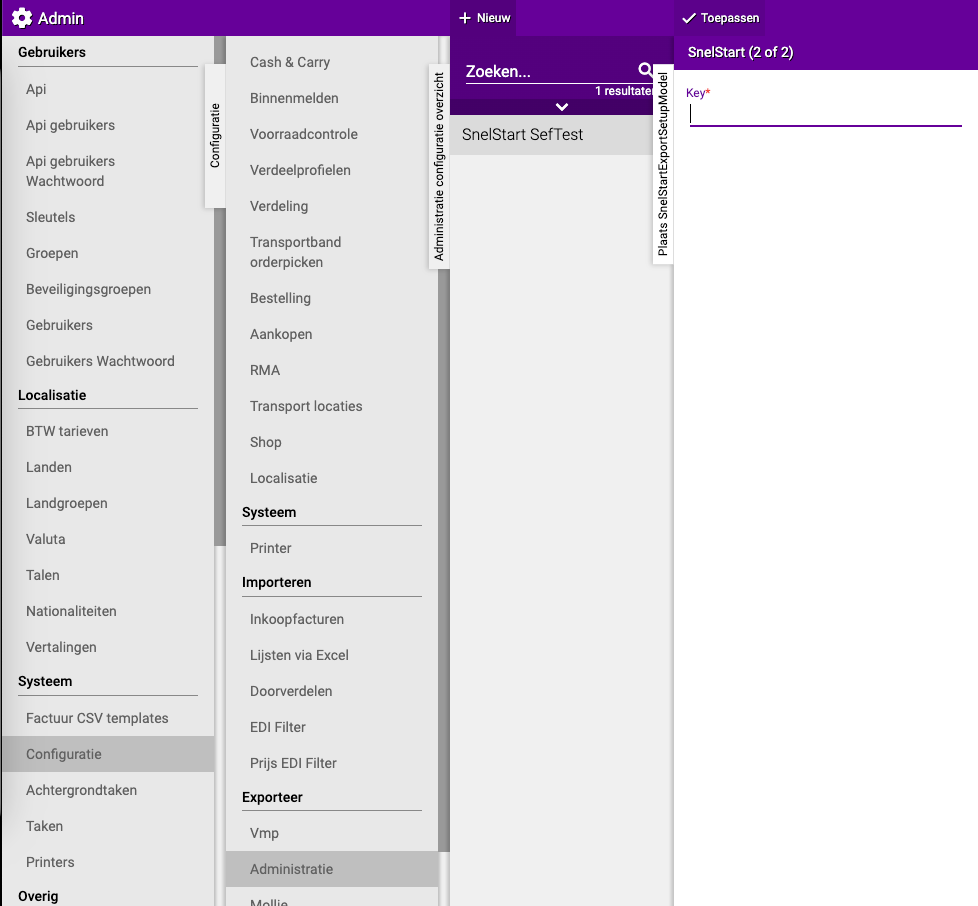
For SnelStart:
You need to enter a KEY that you receive from SnelStart.
How do you get this KEY?
- Contact SnelStart
- They will give you a special KEY for the integration
- Enter this KEY and click "Apply"
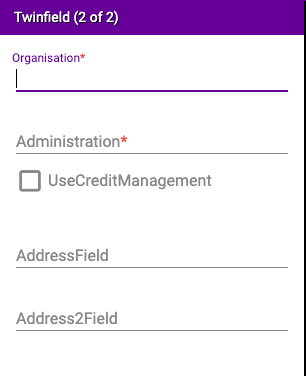
For Twinfield:
You need to enter various details (see image).

Note: For the option "UseCreditManagement" you need to contact a consultant or developer at Easyflor. The default setting is: unchecked.
For Exact:
You need to provide an email address.
Part 3: Checking the configuration
Step 1: Go back to the overview
- Go back one screen
- You are now back at Admin → System → Configuration → Export → Administration
Step 2: Open the configuration
- Click on the integration you just created
- Click on "Configuration"
- Here you can check if everything is set up correctly
Part 4: Filling in accounting numbers (Rules)
What are accounting numbers?
Accounting numbers (also called general ledger numbers) are special codes your accountant uses to sort income and expenses. Each type of income or expense has its own number.
Examples:
- Revenue Netherlands: 8000
- Revenue Europe: 8010
- VAT High: 8020
Where do you get these numbers?
- Ask your accountant
- They are specific to your administration
Step 1: Creating VAT rates
Why VAT rates first?
You will need the VAT rates later when setting up articles. That's why you create these first.
How do you create a VAT rate?
- You are in the menu: Admin → Configuration → Export → Administration
- Click on the integration you created
- Click on "Rules"
- Click on "VAT Rates"
- Click on "New"
Fill in the following:
1. Name:
- Give a clear name
- Examples:
- "VAT NL High" (for 21% VAT in the Netherlands)
- "VAT NL Low" (for 9% VAT in the Netherlands)
- "VAT 0%" (for no VAT)
2. General ledger number:
- The number you received from your accountant for this VAT rate
- Example: 8020 for VAT High
3. VAT code:
- The code your accounting software uses
- Note for e-Boekhouden: See further below for special explanation!
4. Administration:
- Choose the administration this VAT rate applies to
5. Click "Apply"
Repeat this for all VAT rates
Create separate VAT rates for:
- VAT High (21%)
- VAT Low (9%)
- VAT 0% (no VAT)
- Possibly VAT for other countries
Step 2: Setting up articles
What are article rules?
Article rules determine to which general ledger number your revenue is posted. For example: roses to revenue Netherlands, tulips to revenue Europe, etc.
How do you create an article rule?
- You are in the menu: Admin → Configuration → Export → Administration → [Your integration]
- Click on "Rules"
- Click on "Articles"
- Click on "New"
Fill in the following:
1. Name:
- Give a clear description
- Examples:
- "Revenue NL High" (Dutch sales with 21% VAT)
- "Revenue EU High" (European sales with 21% VAT)
- "Revenue Export 0%" (Export outside EU without VAT)
2. General ledger number:
- The number from your accountant for this type of revenue
- Example: 8000 for Dutch revenue
3. VAT export rule:
- Choose one of the VAT rates you created earlier
- Example: "VAT NL High"
4. Article group (optional):
- Does this rule only apply to a specific article group?
- Example: Only for "Roses" or "Plants"
- Leave empty if it applies to all articles
5. Administration:
- Choose the administration this rule applies to
6. VAT rates:
- Choose the VAT categories this rule applies to
- Example: VAT High, VAT Low, or VAT 0%
7. Country or country group (optional):
- Does this rule only apply to a specific country?
- Examples:
- Netherlands
- Belgium
- EU countries
- Non-EU countries
- Leave empty if it applies to all countries
8. Credit, debit, or all invoices:
- Debit invoices: Normal sales to customers
- Credit invoices: Credit notes (refunds)
- All: Both types
- Usually you choose: All
9. ICP/ECP invoices:
- ICP: Intra-community supplies (within EU)
- ECP: Extra-community supplies (outside EU)
- Both: Both ICP and ECP
- Note: The ICP button also indicates the status for ECP. If you have a separate general ledger number for ECP, clarify this in the name
10. Click "Apply"
Repeat this for all types of revenue
Create separate rules for:
- Dutch sales (VAT 21%)
- Dutch sales (VAT 9%)
- EU sales (VAT reverse charged)
- Export outside EU (VAT 0%)
Step 3: Setting up surcharges
What are surcharges?
Surcharges are extra costs you charge, such as transport costs, packaging costs, or service charges.
How do you create a surcharge?
- You are in the menu: Admin → Configuration → Export → Administration → [Your integration]
- Click on "Rules"
- Click on "Surcharges"
- Click on "New"
The steps are almost the same as for articles!
The only difference:
- Instead of "Article group" you have the option to choose "Surcharge groups"
- These are categories of surcharges, such as "Transport" or "Packaging"
Follow the same steps as for articles.
Step 4: Setting up containers
What are containers?
Containers are crates, bins, buckets, and other packaging materials that you lend to customers and that they return.
Important choices for containers:
1. Single-use or multi-use container?
- Single-use container: Customer keeps it, must pay for it (e.g., disposable trays)
- Multi-use container: Customer returns it, gets deposit back (e.g., crates)
2. Deposit yes or no?
- Multi-use containers: Always deposit (customer pays deposit, gets it back when returning)
- Single-use containers: No deposit (customer keeps it)
3. VAT yes or no?
- With deposit: Always VAT 0% (deposit is not revenue)
- Without deposit: Normal VAT (you sell the container)
How do you create a container rule?
- You are in the menu: Admin → Configuration → Export → Administration → [Your integration]
- Click on "Rules"
- Click on "Containers"
- Click on "New"
Follow the same steps as for articles, but pay attention to the choices above!
Step 5: Setting up trolleys
What are trolleys?
Trolleys are carts that you lend to customers.
How do you create a trolley rule?
Trolleys are set up in the same way as containers. Follow the same steps as in "Setting up containers".
Special explanation for e-Boekhouden
Important difference!
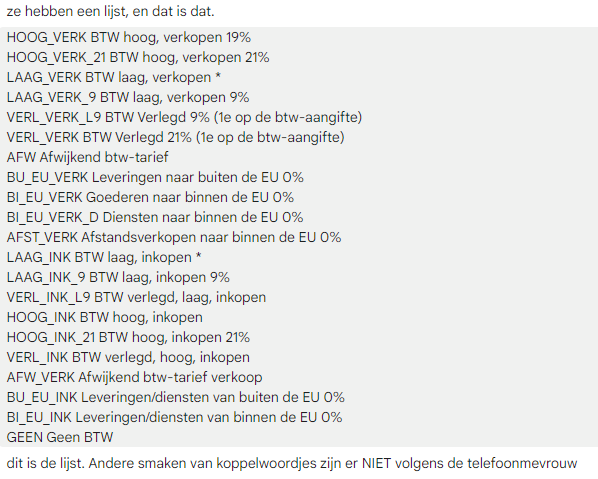
e-Boekhouden does NOT work with general ledger numbers, but with general ledger CODES (names).
What does this mean?
Normal (for example with SnelStart or Twinfield):
- VAT High = 8020 (a number)
With e-Boekhouden:
- VAT High = HOOG_VERK_21 (a code/name)
Examples of e-Boekhouden codes:
- HOOG_VERK_21 → VAT High sales (21%)
- LAAG_VERK_9 → VAT Low sales (9%)
- GEEN_BTW → No VAT (0%)
- OMZET_NL → Revenue Netherlands
Where do you find these codes?
- Log in to e-Boekhouden
- Look in your general ledger accounts
- The codes are listed there

Note: So use the names/codes instead of numbers when working with e-Boekhouden!
Important tips
Tip 1: Work together with your accountant
- Ask for the correct general ledger numbers
- Have your accountant look over the first setup
- This prevents errors in your administration
Tip 2: Test first with one invoice
- Create the integration
- Send one test invoice through
- Check in your accounting software if everything arrived correctly
- Everything correct? Then you can continue!
Tip 3: Start simple
- First create only the basic VAT rates (High, Low, 0%)
- Then create the most important article rules
- Add more details later if needed
Tip 4: Use clear names
- Give VAT rates clear names like "VAT NL High"
- Give article rules clear names like "Revenue NL High"
- This way you can see at a glance what it's for
Tip 5: Document everything
- Write down which general ledger number is for what
- Note why you made certain choices
- This makes it easy to find later
Tip 6: Pay attention to deposits for containers
- Multi-use containers = always deposit = always VAT 0%
- Single-use containers = no deposit = normal VAT
- This is important for your administration!
Tip 7: Check regularly
- Check monthly if the export is going well
- Compare your revenue in Easyflor with your accounting software
- Do the amounts match? Then everything is working well!
Common mistakes
Mistake 1: Wrong login credentials
- You enter the wrong Username or Security Code
- Result: The integration doesn't work
- Solution: Check the details in your accounting software
Mistake 2: General ledger numbers instead of codes with e-Boekhouden
- You enter numbers with e-Boekhouden, but it works with codes
- Result: The export fails
- Solution: Use the correct codes like "HOOG_VERK_21"
Mistake 3: No VAT rates created
- You try to create articles without first creating VAT rates
- Result: You can't select a VAT rate for articles
- Solution: Create the VAT rates first
Mistake 4: Wrong VAT on deposits
- You charge VAT on deposits for multi-use containers
- Result: Wrong VAT return
- Solution: Deposit is always VAT 0%
Mistake 5: Starting too complicated
- You immediately create 50 different rules
- Result: Lose overview and make mistakes
- Solution: Start simple, add more later
Mistake 6: Not testing
- You create everything and immediately use it for all invoices
- Result: If there's an error, all invoices are wrong
- Solution: Test first with one invoice!
Visual overview of the process
STEP 1: Create integration
↓
Admin → Configuration → Export → Administration → New
Fill in name, package, data
↓
STEP 2: Enter login credentials
↓
Username + Security Code (e-Boekhouden)
or KEY (SnelStart)
or other data (depending on package)
↓
STEP 3: Create VAT rates
↓
Rules → VAT Rates → New
Create VAT High, Low, 0%
↓
STEP 4: Set up articles
↓
Rules → Articles → New
Create revenue rules per country/VAT
↓
STEP 5: Set up surcharges
↓
Rules → Surcharges → New
Create rules for transport costs etc.
↓
STEP 6: Set up containers
↓
Rules → Containers → New
Pay attention to deposit and VAT!
↓
STEP 7: Set up trolleys
↓
Rules → Trolleys → New
Same as containers
↓
DONE! Test with one invoice
Summary
To create an accounting integration in Easyflor, go to Admin, then to System, Configuration, Export and Administration, where you click "New". You then fill in the basic information for the integration:
- A name like "SnelStart" or "e-Boekhouden"
- The administration that may be exported
- The accounting package you use (such as SnelStart, Twinfield, Exact, e-Boekhouden, King or Multivers)
- The data to synchronize that you want to export
- A start date from when data will be exported
- A delay where you usually enter "0d" for no delay
After saving, a new screen appears where you need to enter the login credentials for your accounting software. This varies per package: with e-Boekhouden you enter a Username and Security Code (found in their menu under Management → Settings → Integrations → API/SOAP), with SnelStart you enter a KEY that you receive from SnelStart, and with other packages like Exact you enter other details such as an email address.
Next, you fill in the accounting numbers via the Rules menu. You always start by creating VAT rates because you will need these later for articles. For each VAT rate you enter a name (like "VAT NL High"), a general ledger number, a VAT code, and the administration. You create separate rates for VAT High (21%), VAT Low (9%) and VAT 0%.
Then you create article rules that determine to which general ledger number your revenue is posted. For each rule you fill in:
- A name like "Revenue NL High"
- A general ledger number from your accountant
- A VAT export rule that you created earlier
- Optionally an article group if the rule only applies to certain articles
- The administration, VAT rates and possibly country the rule applies to
- Whether it concerns credit, debit, or all invoices
- Whether it concerns ICP/ECP invoices or both
After articles you set up surcharges in the same way, but with surcharge groups instead of article groups. Then you set up containers, where you need to think about three important choices: single-use or multi-use container, deposit yes or no (multi-use containers always have deposit), and VAT yes or no (with deposit it's always VAT 0%). Finally, you set up trolleys in the same way as containers.
An important difference is that e-Boekhouden does not work with general ledger numbers but with general ledger codes (names). Instead of a number like "8020" you use a code like "HOOG_VERK_21" with e-Boekhouden. You can find these codes in your e-Boekhouden environment under the general ledger accounts. Always test first with one invoice before using the integration for all invoices, and work closely with your accountant to get the correct general ledger numbers or codes.
Heeft u vragen of heeft u hulp nodig? Neem dan gerust contact met ons op via telefoonnummer +31 (0)71 30 20 310 of stuur een e-mail naar support@easyflor.nl.