
- (VIDEO) Creating user and employee
- Adjusting sales unit order
- Creating a user and employee
- Creating an accounting integration
- Creating and maintaining VAT rates
- Creating and using distribution profiles
- Filtering growers or suppliers
- How do I charge no VAT for my customers?
- Importing an Excel sheet / Creating an import template
- Receiving copy emails (mail cc) of order confirmations and/or invoices
- Setting up and executing Flora settlement
- Setting Up and Using AI2
- Setting up currency conversion
- Setting up distribution: Automatically send EKT messages to a KOA debtor
- Setting up payment reminders
- Setting up payment terms
- Setting up Route module
- Setting up SEPA
- Transport and carriers
- VMP article group matching
Setting up payment terms
How do you set up payment terms for customers in Easyflor?
What is a payment term?
A payment term is the time a customer has to pay an invoice. For example: with a payment term of 14 days, the customer must pay within 2 weeks of receiving the invoice.
Why set up payment terms?
- Clarity for customers: Customers know exactly when they need to pay
- Automatic reminders: The system can automatically send reminders when the payment term has expired
- Different per customer: Some customers get 14 days, others maybe 30 days or immediate payment
- Better cash flow: You determine how long customers can wait to pay
- Professional: Standard payment terms give your business a professional appearance
- Fewer disputes: It's clearly stated on the invoice, no ambiguity
When do you use payment terms?
Examples:
- Standard customers: 14 days payment term
- Regular, reliable customers: 30 days payment term
- New customers: 7 days payment term (build trust first)
- High-risk customers: Pay immediately (0 days)
- Wholesale: 21 days payment term
There are two ways to set up payment terms:
Method 1: General payment term
This is the standard payment term for ALL customers. If you haven't set a specific term for a customer, Easyflor automatically uses this general term.
Method 2: Payment term per debtor
This is a specific payment term for one customer. Useful when some customers need a longer or shorter payment term than other customers.
Important: If you have set BOTH, Easyflor always looks at the specific payment term per customer first. Is that empty? Then the system uses the general payment term as a backup.
Method 1: Setting up a general payment term
When do you use this?
- When you want most customers to have the same payment term
- As a default setting for new customers
- As a backup if no specific payment term is set
Step 1: Go to configuration
- Click on the "Admin" tile
- Click on "System"
- Click on "Configuration"
- Click on "General"
- Click on "Invoice"
Step 2: Set the standard payment term
- Find the field "Standard payment term" (under "Invoice configuration")
- Enter the number of days
- For example: 14 for 2 weeks
- For example: 30 for 1 month
- For example: 7 for 1 week
- For example: 0 for immediate payment
Step 3: Save
- Click "Save"
- This payment term now applies to all customers who don't have a specific payment term!

Method 2: Setting up a payment term per debtor
When do you use this?
- For customers who need a DIFFERENT payment term than the standard
- For VIP customers who may wait longer to pay
- For high-risk customers who need to pay faster
- For special agreements with certain customers
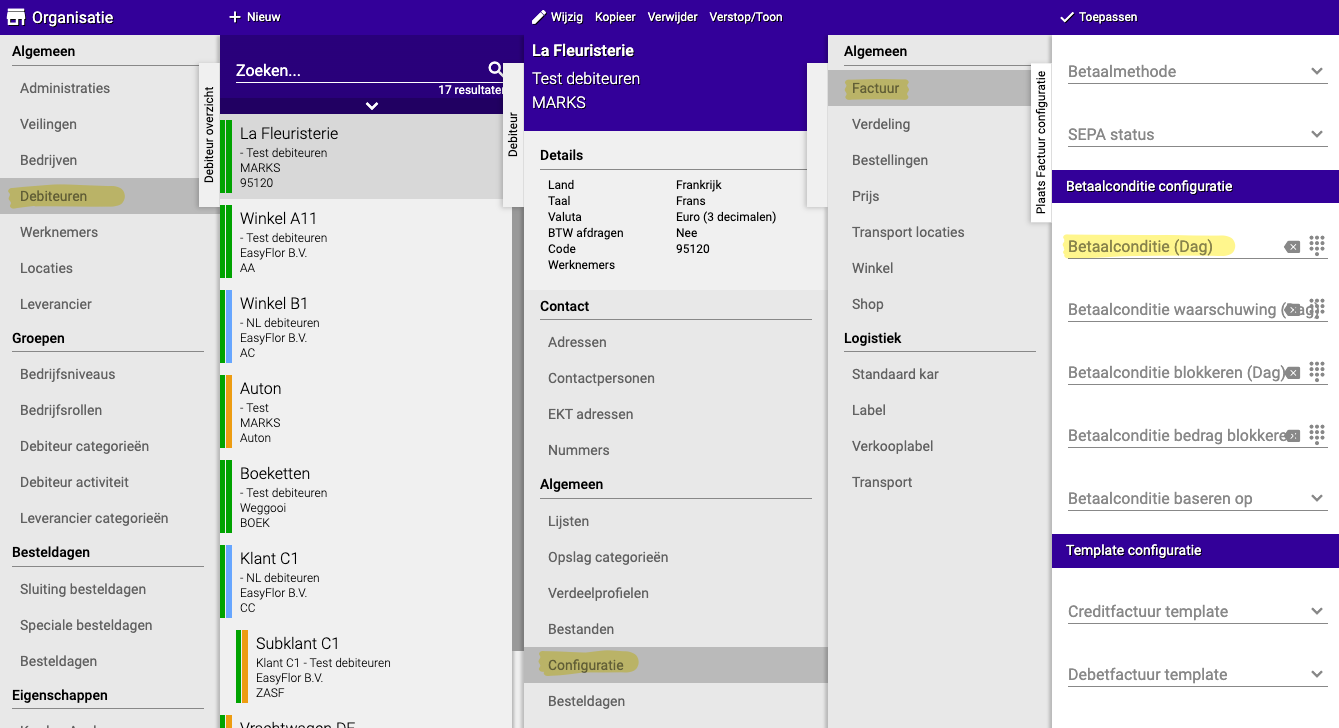
Step 1: Go to debtors
- Click on "Organization"
- Click on "General"
- Click on "Debtors"
Step 2: Select the customer
- Click on the debtor (customer) for whom you want to set a specific payment term
Step 3: Go to configuration
- Click on "General"
- Click on "Configuration"
- Click on "General"
- Click on "Invoice"
Step 4: Set the payment term
- Find the field "Payment condition (Day)"
- Enter the number of days for this specific customer
- For example: 30 if this customer may wait longer
- For example: 7 if this customer needs to pay faster
- For example: 0 if this customer must pay immediately
- Leave empty if this customer should use the general payment term
Step 5: Save
- Click "Save"
- This payment term now only applies to this specific customer!
How does the priority rule work?
Situation:
- General payment term = 14 days
- Customer A has specific payment term = 30 days
- Customer B has specific payment term = empty (not filled in)
What happens?
For Customer A:
- Easyflor first looks at the specific payment term
- Customer A has 30 days filled in
- Result: Customer A gets 30 days payment term
For Customer B:
- Easyflor first looks at the specific payment term
- Customer B has nothing filled in (empty)
- Easyflor then uses the general payment term as backup
- Result: Customer B gets 14 days payment term (the standard)
Visual overview:
EASYFLOR CHECKS:
    ↓
Is there a specific payment term filled in for this customer?
    ↓
YES → Use the specific payment term
    ↓
NO → Use the general payment term as backup
Practical examples
Example 1: Standard situation
Settings:
- General payment term: 14 days
- Customer "Flower Shop Jansen": nothing filled in
Result:
- Flower Shop Jansen gets 14 days payment term
Example 2: VIP customer with longer term
Settings:
- General payment term: 14 days
- Customer "Large Garden Center BV": 30 days
Result:
- Large Garden Center BV gets 30 days payment term (despite the standard being 14 days)
Example 3: New customer with short term
Settings:
- General payment term: 14 days
- Customer "New Customer XYZ": 7 days
Result:
- New Customer XYZ gets 7 days payment term (shorter than the standard)
Example 4: High-risk customer must pay immediately
Settings:
- General payment term: 14 days
- Customer "High-Risk ABC": 0 days
Result:
- High-Risk ABC must pay immediately (no payment term)
Important tips
Tip 1: Set up the general payment term first
- Start by setting up a general payment term
- This is the basis for all customers
- Usually 14 days, but this depends on your industry
Tip 2: Then adjust specific terms
- Only for customers who need a DIFFERENT term
- Leave the field empty for customers who should use the standard
Tip 3: Document your agreements
- Write down which customers have which payment term
- Note why (for example: "VIP customer, longer term agreed")
- This way you always know why someone has a different term
Tip 4: Communicate the payment term
- Tell customers how much time they have to pay
- State it clearly on the invoice
- Prevent surprises
Tip 5: Check regularly
- Review from time to time whether the payment terms are still correct
- Has a high-risk customer become reliable? Extend the term
- Has a customer become unreliable? Shorten the term
Tip 6: Link with payment reminders
- Payment terms work together with payment reminders
- When the payment term has passed, reminders can be automatically sent
- Make sure both are set up correctly!
Tip 7: Be consistent
- Treat similar customers the same
- For example: all new customers get 7 days
- This keeps things fair and organized
Common mistakes
Mistake 1: No general payment term set
- You only set specific terms per customer
- Result: Customers without a specific term don't get a term (or a system default)
- Solution: Always set up a general payment term first as a basis
Mistake 2: Forgetting to save
- You fill in a term but forget to click "Save"
- Result: The setting is not saved
- Solution: Always click "Save"!
Mistake 3: Wrong days entered
- You think "30" means "30 months" instead of "30 days"
- Result: Customers get a much too short or long payment term
- Solution: Always enter the number of DAYS
Mistake 4: Not leaving specific term empty
- You accidentally enter "0" for customers who should get the standard
- Result: These customers must pay immediately instead of the standard 14 days
- Solution: Leave the field completely empty if the standard should be used
Mistake 5: Payment term too long
- You give all customers 60 days payment term
- Result: Your money is outstanding too long, poor cash flow
- Solution: Choose realistic terms (usually 14-30 days)
Mistake 6: Payment term too short
- You give all customers 3 days payment term
- Result: Customers get angry because they don't have enough time
- Solution: Give customers sufficient time (minimum 7-14 days)
Link with payment reminders
Important to know:
Payment terms and payment reminders work together!
How does this work?
- Customer receives an invoice with a payment term of 14 days
- After 14 days, the payment term has expired
- Easyflor can now automatically send a payment reminder
Haven't set up payment reminders yet?
- Follow the guide for payment reminders
- You can find it here
- This way you make optimal use of the system!
Example of the collaboration:
Day 0: Invoice sent
    ↓
Day 14: Payment term expired
    ↓
Day 14: FIRST REMINDER (automatically sent)
    ↓
Day 21: SECOND REMINDER (if not yet paid)
    ↓
Day 28: FINAL WARNING (if not yet paid)
Visual overview of the process
STEP 1: Set up general payment term
    ↓
Admin → Configuration → Invoice → Standard payment term
(For example: 14 days for all customers)
    ↓
STEP 2: Set up specific terms (optional)
    ↓
Organization → Debtors → [Customer] → Configuration → Payment condition
(For example: VIP customer gets 30 days)
    ↓
STEP 3: Easyflor uses the correct term
    ↓
Specific filled in? → Use specific term
Nothing filled in? → Use general term
    ↓
STEP 4: When exceeded → Payment reminder
Summary
To set up payment terms in Easyflor, you can work in two ways: a general payment term for all customers or a specific payment term per individual customer.
For the general payment term, go to Admin, then to System, Configuration, General, Invoice and there you'll find the field "Standard payment term". The number you enter here is the days customers have to pay, for example:
- 14 for two weeks payment term
- 30 for one month payment term
- 7 for one week payment term
- 0 for immediate payment
This general payment term automatically applies to all customers who don't have a specific payment term set. It works as a backup and ensures that every customer has a payment term.
For a specific payment term per customer, go to Organization, then to General, Debtors, select the customer, go to General, Configuration, General, Invoice and there you'll find the field "Payment condition (Day)". Here too you enter the number of days this specific customer has to pay. If you leave this field empty, the customer automatically uses the general payment term.
The priority rule works as follows: Easyflor always looks at the specific payment term per customer first. If something is filled in there, the system uses that term. If the field is empty, the system falls back to the general payment term. This means you can set a longer term for VIP customers (for example 30 days), a shorter term for new customers (for example 7 days), and immediate payment for high-risk customers (0 days), while all other customers simply get the standard term of 14 days.
It's important to know that payment terms work closely with payment reminders. As soon as the payment term has expired, Easyflor can automatically send reminders. Therefore, make sure you have also set up the payment reminders correctly to make optimal use of the system.
Do you have questions or need help? Feel free to contact us by phone at +31 (0)71 30 20 310 or send an email to support@easyflor.nl.