
- (VIDEO) Creating user and employee
- Adjusting sales unit order
- Creating a user and employee
- Creating an accounting integration
- Creating and maintaining VAT rates
- Creating and using distribution profiles
- Filtering growers or suppliers
- How do I charge no VAT for my customers?
- Importing an Excel sheet / Creating an import template
- Receiving copy emails (mail cc) of order confirmations and/or invoices
- Setting up and executing Flora settlement
- Setting Up and Using AI2
- Setting up currency conversion
- Setting up distribution: Automatically send EKT messages to a KOA debtor
- Setting up payment reminders
- Setting up payment terms
- Setting up Route module
- Setting up SEPA
- Transport and carriers
- VMP article group matching
Setting up payment reminders
How do you set up payment reminders for customers in Easyflor?
What are payment reminders?
Payment reminders are automatic emails sent to customers when they haven't paid an invoice on time. The system sends them a friendly reminder that there is still money outstanding.
Why use payment reminders?
- Get paid faster: Customers are reminded of outstanding invoices
- Less work: The system automatically sends reminders, so you don't have to keep calling or emailing
- Professional: Standard reminders ensure a consistent approach
- No forgotten invoices: The system tracks which invoices are overdue
- Prevents bad debt: Customers are warned in time before things get out of hand
- Clear communication: Customers know exactly what they still need to pay
When do you use payment reminders?
Examples:
- A customer has an invoice with a payment term of 14 days, but after 14 days payment has not been received
- You want to automatically remind customers after 2 weeks, 3 weeks, and 4 weeks
- You want bad payers to be automatically blocked in the webshop
- You don't want to manually chase payments all the time
How do you set up payment reminders?
Step 1: Go to reminders
- Click on the "Admin" tile
- Click on "System"
- Click on "Configuration"
- Click on "General"
- Click on "Invoice"
- Click on "General"
- Click on "Reminders"
Step 2: Create a new reminder
- Click "New" at the top
Step 3: Fill in the basic information
Required fields:
Name:
- Give the reminder a clear name
- For example: "First reminder", "Second reminder" or "Final warning"
- This name is only visible in Easyflor, not to the customer
Administration:
- Choose which administration this reminder applies to
- Want it for all administrations? Leave empty or choose "All"
- Useful if you have multiple companies
Email subject:
- This is the subject line of the email the customer receives
- Make it clear and professional
- Examples:
- "Payment reminder - Invoice not yet received"
- "Friendly reminder: outstanding invoice"
- "Final reminder: payment required"
Text above table:
- Here you write the text that goes above the table with invoice details
- Write a friendly but clear text
- Example:
  Dear customer,

  According to our records, we have not yet received payment for the invoice below.
  If you have already paid, please disregard this reminder.
Text below table:
- Here you write the text that goes below the table with invoice details
- Example:
  We kindly request you to transfer the outstanding amount within 7 days.
  If you have any questions, please contact us.

  Kind regards,
  [Company name]
Send x days after invoice date:
- This is an important field!
- Here you enter how many days after the payment term the reminder should be sent

How does "Send x days after invoice date" work?
Important to understand:
The payment term is already set in Easyflor (for example 14 days). The field "Send x days after invoice date" means: additional days ON TOP OF the payment term.
Examples:
Example 1: Reminder after 2 weeks (14 days)
- Payment term = 14 days
- You want to send a reminder exactly on the due date
- Enter: 0
- Result: Reminder is sent on day 14 (14 + 0 = 14)
Example 2: Reminder after 3 weeks (21 days)
- Payment term = 14 days
- You want to send a reminder 1 week after the due date
- Enter: 7
- Result: Reminder is sent on day 21 (14 + 7 = 21)
Example 3: Reminder after 4 weeks (28 days)
- Payment term = 14 days
- You want to send a reminder 2 weeks after the due date
- Enter: 14
- Result: Reminder is sent on day 28 (14 + 14 = 28)
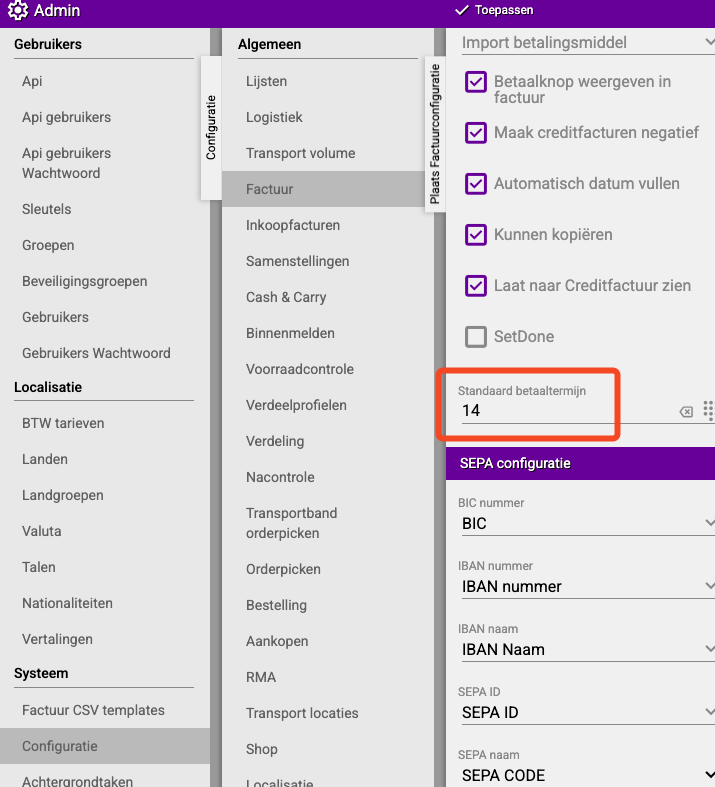
Where do you set the payment term?
You set the standard payment term in a different place in Easyflor:
Additional options (checkboxes)
Option 1: Automatic
What does it do?
- On: The reminder is sent automatically (no action needed from you)
- Off: You must send the reminder manually
When do you use "Off"?
- If you want to check first which customers will receive a reminder
- If you want personal contact before sending a reminder
- For important customers you want to handle carefully
How do you send manually?
- Go to Invoices → To invoice → Reminders
- Select which invoices should receive a reminder
- Send the reminders
Option 2: Block debtor
What does it do?
- The customer is completely blocked from all purchases
- They can no longer place orders (not in the webshop and not through other channels)
When do you use this?
- For serious bad payers
- As a final warning
- For customers with a poor payment history
Note: This is a strict measure! Only use this for the final reminder.
Option 3: Block shop users
What does it do?
- Only the webshop accounts of the customer are blocked
- You can still manually allocate to this customer (for example by phone)
When do you use this?
- If you want to warn the customer but still want to be able to accept orders
- As an intermediate solution between a reminder and complete blockage
- For customers who might want to order by phone and pay immediately
Option 4: Disabled
What does it do?
- The reminder is temporarily disabled without having to delete it
When do you use this?
- You temporarily don't want to send reminders (for example during holidays)
- You want to save the settings for later use
- You're testing new reminders and want to turn off old ones
Example: Setting up three reminders
Situation:
You want a step-by-step reminder system:
- Payment term = 14 days
- First reminder: on the due date (day 14)
- Second reminder: 1 week later (day 21)
- Final warning: another week later (day 28)
Reminder 1: "Friendly reminder"
Settings:
- Name: "First reminder"
- Email subject: "Friendly payment reminder"
- Text above: "Dear customer, according to our records the invoice below is still outstanding."
- Text below: "We kindly request you to transfer the amount. Please contact us if you have any questions."
- Send x days after invoice date: 0 (exactly on due date, day 14)
- Automatic: On
- Block debtor: Off
- Block shop users: Off
Reminder 2: "Second reminder"
Settings:
- Name: "Second reminder"
- Email subject: "Second payment reminder - not yet received"
- Text above: "Dear customer, unfortunately we have still not received payment."
- Text below: "We urgently request you to pay within 7 days to avoid being blocked."
- Send x days after invoice date: 7 (1 week after due date, day 21)
- Automatic: On
- Block debtor: Off
- Block shop users: On (webshop blocked as warning)
Reminder 3: "Final warning"
Settings:
- Name: "Final warning"
- Email subject: "FINAL WARNING - Immediate action required"
- Text above: "Dear customer, this is our final warning. Payment is now seriously overdue."
- Text below: "If payment is not received within 3 days, further steps will be taken. Your account will be completely blocked."
- Send x days after invoice date: 14 (2 weeks after due date, day 28)
- Automatic: On
- Block debtor: On (completely blocked!)
- Block shop users: On
Timeline:
Day 0: Invoice sent
    ↓
Day 14: FIRST REMINDER (friendly)
    ↓
Day 21: SECOND REMINDER (webshop blocked)
    ↓
Day 28: FINAL WARNING (completely blocked)
Important tips
Tip 1: Start friendly, end strict
- First reminder: friendly and understanding
- Second reminder: more serious but still professional
- Final reminder: clear and strict
Tip 2: Give clear deadlines
- State in the reminder when payment should be made
- For example: "We request you to pay within 7 days"
Tip 3: Offer a solution
- Mention in the reminder how payment can be made
- Provide a contact person for questions
- Be willing to discuss payment arrangements
Tip 4: Test your reminders first
- Send a test reminder to yourself
- Check if the formatting is correct
- Check if all details are correct
Tip 5: Adjust the tone to your customer base
- Business customers: more formal and professional
- Private individuals: friendlier and more personal
- Regular customers: more understanding
Tip 6: Don't block too quickly
- Only use blocking for repeated non-payment
- Give customers a chance to respond first
- Some customers just have a temporary delay
Tip 7: Consider holidays
- Temporarily disable reminders during holidays
- People often only pay after vacation
- Be lenient during busy periods
Common mistakes
Mistake 1: Wrong number of days entered
- You think "14" means "after 14 days"
- But it means "14 days ON TOP OF the payment term"
- Solution: Always calculate: payment term + your input = total number of days
Mistake 2: Too strict first reminder
- You block customers at the first reminder
- Result: Customers get angry and you lose revenue
- Solution: Only block at the final reminder
Mistake 3: No clear text
- The text is vague or unfriendly
- Result: Customers don't understand what is expected of them
- Solution: Write clear, friendly but direct texts
Mistake 4: Automatic on without testing
- You immediately turn on "Automatic" without testing
- Result: Wrong reminders are sent out
- Solution: First test with "Automatic" off, send manually, and only then turn automatic on
Mistake 5: No escalation
- All reminders are equally friendly
- Result: Bad payers don't take it seriously
- Solution: Create clear escalation: friendly → serious → strict
Mistake 6: Too many reminders
- You send a reminder every week
- Result: Customers get irritated
- Solution: Limit to 2-3 reminders with clear intervals
Visual overview of the process
STEP 1: Set up reminders
    ↓
Admin → Configuration → Invoice → Reminders
    ↓
STEP 2: Create reminders
    ↓
First reminder (day 14, friendly)
Second reminder (day 21, more serious)
Final warning (day 28, strict)
    ↓
STEP 3: Automatic or manual
    ↓
Choose whether reminders go automatically or manually
    ↓
STEP 4: Customers receive reminders
    ↓
Pay or get blocked
Summary
To set up payment reminders, go to Admin, then to System, Configuration, General, Invoice, and finally to Reminders. There you create a separate entry for each reminder by clicking "New".
When creating a reminder, you fill in the following details:
- A clear name for internal use (such as "First reminder" or "Final warning")
- The administration the reminder applies to
- A professional email subject that the customer sees
- Text above and below the table with invoice details, where you write a friendly but clear message
- The number of days in the field "Send x days after invoice date", where you enter the number of days ON TOP OF the payment term
The field "Send x days after invoice date" works as follows: with a payment term of 14 days, enter 0 for a reminder on the due date itself, 7 for one week later, and 14 for two weeks later. The calculation is always: payment term + your input = total number of days.
Additionally, you can check four options:
- Automatic: reminders are sent automatically without you having to do anything
- Block debtor: the customer is completely blocked and can no longer order at all
- Block shop users: only the webshop is blocked, but you can still process orders manually
- Disabled: the reminder is temporarily turned off without losing your settings
It's wise to create an escalation system with multiple reminders that become increasingly serious. Start friendly and understanding with the first reminder, become more serious with the second, and end strict with the final warning. Only block customers for repeated non-payment, not at the first reminder. Always test your reminders first by sending them manually before turning on the automatic function, so you know for sure that the texts are professional and the timing works well.
Do you have questions or need help? Feel free to contact us by phone at +31 (0)71 30 20 310 or send an email to support@easyflor.nl.