
- (VIDEO) Creating user and employee
- Adjusting sales unit order
- Creating a user and employee
- Creating an accounting integration
- Creating and maintaining VAT rates
- Creating and using distribution profiles
- Filtering growers or suppliers
- How do I charge no VAT for my customers?
- Importing an Excel sheet / Creating an import template
- Receiving copy emails (mail cc) of order confirmations and/or invoices
- Setting up and executing Flora settlement
- Setting Up and Using AI2
- Setting up currency conversion
- Setting up distribution: Automatically send EKT messages to a KOA debtor
- Setting up payment reminders
- Setting up payment terms
- Setting up Route module
- Setting up SEPA
- Transport and carriers
- VMP article group matching
Receiving copy emails (mail cc) of order confirmations and/or invoices
How do you receive copies of order confirmations and invoices in Easyflor?
What are copies of order confirmations and invoices?
When a customer places an order or receives an invoice, you can automatically have a copy of these emails sent to yourself. This way you always know what has been sent to customers and can check or archive everything.
Why would you want to receive copies?
- Overview: You know exactly which orders have been placed
- Control: You can check if everything was sent correctly to customers
- Archiving: You have a backup of all orders and invoices in your email
- No surprises: You see immediately if something goes wrong
- Administration: Useful for accounting or administration
- Customer service: When a customer calls about an order or invoice, you can quickly find it
- Teamwork: Multiple people in your company can view along
When do you use this?
Examples:
- As owner or manager you want to monitor all orders
- The accountant wants to automatically receive copies of all invoices
- You want a backup of all orders in a separate email address
- The customer service team wants to receive copies to better help customers
- You want to archive everything for administration
There are two types of copies you can set up:
1. Copy of order confirmations
These are the emails customers receive when they place an order through your webshop.
2. Copy of invoices
These are the invoices that are emailed to customers.
You can set up both separately!
Part 1: Receiving copies of order confirmations
What is an order confirmation?
An order confirmation is an email a customer receives as soon as they place an order. This email contains what the customer ordered and all the details of the order.
Step 1: Go to order confirmation settings
- Click on the "Admin" tile
- Click on "System"
- Click on "Configuration"
- Click on "Export"
- Click on "Order confirmation email"
Step 2: Fill in the details
Company name:
- Enter your company name here
- This name appears in the order confirmation
BCC:
- This stands for "Blind Carbon Copy" (invisible copy)
- Enter the email address where you want to receive the copies
- Example: info@flowercompany.com or administration@flowercompany.com
What is BCC?
- The customer doesn't see that you receive a copy
- It remains invisible to the customer
- Only you receive this copy at the specified address
Step 3: Save
- Click "Save"
- From now on you automatically receive a copy of every order confirmation!

What happens now?
Customer places order via webshop
    ↓
Customer receives order confirmation by email
    ↓
You automatically receive a copy at the BCC address
Part 2: Receiving copies of invoices
What is an invoice copy?
Every time an invoice is sent by email to a customer, you automatically receive the same invoice as well.
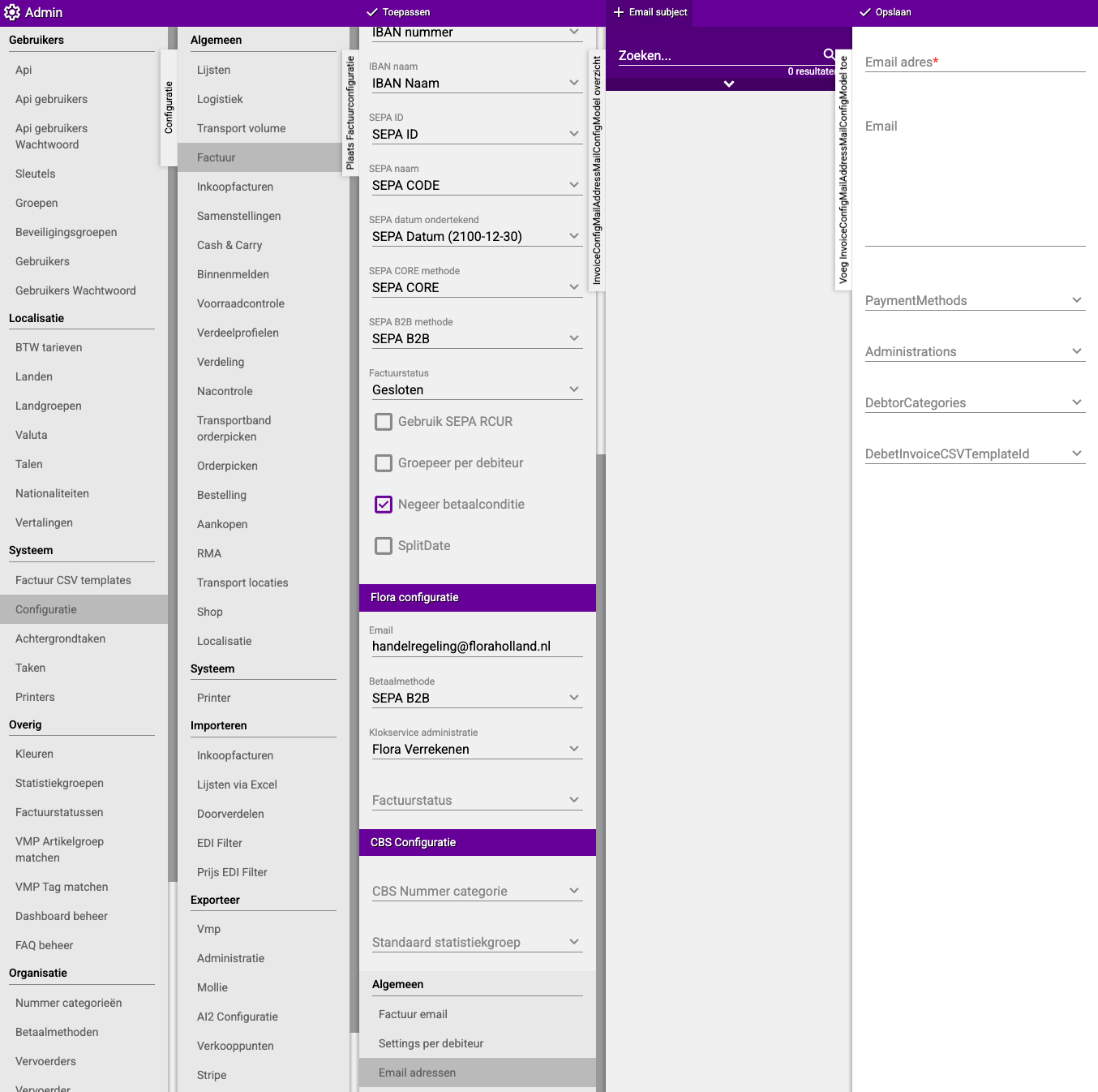
Step 1: Go to invoice settings
- Click on the "Admin" tile
- Click on "System"
- Click on "Configuration"
- Click on "Invoice"
Step 2: Go to email addresses
- Scroll down in the menu
- Find the heading "Email addresses" (at the bottom)
- Click on "+New"
Step 3: Add an email address
- Enter the email address where you want to receive invoice copies
- Example: accounting@flowercompany.com or admin@flowercompany.com
- You can add multiple email addresses by repeating steps 2 and 3
Step 4: Save
- Click "Save"
- All invoices that are emailed to customers will now also arrive at your address!
What happens now?
Invoice is emailed to customer
    ↓
Customer receives the invoice
    ↓
You automatically receive the same invoice at the specified address
Difference between order confirmations and invoices
Order confirmations:
- When: Immediately after a customer orders
- Content: What the customer ordered, quantities, delivery time
- Purpose: Confirmation that the order was received
Invoices:
- When: When the order is delivered or completed
- Content: What the customer needs to pay, VAT, payment term
- Purpose: Payment request for the customer
Tip: Set up both if you want to be able to check everything!
Practical example: Setting everything up for your business
Situation:
You are the owner of "De Roos Flower Shop". You want:
- Copies of order confirmations received at info@flowercompany.com
- Copies of invoices received at accounting@flowercompany.com
Step 1: Set up order confirmations
- Admin → System → Configuration → Export → Order confirmation email
- Company name: "De Roos Flower Shop"
- BCC: "info@flowercompany.com"
- Save
Step 2: Set up invoices
- Admin → System → Configuration → Invoice
- Scroll down to "Email addresses"
- Click on "+New"
- Enter: "accounting@flowercompany.com"
- Save
Result:
- Every order confirmation arrives at info@flowercompany.com
- Every invoice arrives at accounting@flowercompany.com
- You have full control and overview!
Adding multiple email addresses
For order confirmations:
- You can only enter one BCC address
- Want to keep multiple people informed?
- Use a general email address (like info@) and set up a forwarding rule there
For invoices:
- You can add multiple email addresses!
- Simply click "+New" again and add another address
- For example: one for the accountant, one for administration, one for yourself
Example for invoices:
- First address: accounting@flowercompany.com
- Second address: owner@flowercompany.com
- Third address: administration@flowercompany.com
All three now receive copies of every invoice!
Important tips
Tip 1: Use specific email addresses
- Create separate email addresses for copies
- For example: copy-orders@flowercompany.com
- This keeps your main email organized
Tip 2: Create folders in your email
- Create a folder "Copy Orders"
- Create a folder "Copy Invoices"
- Set up rules so copies automatically go to these folders
- This keeps everything neatly organized
Tip 3: Test it first
- Place a test order or send a test invoice
- Check if you receive the copy
- Does it work? Then you know it's set up correctly
Tip 4: Regularly check your spam folder
- Sometimes copies end up in your spam
- Mark them as "not spam" so they come to your inbox
- This way you don't miss important copies
Tip 5: Be economical with email addresses
- Too many copies = overflowing mailbox
- Only add addresses that are really needed
- Not everyone needs to receive everything
Tip 6: Archive automatically
- Many email programs can archive automatically
- Set up rules to archive copies after 30 days
- This way you always have a backup, but your inbox stays empty
Tip 7: Use BCC for order confirmations
- BCC means the customer doesn't see that you receive a copy
- This is more professional than CC (where everyone sees it)
- Keep it this way, this is the best method
Common mistakes
Mistake 1: Typo in email address
- You enter info@flowrecompany.com (typo: flowre)
- Result: You don't receive copies
- Solution: Double-check the email address before saving
Mistake 2: Wrong email address used
- You enter your personal Gmail, but you never check it
- Result: Copies arrive but you don't see them
- Solution: Use an email address you check regularly
Mistake 3: Forgot to save
- You fill everything in but forget to click "Save"
- Result: The settings are not saved
- Solution: Always click "Save"!
Mistake 4: Too many email addresses added
- You add 10 email addresses for invoice copies
- Result: 10 people get every invoice, way too busy
- Solution: Only add people who really need it
Mistake 5: Copies go to spam
- You don't receive the copies, but they're in spam
- Result: You think it's not working
- Solution: Check your spam folder and mark as "not spam"
Mistake 6: No test done
- You set everything up but don't test if it works
- Result: You only notice weeks later that it's not working
- Solution: Test immediately after setup with a test order or invoice
When do you NOT receive a copy?
Note! You only receive copies if:
- The customer places an order via the webshop (for order confirmations)
- The invoice is emailed to the customer (for invoices)
You do NOT receive a copy if:
- You manually enter an order (no order confirmation via webshop)
- The invoice is printed instead of emailed (only printed invoices)
- The invoice is downloaded but not emailed
- You create something in Easyflor without emailing it to the customer
Important: You only get copies of emails that actually go to customers!
Visual overview of the process
ORDER CONFIRMATIONS:
    ↓
Admin → Configuration → Export → Order confirmation email
    ↓
Fill in company name + BCC address
    ↓
Save
    ↓
Customer orders → Customer gets confirmation → You get copy
    ↓
INVOICES:
    ↓
Admin → Configuration → Invoice → Email addresses (at bottom)
    ↓
+New → Enter email address
    ↓
Save (repeat for more addresses)
    ↓
Invoice to customer → You get copy
    ↓
DONE! You receive all copies
Summary
To automatically receive copies of order confirmations and invoices sent to customers, you set up two things separately within Easyflor.
For copies of order confirmations, go to Admin, then to System, Configuration, Export and Order confirmation email. There you fill in the following details:
- Your company name that appears in the order confirmation
- The BCC address where you want to receive the copies (for example info@flowercompany.com)
BCC stands for Blind Carbon Copy, which means the customer doesn't see that you receive a copy. Once you save this, you automatically get a copy of every order confirmation sent to customers after they place an order via the webshop.
For copies of invoices, go to Admin, then to System, Configuration and Invoice. Scroll down until you see the heading "Email addresses" (at the bottom), click on "+New" and enter the email address where you want to receive invoice copies, for example accounting@flowercompany.com. The advantage with invoices is that you can add multiple email addresses by clicking "+New" again and entering another address. This way, for example, the accountant, the owner and administration can all receive copies of every invoice emailed to customers.
It's important to know that you only receive copies of emails that are actually sent to customers. For order confirmations, this means only orders via the webshop, and for invoices only invoices that are emailed (not printed or downloaded). Always test after setup whether you actually receive the copies by placing a test order or sending a test invoice, and also check your spam folder if you don't see the copies immediately. Preferably use specific email addresses for copies and create folders in your email program to keep everything organized.
Do you have questions or need help? Feel free to contact us by phone at +31 (0)71 30 20 310 or send an email to support@easyflor.nl.