
- (VIDEO) Creating user and employee
- Adjusting sales unit order
- Creating a user and employee
- Creating an accounting integration
- Creating and maintaining VAT rates
- Creating and using distribution profiles
- Filtering growers or suppliers
- How do I charge no VAT for my customers?
- Importing an Excel sheet / Creating an import template
- Receiving copy emails (mail cc) of order confirmations and/or invoices
- Setting up and executing Flora settlement
- Setting Up and Using AI2
- Setting up currency conversion
- Setting up distribution: Automatically send EKT messages to a KOA debtor
- Setting up payment reminders
- Setting up payment terms
- Setting up Route module
- Setting up SEPA
- Transport and carriers
- VMP article group matching
VMP article group matching
How do you create list groups based on VMP article groups in Easyflor?
What is a VMP and why is this needed?
A VMP (Virtual Market Place) is a virtual stock from a supplier that you can resell. Sometimes you want to subdivide this large VMP into smaller groups (buttons on the webshop) such as "Gerberas", "Plants", "Ornamental grass", etc. The problem is that if a supplier also uses a VMP from another supplier, the underlying information is not sent along. The solution: you create your own list groups based on article groups.
Why use VMP article group matching?
- Organize webshop: You can create different buttons on the webshop (for example "Gerberas", "Plants", "Ornamental grass")
- Overview: Customers don't see one large list but handy categories
- Automatic sorting: Products automatically end up in the right group
- Flexible: You decide which article groups belong together
- Works with VMPs: Even if the supplier uses a VMP from someone else
- Professional webshop: Customers find what they're looking for faster
When do you use this?
Examples:
- You use a VMP from FloraHolland and want to create categories
- Your supplier sends a large list and you want to make it clear
- You want buttons on your webshop like "Gerberas", "Plants" and "Ornamental grass"
- You want products to automatically end up in the right category
- Your supplier also uses a VMP from another supplier
What do you need to get started?
An Excel list from your supplier
Ask your supplier for an Excel file with:
- ID of the article group (for example: ArticleGroups/354)
- Name of the article group (for example: Gerbera/Germini)
Example of such a list:
ArticleGroups/354    Gerbera/Germini
ArticleGroups/2657   Plants
ArticleGroups/224    Ornamental fruit
ArticleGroups/232    Ornamental grass
ArticleGroups/226    Ornamental cabbage
ArticleGroups/215    Skimmia
ArticleGroups/217    Stillingia
Important: You need this list before you can start!
The process in 3 steps
Overview:
STEP 1: Create article groups in Easyflor
    ↓
STEP 2: Link VMP article groups to your article groups
    ↓
STEP 3: Create list group for the webshop
Step 1: Creating article groups
What are article groups?
Article groups are categories in which you group products. For example: "Gerberas", "Plants", "Ornamental grass", etc.
Step 1A: Go to article groups
- Click on the "Articles" tile
- Click on "Article groups"
Step 1B: Create a new article group
There is an extensive guide for creating article groups: Creating article groups
Short version:
- Click on "+New"
- Give the article group a name (for example: "Gerbera/Germini")
- Tip: If you're good with VBN numbers, you only need to do steps 1 through 4 and save
Step 1C: Or use existing article groups
- Does the group already exist? Select the article group and adjust as desired
- Check first if the group already exists before creating a new one
Repeat for all groups
- Create an article group for each group from the Excel list
- Example: If your Excel contains "Gerbera/Germini", "Plants" and "Ornamental grass", create 3 article groups
Step 2: Linking VMP article groups
What are you going to do?
Now you'll link the IDs from the Excel list to the article groups you created in Step 1. This way Easyflor knows: "If a product is ArticleGroups/354, it belongs to article group Gerbera/Germini".
Step 2A: Go to VMP Article group matching
- Click on the "Admin" tile
- Click on "VMP Article group matching"
Step 2B: Create a new match list
- Click on "+New"
- Give the list a name
- Tip: Choose a clear name for yourself
- Examples: "FloraHolland matches", "VMP Supplier X", "Article group links"
Step 2C: Select the new list
- Click on the list you just created
Step 2D: Go to Match
- Click on "Match"
- Here the links between VMP article groups and your article groups will appear
Step 2E: Create links
For each row in your Excel do the following:
- Click on "+New"
- Enter the ID from the Excel list
- Example: ArticleGroups/354
- Select the article group that belongs to this ID
- Example: Gerbera/Germini
- Click on "Save"
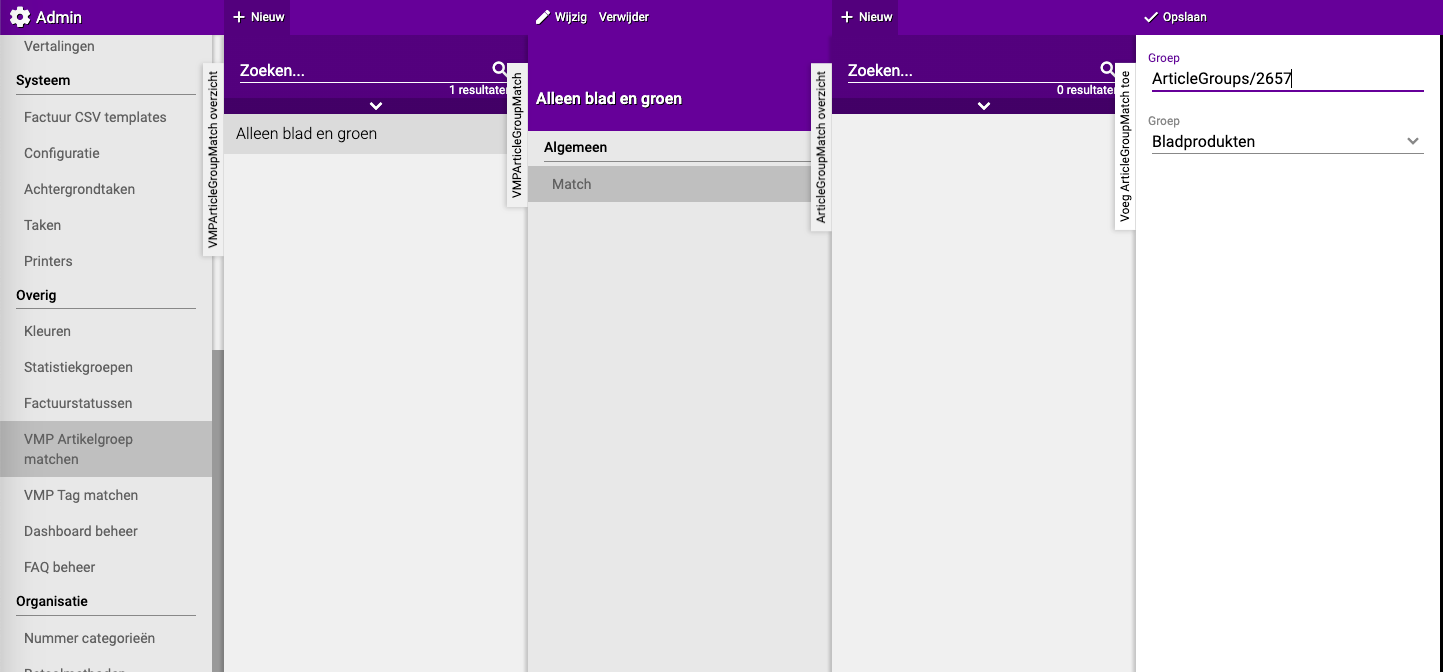
Repeat for all IDs
- Go through the entire Excel list
- For each ID, create a link
- This may take a while, but you only have to do it once!
Example of links:
ArticleGroups/354 → Gerbera/Germini
ArticleGroups/2657 → Plants
ArticleGroups/224 → Ornamental fruit
ArticleGroups/232 → Ornamental grass
ArticleGroups/226 → Ornamental cabbage
ArticleGroups/215 → Skimmia
ArticleGroups/217 → Stillingia
Step 3: Creating list group for the webshop
What is a list group?
A list group is a button on the webshop that customers can click. For example: a "Gerberas" button that only shows gerberas.
Step 3A: Go to list groups
- Click on the "Sales" tile
- Click on "List groups"
Step 3B: Create a new list group
- Click on "+New"
- Choose a name for the list group
- This will become the name of the button on the webshop!
- Examples: "Gerberas", "Plants", "Ornamental grass"
- Click on "Save"
- You are now automatically in the list (if not, click on the list you just created)
Step 3C: Select the list group
- If you are not yet in the list group, click on it
Step 3D: Go to lists
- Click on "Lists"
Step 3E: Add the VMP
- Click on "+New"
- Choose the VMP that contains the article groups
- This is the VMP of your supplier
Step 3F: Select article groups (optional)
You have two options:
Option 1: Select specific article groups
- Make a selection of the article groups you want to show in this list group
- Example: If you create a "Gerberas" list group, only select "Gerbera/Germini"
Option 2: Leave empty
- If you've already made a selection within the article groups, you can skip this selection and leave empty
- All article groups will then be shown
Step 3G: Apply
- Click on "Apply"
- Done! The list group is now active on the webshop
Repeat for more list groups
- Want multiple buttons on the webshop?
- Repeat Step 3 for each button you want to create
- Example: Create a "Plants" list group, an "Ornamental grass" list group, etc.
Would you also like to give customers access to the webshop? See the guide: Creating a shop user
Practical example: Complete setup
Situation:
You use a VMP from FloraHolland and want three buttons on the webshop:
- Gerberas (only gerberas)
- Plants (only plants)
- Ornamental grasses (ornamental grass, ornamental cabbage, etc.)
Step 1: Create article groups
- Articles → Article groups → +New
- Create: "Gerbera/Germini"
- Create: "Plants"
- Create: "Ornamental grass"
- Create: "Ornamental cabbage"
Step 2: Link VMP article groups
- Admin → VMP Article group matching → +New
- Name: "FloraHolland links"
- Click on the list → Match → +New
Create links:
- ID: ArticleGroups/354 → Article group: Gerbera/Germini
- ID: ArticleGroups/2657 → Article group: Plants
- ID: ArticleGroups/232 → Article group: Ornamental grass
- ID: ArticleGroups/226 → Article group: Ornamental cabbage
Step 3A: Create "Gerberas" list group
- Sales → List groups → +New
- Name: "Gerberas"
- Save → Lists → +New
- Choose the FloraHolland VMP
- Select article group: "Gerbera/Germini"
- Apply
Step 3B: Create "Plants" list group
- Sales → List groups → +New
- Name: "Plants"
- Save → Lists → +New
- Choose the FloraHolland VMP
- Select article group: "Plants"
- Apply
Step 3C: Create "Ornamental grasses" list group
- Sales → List groups → +New
- Name: "Ornamental grasses"
- Save → Lists → +New
- Choose the FloraHolland VMP
- Select article groups: "Ornamental grass" and "Ornamental cabbage"
- Apply
Result on the webshop:
[Button: Gerberas] → Shows only gerberas
[Button: Plants] → Shows only plants
[Button: Ornamental grasses] → Shows ornamental grass and ornamental cabbage
Important tips
Tip 1: Request the list from your supplier
- You really need that Excel list with IDs
- Without IDs you can't link anything
- Request it before you start
Tip 2: Check if article groups already exist
- First check if an article group already exists
- Don't create unnecessary duplicate groups
- Use existing groups where possible
Tip 3: Use clear names
- For list groups: use names customers understand
- Good: "Gerberas", "Plants", "Ornamental grass"
- Less good: "Group 1", "VMP list A"
Tip 4: Test on the webshop
- After setting everything up, go to the webshop
- Click on the buttons you created
- Check if the correct products appear
Tip 5: Copy IDs exactly
- Copy IDs from Excel (Ctrl+C, Ctrl+V)
- Don't retype them (risk of typos)
- One wrong character and it won't work!
Tip 6: Save the Excel list
- Save the list you receive from the supplier
- You may need it later
- For when you want to add or change something
Tip 7: Work systematically
- First do all article groups
- Then all links
- Then all list groups
- This way you won't lose your way
Common mistakes
Mistake 1: No Excel list requested
- You start without the Excel list from the supplier
- Result: You don't know which IDs to link
- Solution: Request the list first before you start
Mistake 2: ID typed incorrectly
- You type "ArticleGroups/345" instead of "ArticleGroups/354"
- Result: The link doesn't work
- Solution: Copy and paste IDs from Excel
Mistake 3: Article group not created
- You try to link to an article group that doesn't exist
- Result: You can't make the link
- Solution: First create all article groups
Mistake 4: Wrong VMP chosen
- You choose a different VMP than the one with the article groups
- Result: The products don't appear in the list group
- Solution: Check which VMP you should use
Mistake 5: No article groups selected
- You create a list group but don't select any article groups
- Result: All products appear (or none)
- Solution: Select the correct article groups for the list group
Mistake 6: Duplicate article groups
- You accidentally create the same article group twice
- Result: Confusion and products in wrong places
- Solution: Check first if a group already exists
Visual overview of the process
PREPARATION:
Request Excel list from supplier with IDs and names
    ↓
STEP 1: Create article groups
    ↓
Articles → Article groups → +New
Create an article group for each group from the Excel
    ↓
STEP 2: Create links
    ↓
Admin → VMP Article group matching → +New → Create list
Match → +New → Create a link for each ID
(ID from Excel → Article group from Step 1)
    ↓
STEP 3: Create list groups for webshop
    ↓
Sales → List groups → +New → Give name
Lists → +New → Choose VMP → Select article groups
    ↓
DONE! Buttons on webshop with the right products
Summary
To create list groups based on VMP article groups, you must first request an Excel list from your supplier with two columns: the ID of the article group (for example ArticleGroups/354) and the name of the article group (for example Gerbera/Germini). This list is essential because the underlying supplier information is not sent along when a supplier also uses a VMP from another supplier.
The process consists of three main steps. In Step 1 you create article groups in Easyflor by going to the Articles tile and then to Article groups where you create a new article group for each group from the Excel list via "+New". There is an extensive guide for this (Creating article groups), but if you're good with VBN numbers you only need to do the first 4 steps. Check first if article groups already exist before creating new ones.
In Step 2 you link the VMP article groups to your created article groups by going to Admin, then to VMP Article group matching, where you click "+New" to create a match list with a clear name. Select this list, click "Match" and add a link for each ID from the Excel list by clicking "+New", entering the ID (for example ArticleGroups/354) and selecting the corresponding article group (for example Gerbera/Germini). Copy the IDs from Excel instead of retyping them to prevent typos.
In Step 3 you create list groups that appear as buttons on the webshop by going to Sales and then to List groups. Click "+New", give a name that customers understand (such as "Gerberas" or "Plants"), click "Save", go to "Lists", click "+New" and choose the VMP of your supplier. Then select the article groups that should appear in this list group (for example only "Gerbera/Germini" for the "Gerberas" button), or leave empty if you've already made a selection within the article groups. Click "Apply" and repeat this process for each button you want on the webshop. Always test on the webshop whether the buttons work and show the correct products.
Do you have questions or need help? Feel free to contact us by phone at +31 (0)71 30 20 310 or send an email to support@easyflor.nl.